You can review your Skippz payments, invoices, receipts, and billing history from the Billing section of your account. This makes it easier to see what you were charged, when the payment was made, and which billing item the payment was for.
Go to:
Settings → Billing
From the Billing page, you can access your billing information and open your billing history.
Your billing history can include:
Subscription payments
Plan payments
AI Credit purchases
Additional usage or add-on charges, where applicable
Your billing history includes details such as:
Payment Date — when the payment was made
Invoice Number — the invoice associated with the payment
Amount — the amount charged
Billing Item — what the payment was for
Status — the status of the payment
This can help you identify a specific payment if you need to investigate a charge.
When an invoice is available, you can open it from your invoice history.
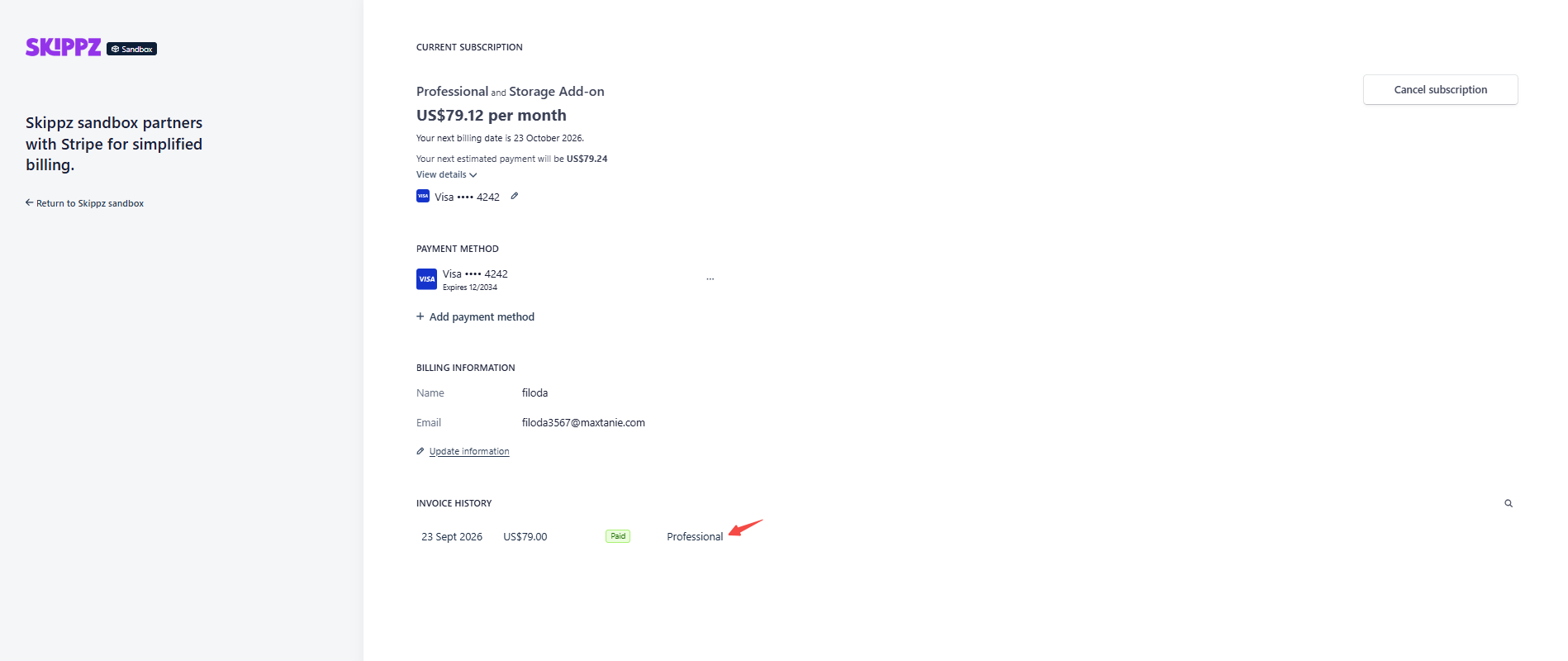
The invoice provides the details of the charge, including the billing items included in that payment.
For example, an invoice may help you understand whether a charge came from your subscription, an additional usage charge, or another billing item.
After opening an invoice, you can select:
Download Invoice
This allows you to save a copy of the invoice for your records.
You can also download a payment receipt by selecting:
Download Receipt
A receipt can be useful when you need proof that a payment was completed.
An invoice shows the details of what you were billed for.
A receipt confirms the payment.
For example, if you are reviewing your monthly subscription payment, the invoice shows the billing details, while the receipt confirms that the payment was made.
For subscription and payment management, Skippz uses the Stripe Billing Portal.
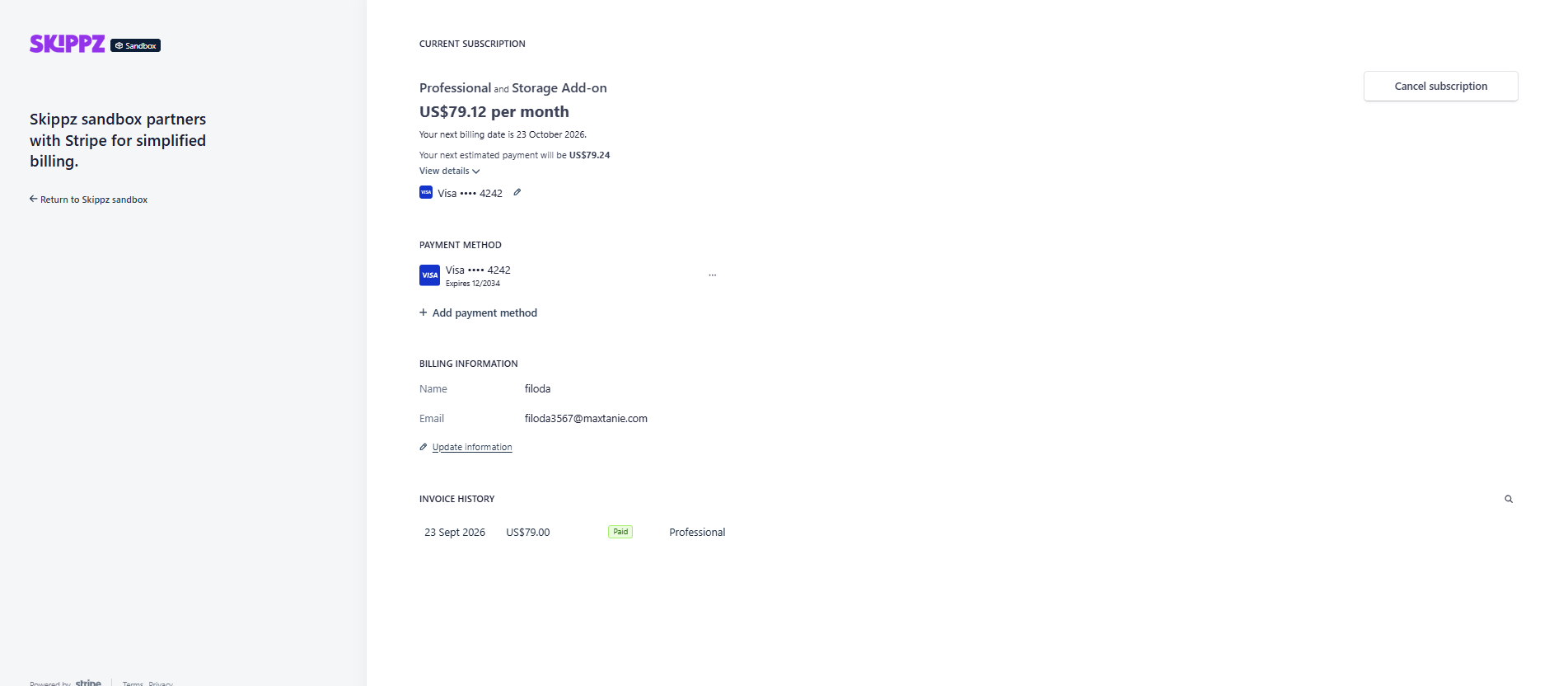
From the Billing area, you can access options to manage things such as:
Subscription
Payment methods
Billing information
Billing details
Invoices
Billing history
Next billing date
You can also return to Skippz from the Stripe Billing Portal when you're finished.
If you see a payment you don't recognize, start by opening the related invoice and checking the billing item and amount.
Then compare it with your:
Current subscription
Additional storage
Additional bandwidth
AI Credit purchases
Your Usage Dashboard can also help you understand whether additional usage contributed to a charge.
Understanding Billing & Usage in Skippz
Understanding Your Usage Dashboard
Why Did I Receive an Additional Usage Charge?
How Additional Storage Is Calculated and Billed
How Additional Bandwidth Is Calculated and Billed
Managing Your Payment Method
What Happens If My Payment Fails?