You can change your Skippz subscription when your current plan no longer fits your storage, bandwidth, team, or workspace needs.
Upgrading and downgrading work differently, so it's important to understand when the change takes effect and how your included resources and add-ons are handled.
When you upgrade your plan, the change takes effect immediately.
Your new plan's features and included resources become available right away.
For example, if you upgrade from a plan with 100 GB of storage to one with 250 GB, your included storage increases immediately.
The same applies to other resources included with the new plan, such as:
Bandwidth
AI Credits
Team member seats
Workspaces
Plan features
If you upgrade during your current billing period, Skippz calculates a prorated amount for the upgrade.
You'll see the amount before confirming the change.
Any applicable billing adjustments are combined into the upgrade invoice rather than being charged as separate invoices.
Your new plan's included storage is applied to your current storage usage.
For example:
Current plan includes 100 GB
Your account is using 120 GB
You currently need 20 GB of additional storage
You upgrade to a plan that includes 250 GB
Because your new plan includes enough storage for your current 120 GB usage, the existing Storage Add-on can be absorbed.
If your usage is still higher than the new plan's included storage, only the remaining excess continues as a Storage Add-on.
The remaining additional storage is then charged using the new plan's Storage Add-on rate.
When you upgrade, Skippz checks whether your new plan includes enough seats or workspaces for the resources you already have.
If the new plan covers them, applicable add-ons can be absorbed.
If the new plan only covers some of your existing resources, the covered resources are absorbed and the remaining excess continues as add-ons.
A downgrade does not take effect immediately.
Instead, it is scheduled for the end of your current subscription period.
Until the downgrade takes effect, you continue using your current plan and its features.
At the effective date, Skippz checks your actual usage and resources against the limits of the new plan.
If your current storage usage is higher than the new plan's included storage, the excess becomes a Storage Add-on.
For example:
Current storage usage: 180 GB
New plan includes: 100 GB
Storage above the new limit: 80 GB
The 80 GB excess becomes additional storage at the new plan's Storage Add-on rate.
This charge is applied to the next billing cycle. It is not added to your current month's bill during the downgrade transition.
If you delete videos before the downgrade takes effect, your storage usage is recalculated based on your actual usage when the downgrade becomes effective.
Skippz also checks your actual team members and workspaces against the limits of the new plan.
If you have more resources than the new plan includes:
Excess team members become Team Member Add-ons
Excess workspaces become Workspace Add-ons
These applicable add-ons are charged on the next billing cycle.
If you don't want to pay for the additional resources, you can remove them before the downgrade takes effect.
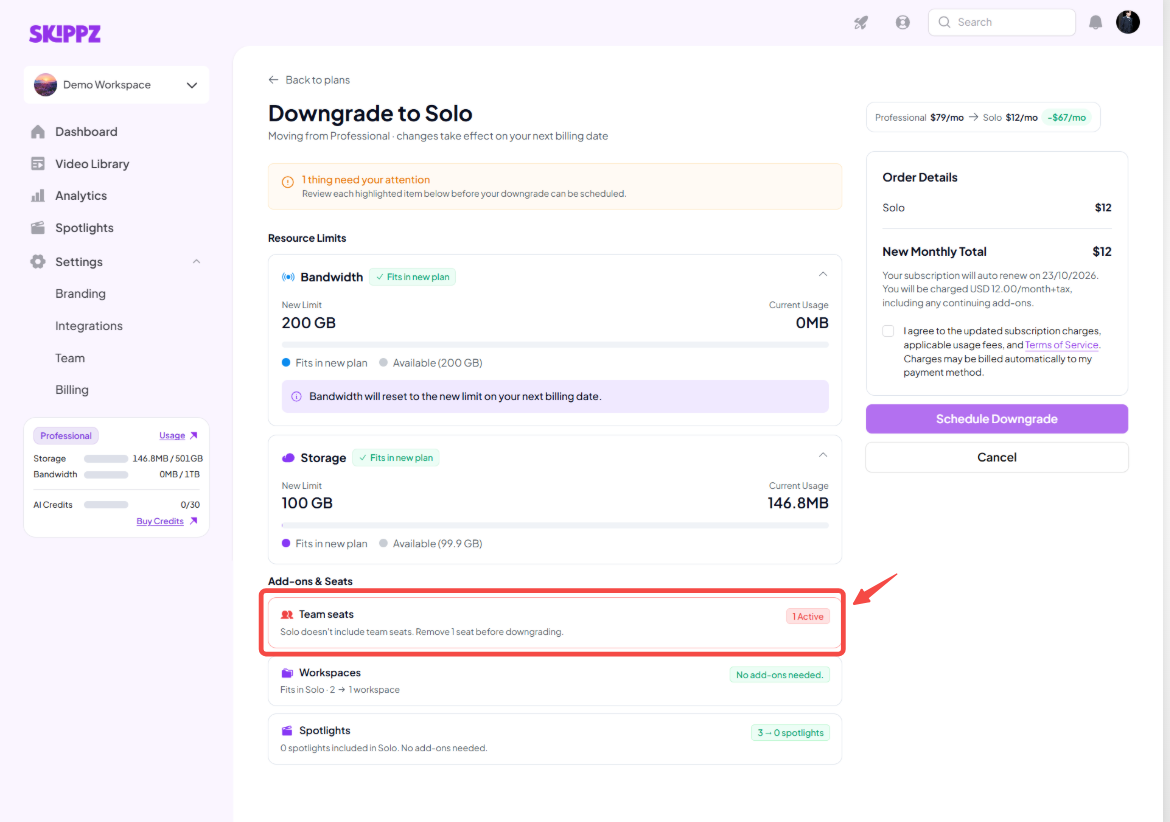
Some resources or features may not be available on the plan you're downgrading to.
Example : For example, if you are downgrading your plan from Professional to Solo, the Solo plan does not include Team Add-ons or Workspace Add-ons. If you want to proceed with the downgrade, you must first remove these add-ons.
In that case, you may need to remove the incompatible resources before the downgrade can proceed.
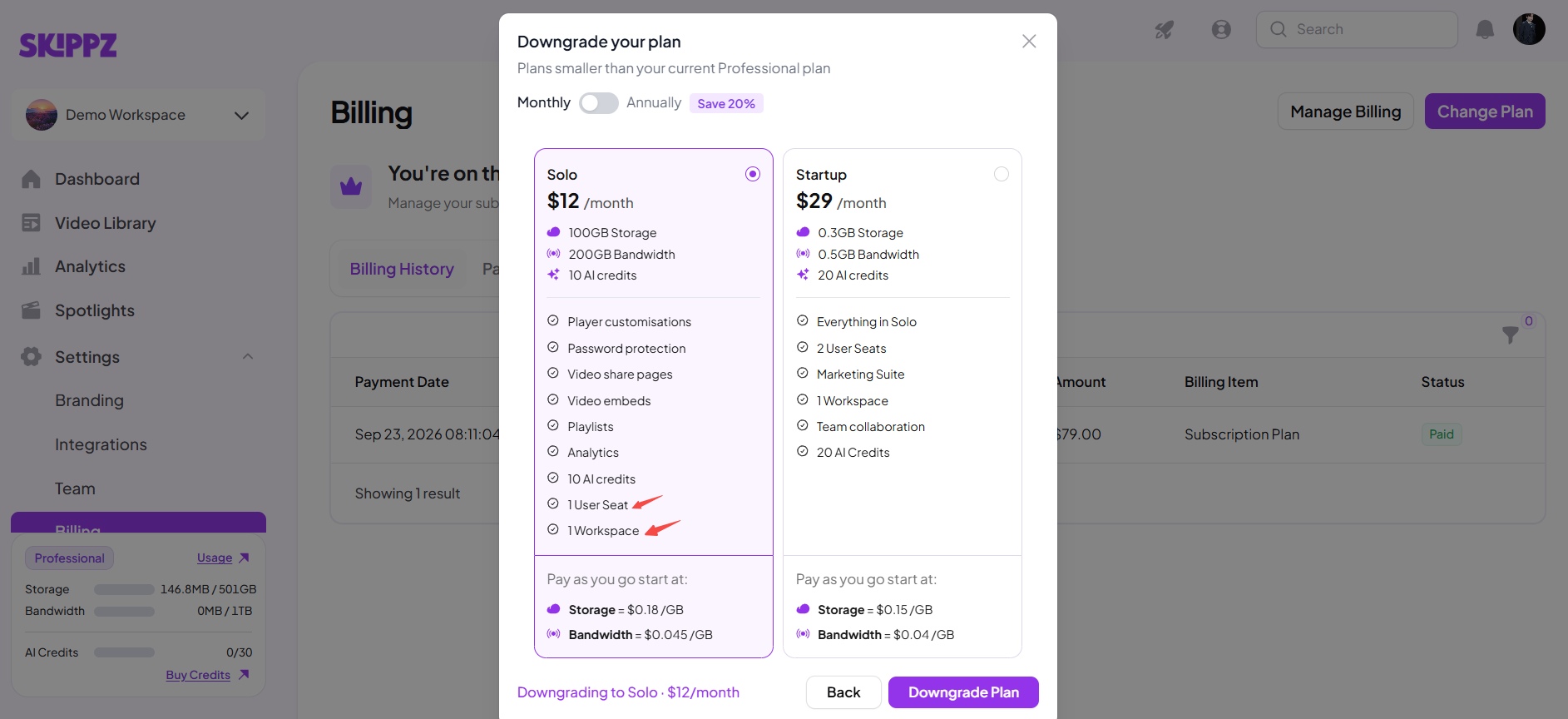
For example, if your current plan allows more workspaces than the lower plan supports, you may need to remove the extra workspaces before completing the downgrade.
Yes. You can change from monthly billing to annual billing.
However, changing from annual billing to monthly billing is not available as a downgrade.
If you're on the Business plan and need more capacity or resources, there isn't a higher plan available.
Contact Skippz Support to discuss your requirements.
Before scheduling a downgrade, it's a good idea to check:
Your current storage usage
Your current bandwidth usage
Number of team members
Number of workspaces
Any existing add-ons
Whether your current features are available on the new plan
This can help you understand whether additional charges may apply after the downgrade.
Understanding Billing & Usage in Skippz
Understanding Your Storage Usage
Understanding Your Usage Dashboard
How Additional Storage Is Calculated and Billed
When Does My Usage Reset?
Managing Your Payment Method
Invoices, Receipts and Billing History
Cancelling Your Skippz Subscription