Want to share short-form video content in a vertical viewing experience? Vertical Spotlight lets you bring vertical videos together in one place, creating an experience that works on both desktop and mobile devices. Follow this guide to create your Vertical Spotlight, configure its access options, and continue editing your content before publishing.
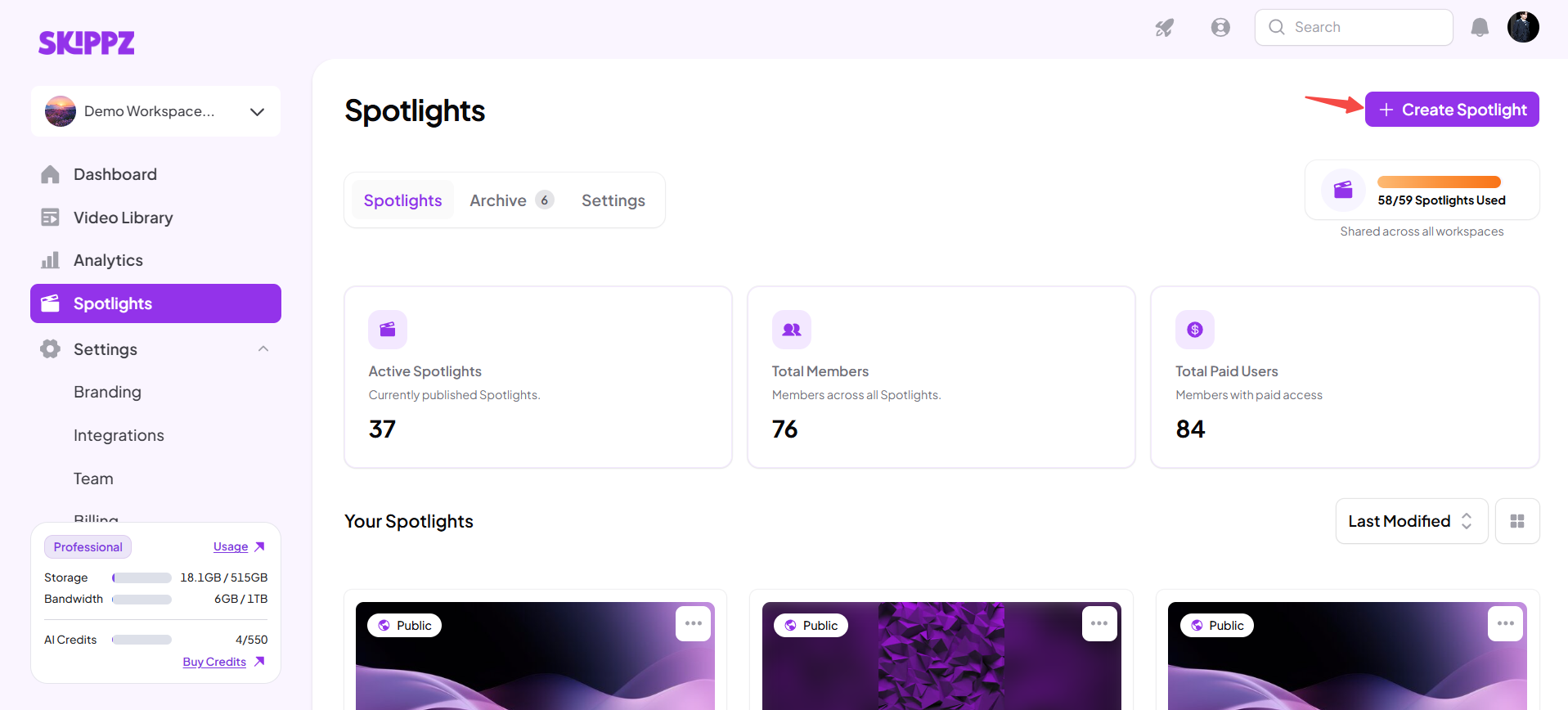
Open your Spotlight Dashboard and click Create Spotlight to start creating a new Spotlight.
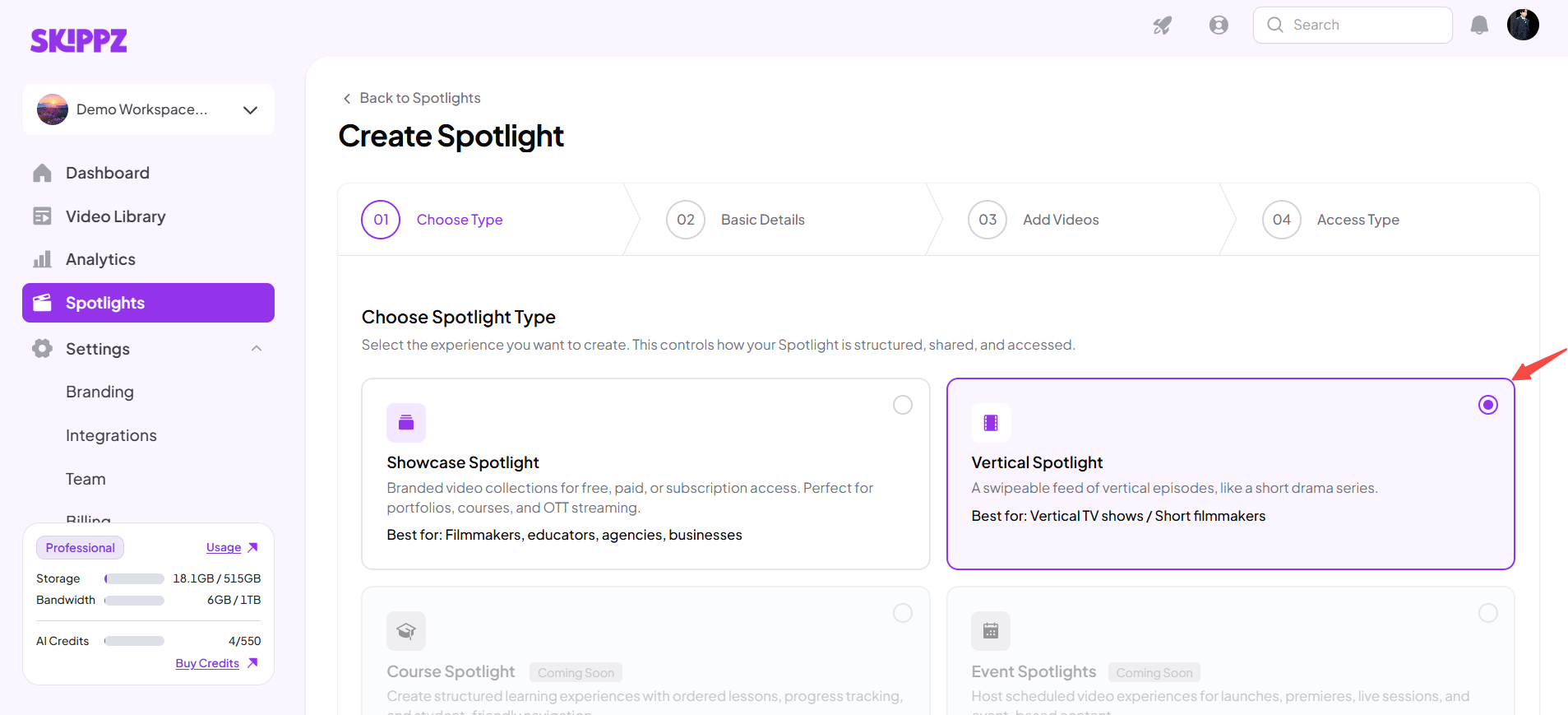
When the creation wizard opens, choose Vertical Spotlight as your Spotlight type and continue to the next step.
Vertical Spotlight is designed for vertical-format videos. Viewers can access the experience on both desktop and mobile devices while the videos retain their vertical format.
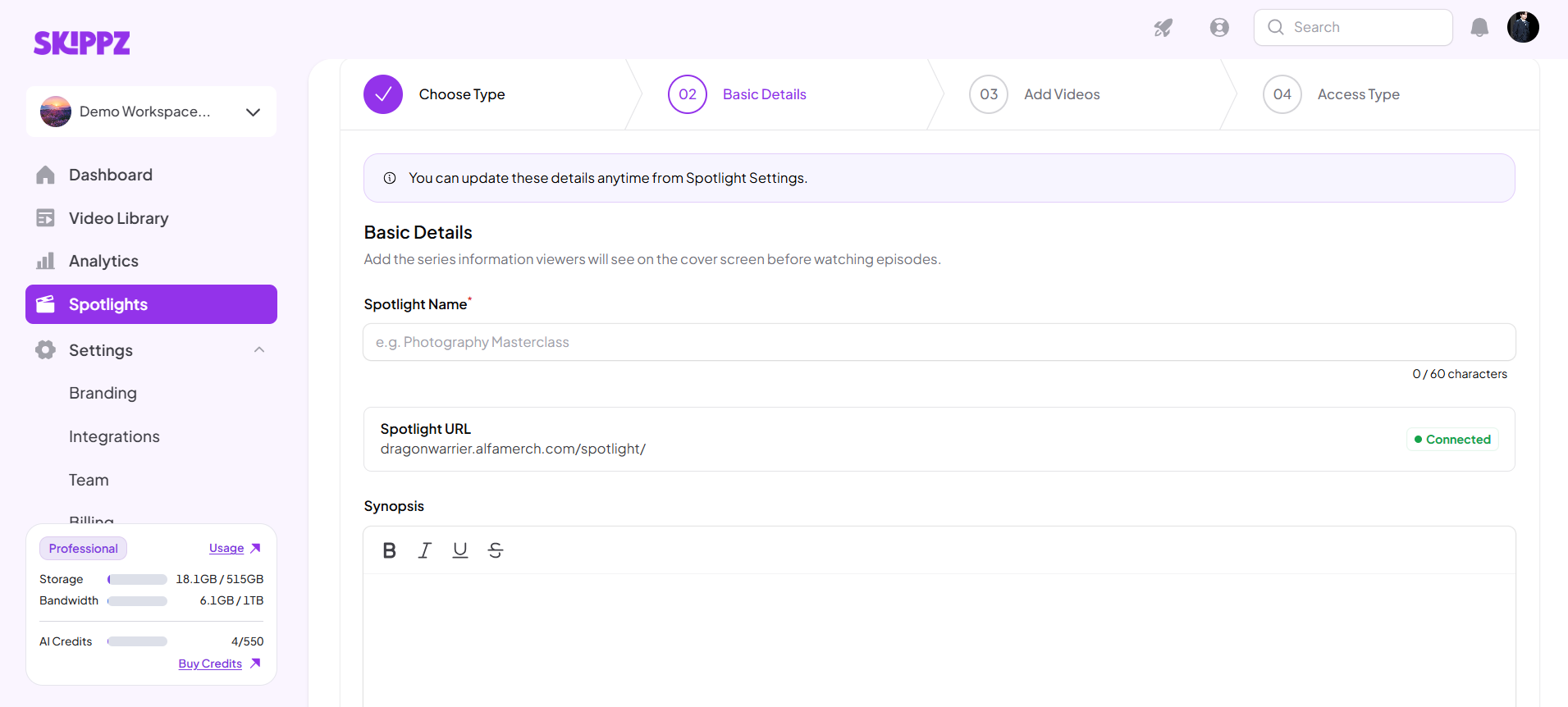
Enter the basic information for your Spotlight. These details help identify and describe your content.
Review the information you enter before continuing to the next step.
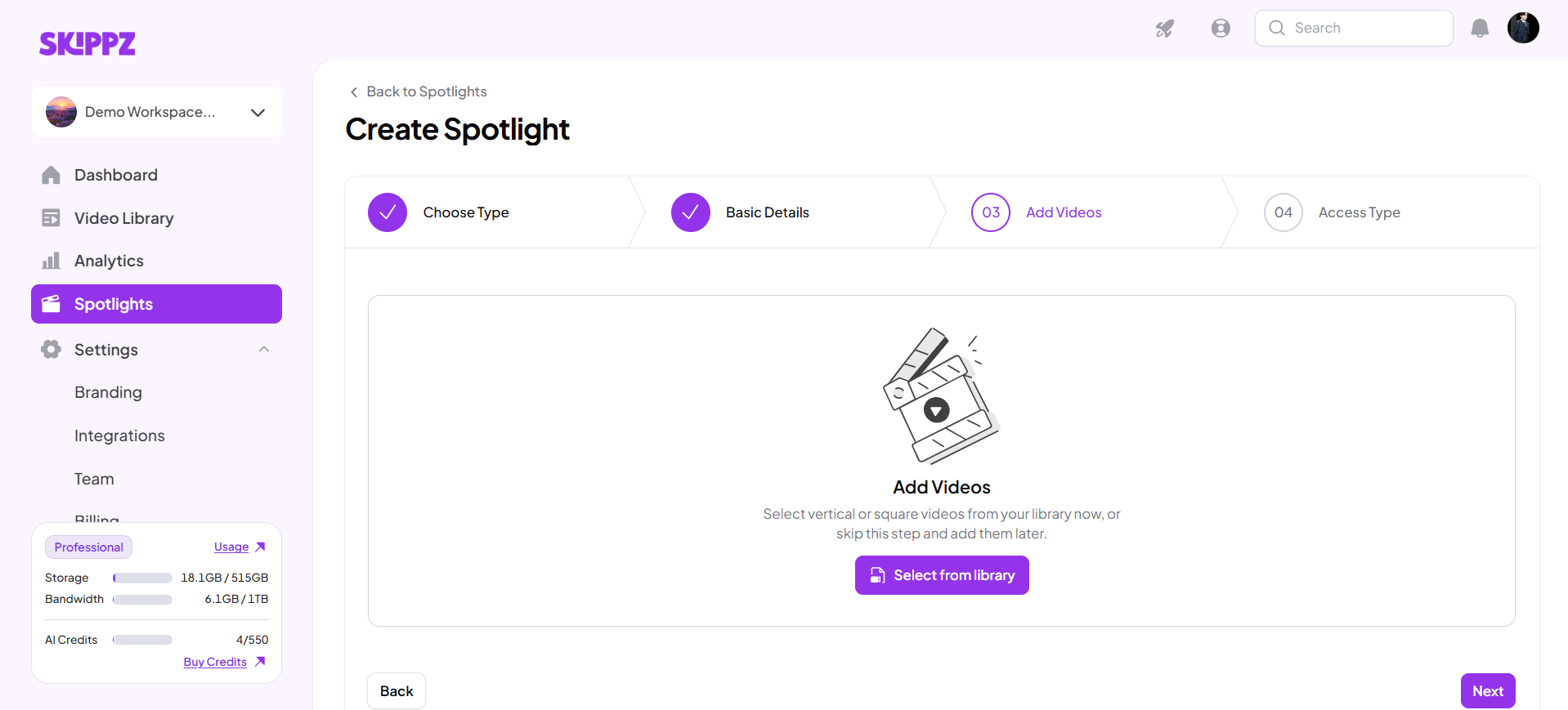
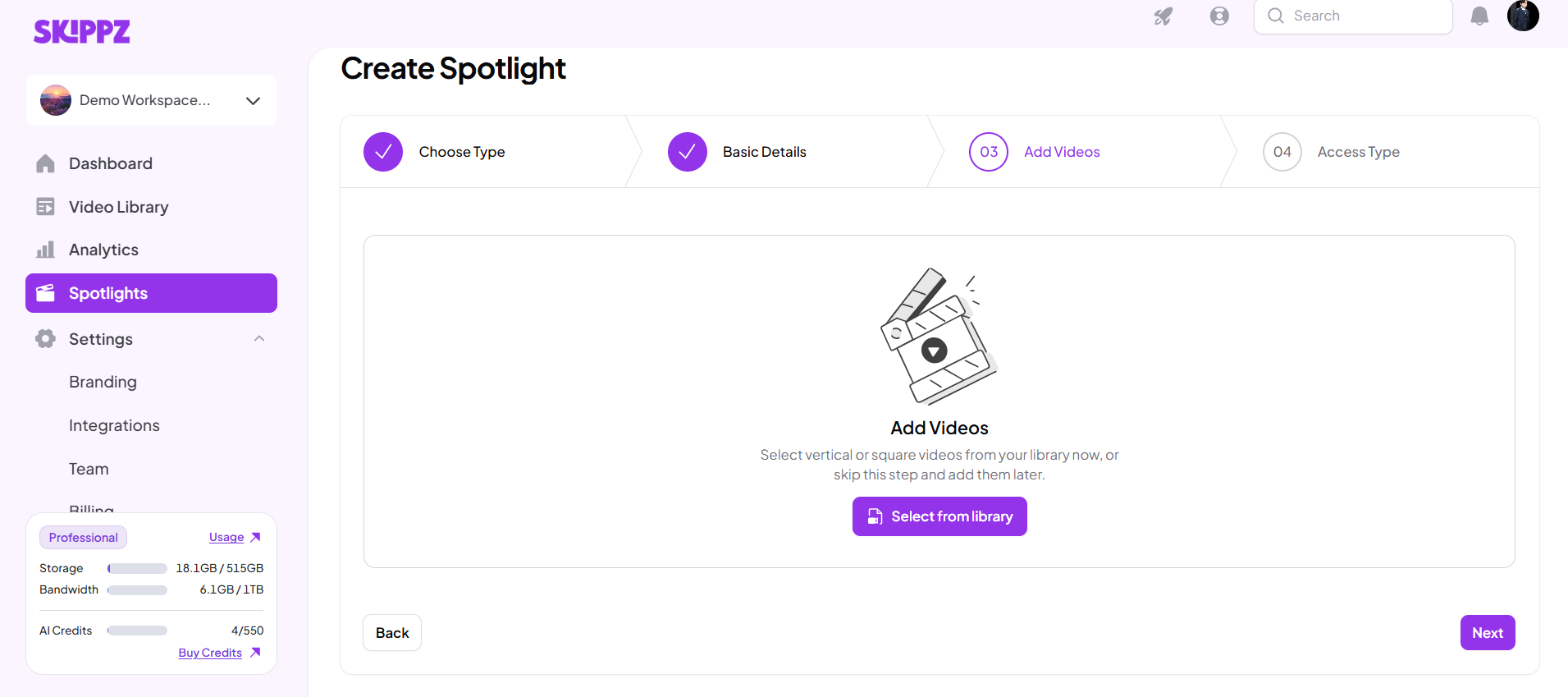
Add the vertical videos you want to include in your Spotlight.
You have two options at this step:
Add videos now: Select and add your vertical videos during the creation process.
Skip this step: Continue creating your Spotlight without adding videos yet.
If you skip this step, you can add videos later from the Spotlight Edit page.
Once you have added your videos or decided to skip this step, continue to the next step.
Note: Vertical Spotlight supports vertical-format videos. You won't see layout selection or player type selection in this creation flow.
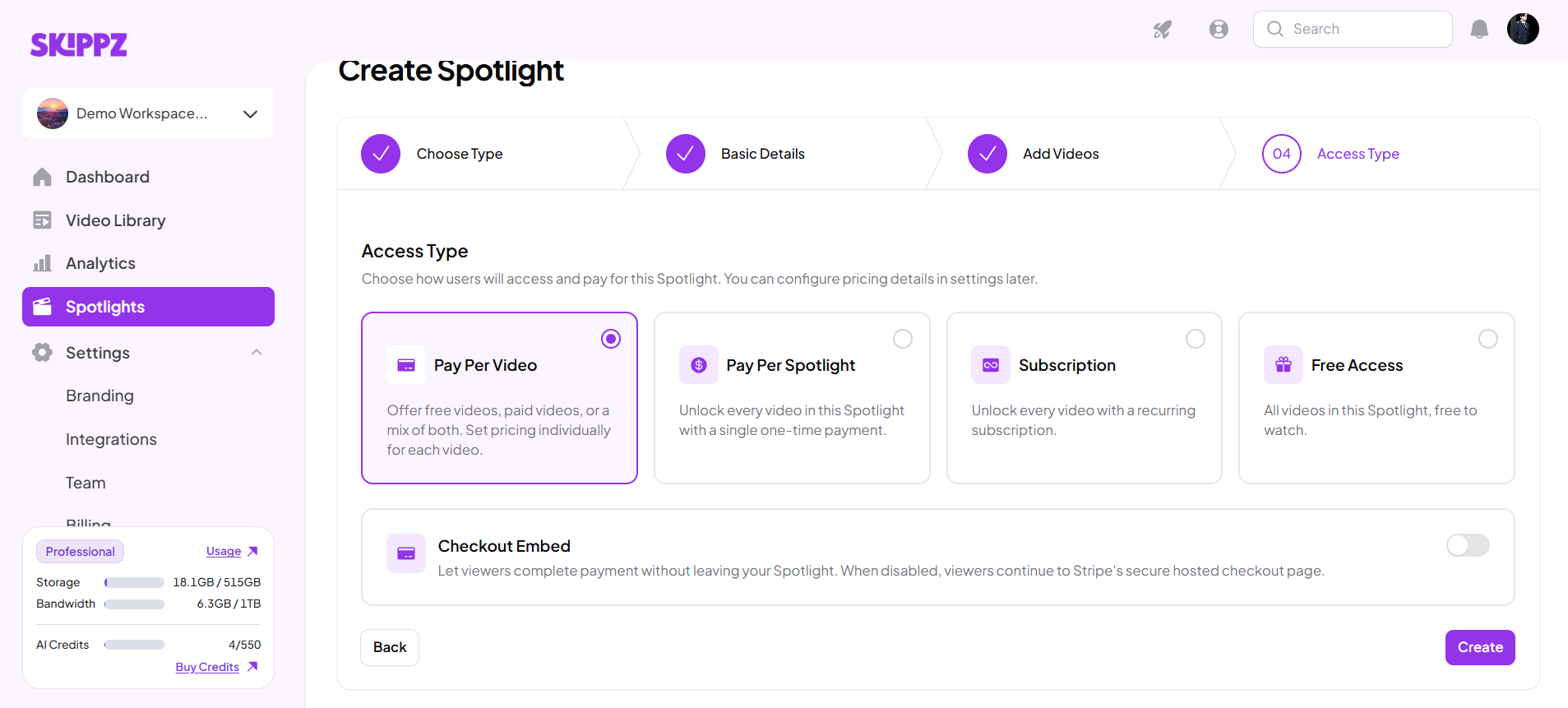
Choose how viewers can access your Vertical Spotlight.
Access type | How it works |
Free | Viewers can access your content for free. |
Pay Per Video — Buy | Viewers purchase individual videos. |
Pay Per Spotlight — Buy | Viewers purchase access to the full Spotlight. |
Subscription | Viewers subscribe to access your content. |
Choose the access type that best suits your content and how you want to offer it to your audience.
Important: Rental options are not available for Vertical Spotlight.
After completing the wizard, review your selections and click Create to finish creating your Vertical Spotlight.
Once the Spotlight is created, you will be redirected to the Spotlight Edit page, where you can continue editing and preparing your content.
On the Spotlight Edit page, you can continue setting up your Vertical Spotlight. If you skipped the Add Videos step during creation, you can add your videos here.
Before publishing, review your Spotlight details, videos, and access settings to make sure everything is configured as intended.
Important: A connected Stripe account is required to publish any Spotlight. If your Stripe account is not connected, you can continue editing and keep your Spotlight as a draft, but you cannot publish it until Stripe is connected.
Understanding Spotlight Types
How to Choose the Right Spotlight for Your Content
How to Choose the Right Access Type for Your Audience