Not every Spotlight needs to remain active forever. You might finish a project, retire an older video collection, or simply want to keep your Spotlight Dashboard organized. Skippz Spotlight gives you two ways to manage Spotlights you no longer need: Archive and Permanently Delete.
Archiving works like a soft delete. It moves a Spotlight to the Archive tab, where you can still find it and choose to restore it or permanently delete it. Permanently deleting a Spotlight is different: it removes the Spotlight from the archive, and you should only use this option when you are sure you no longer need it.
This guide explains where to find these options, how to restore an archived Spotlight, and how to clear your archive when needed.
The most important difference is whether you can still access the Spotlight through the Archive tab.
Archiving a published Spotlight affects public access and existing customers. It removes public access and stops new purchases, and may affect existing members and purchasers. If you only want to stop new purchases while allowing existing members and purchasers to retain access, unpublish the Spotlight instead.
When archiving a published Spotlight, you can choose to refund eligible purchasers before archiving or archive without issuing refunds.
Action | What happens |
|---|---|
Archive | Moves the Spotlight from your regular Spotlight Dashboard to the Archive tab. You can still find it there and restore it or permanently delete it. |
Restore | Returns an archived Spotlight from the Archive tab so you can access and manage it again. |
Permanently Delete | Permanently removes the selected archived Spotlight from the archive. Use this option carefully. |
Empty Bin | Lets you clear all archived Spotlights through a confirmation prompt. Once the action is confirmed, you will no longer be able to find those Spotlights in the archive. |
When should you archive a Spotlight?
Archive a Spotlight when you no longer need it in your regular Dashboard but may want to retain access to it through the Archive tab.
When should you permanently delete a Spotlight?
Permanently delete a Spotlight when you are sure you no longer need it and do not want to keep it in your archive.
You can archive a Spotlight from several places in Skippz Spotlight. This makes it easy to remove a Spotlight from your regular Dashboard without having to navigate to a specific management page.
Open your Spotlight Dashboard.
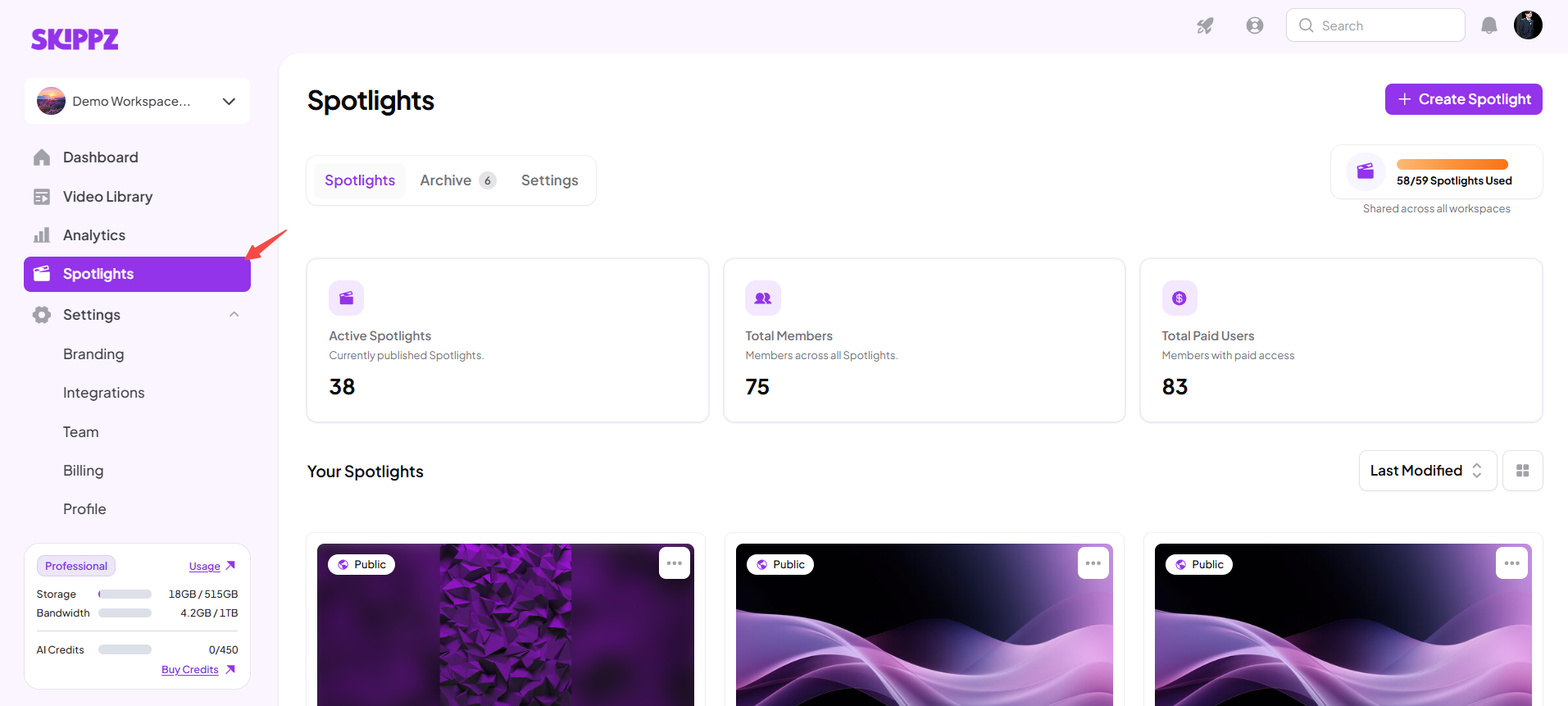
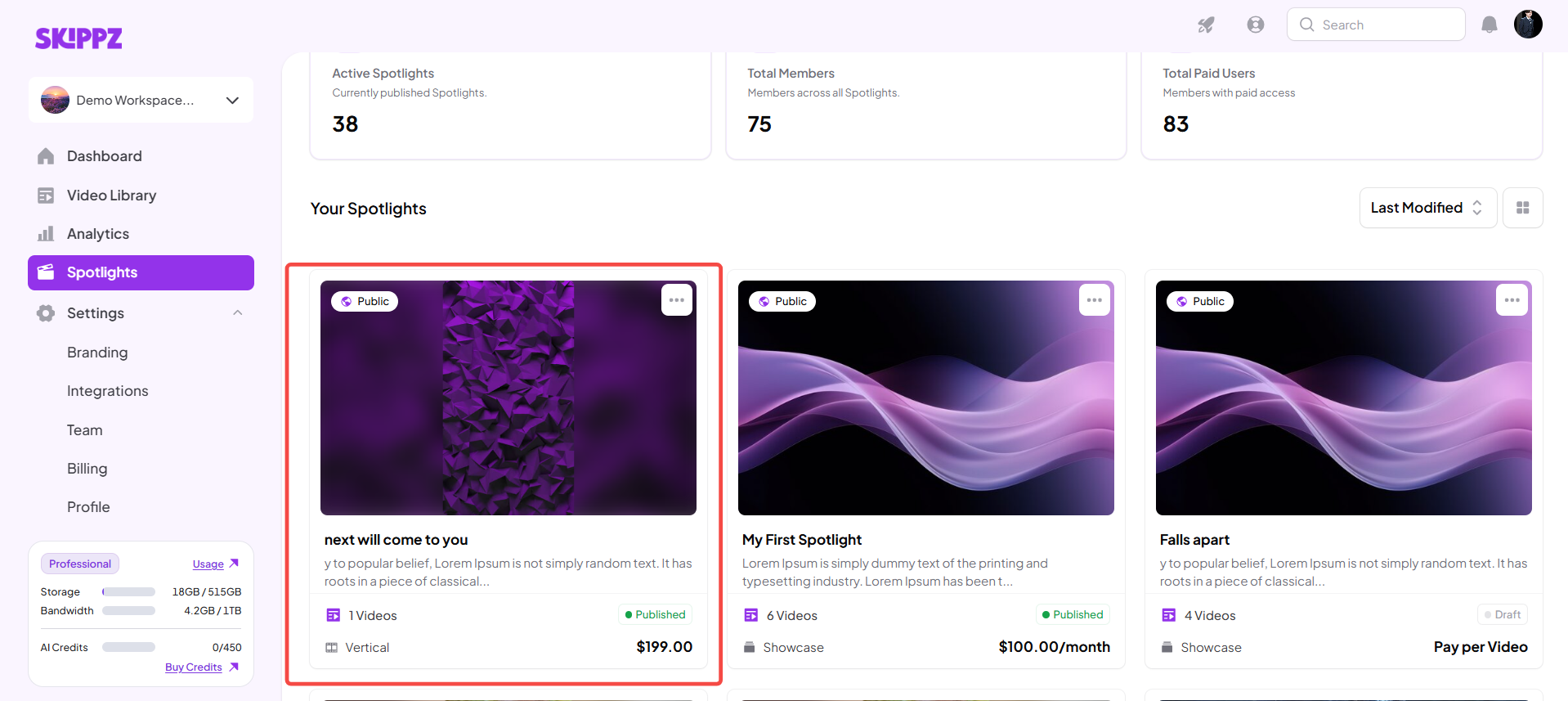
Find the Spotlight you want to archive.
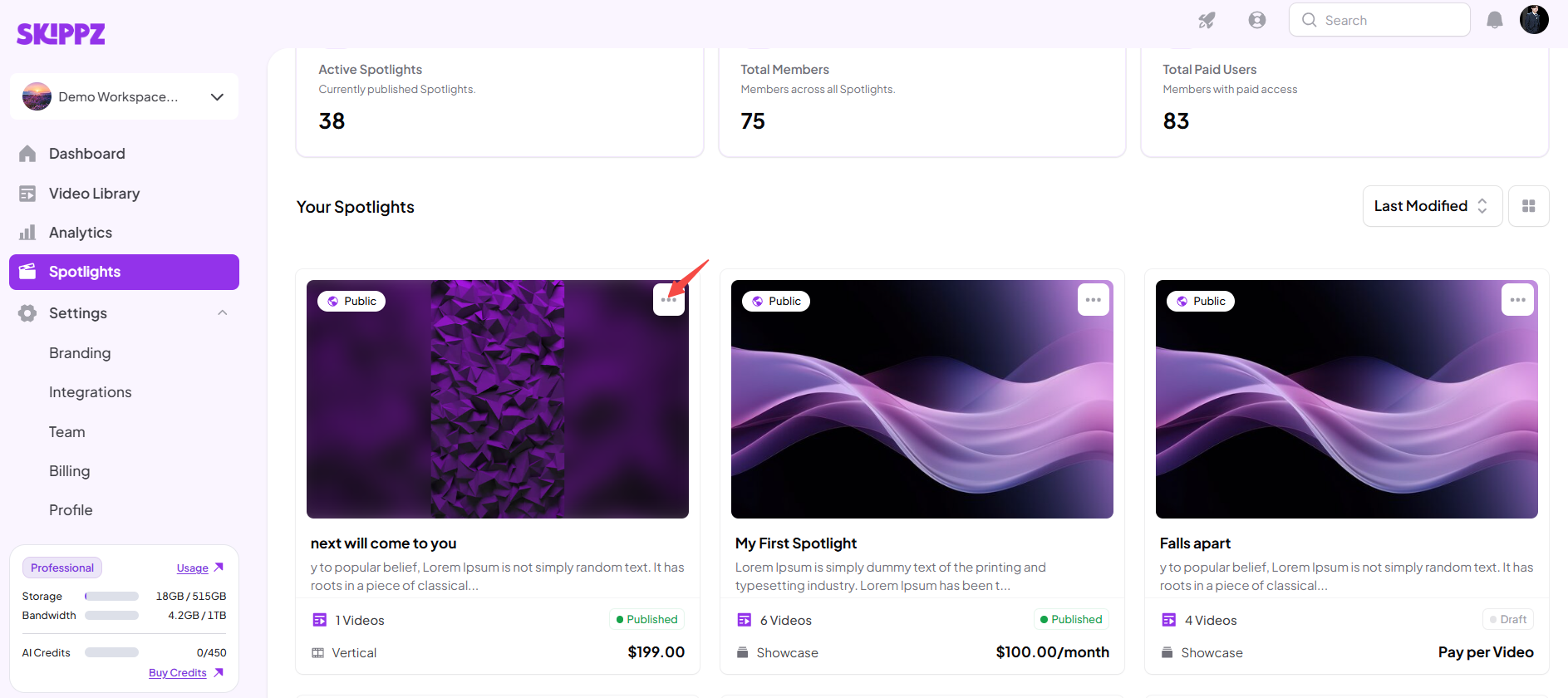
Open the three-dot dropdown menu on the Spotlight card.
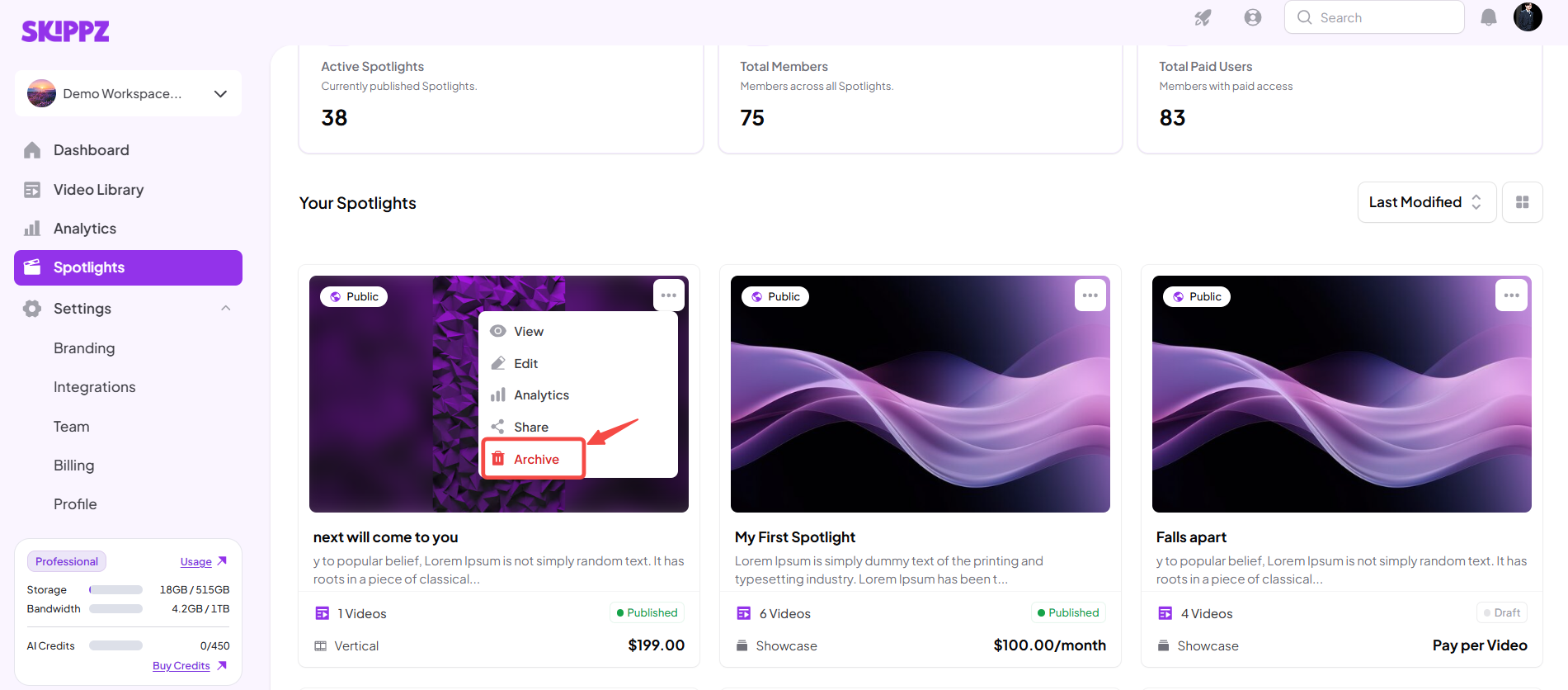
Select the Archive option.
Follow confirmation prompt shown in the interface.
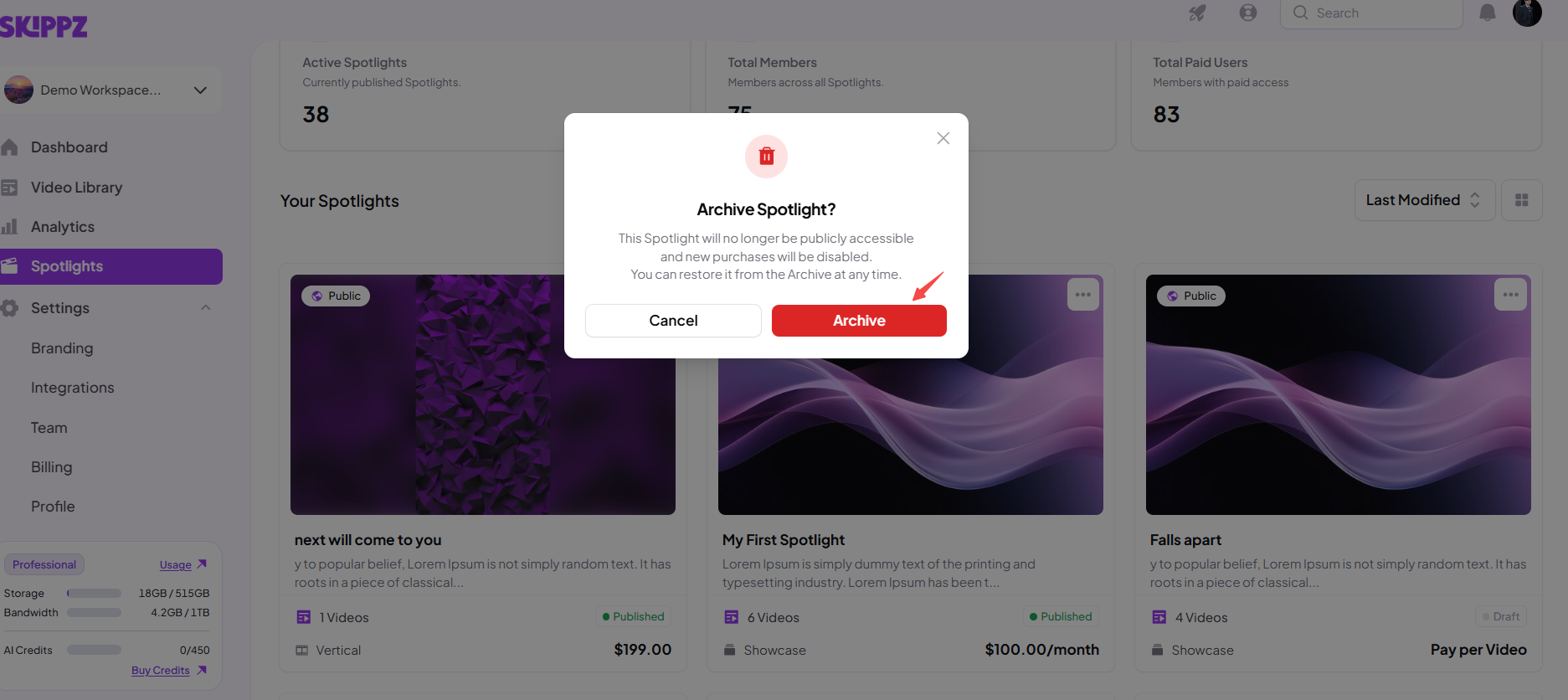
The Spotlight will move to the Archive tab and will no longer appear in your regular Spotlight list.
You can also archive a Spotlight while managing its settings.
Open the Spotlight Dashboard.
Click the Spotlight you want to archive to open its Edit Flow.
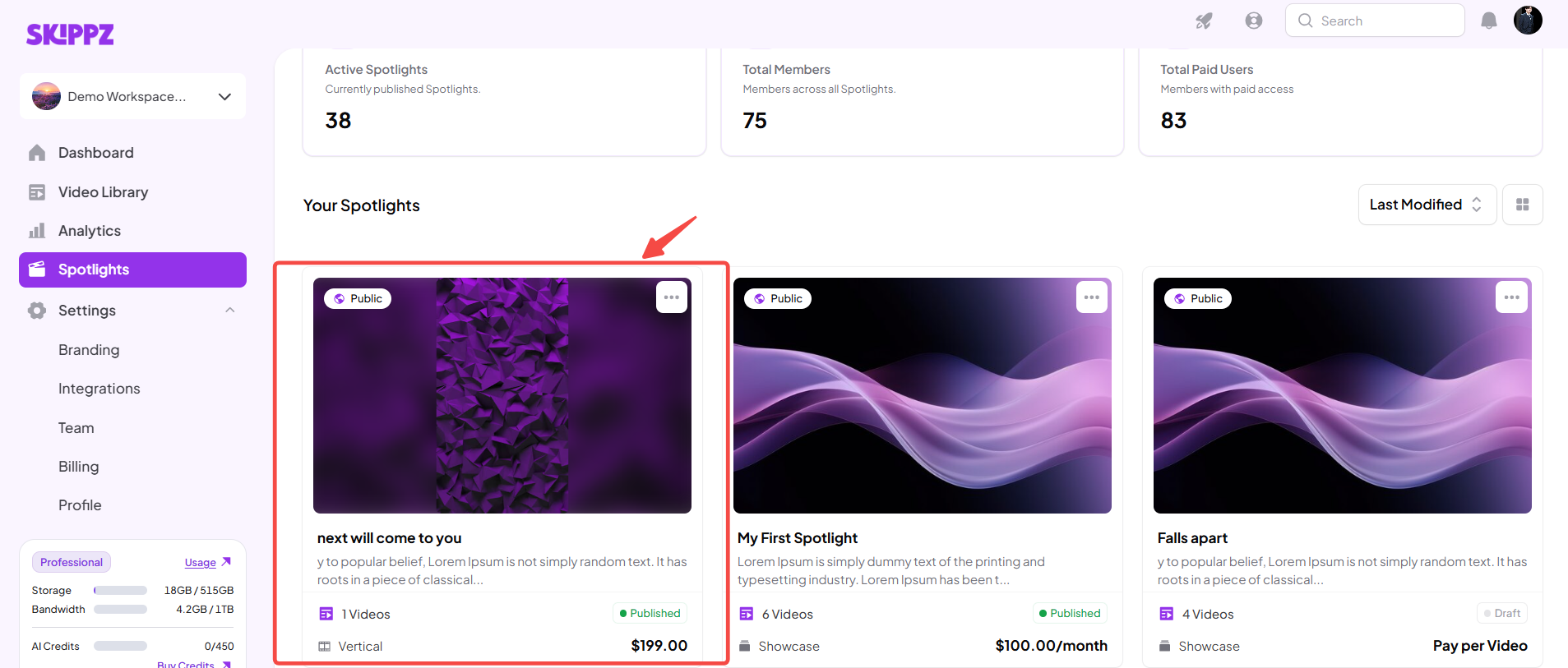
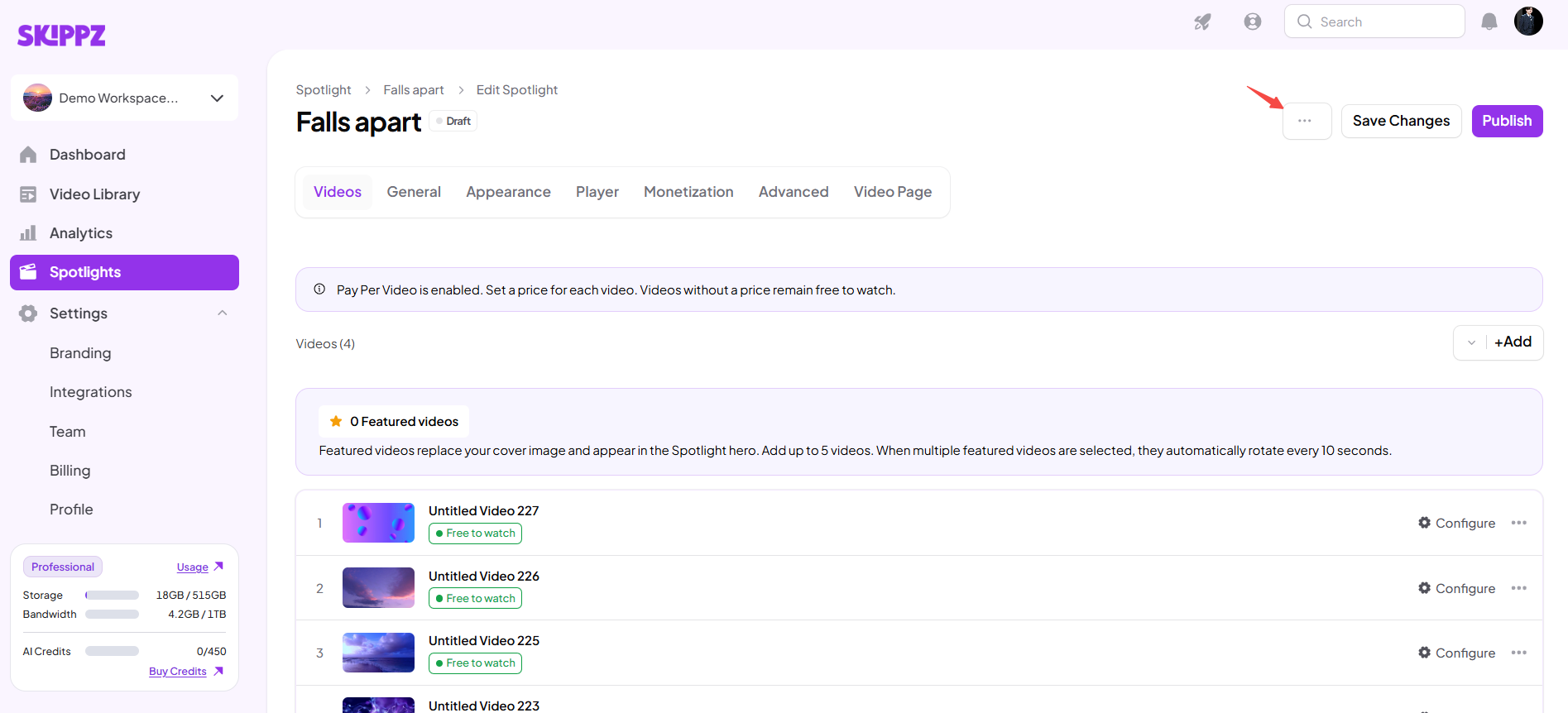
Locate the three-dot dropdown menu in the Edit Flow window.
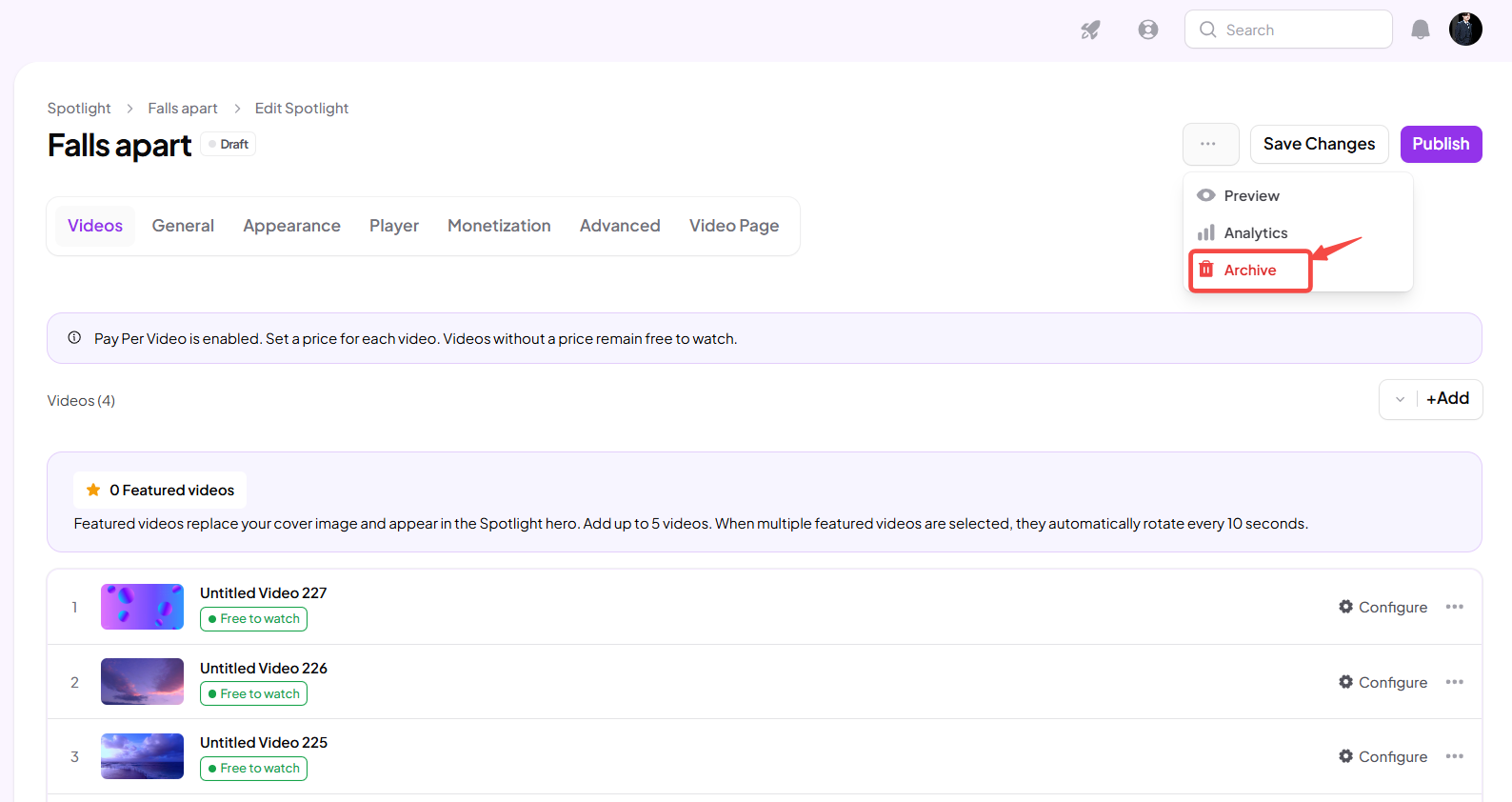
Select the Archive option.
Follow any confirmation prompt shown.
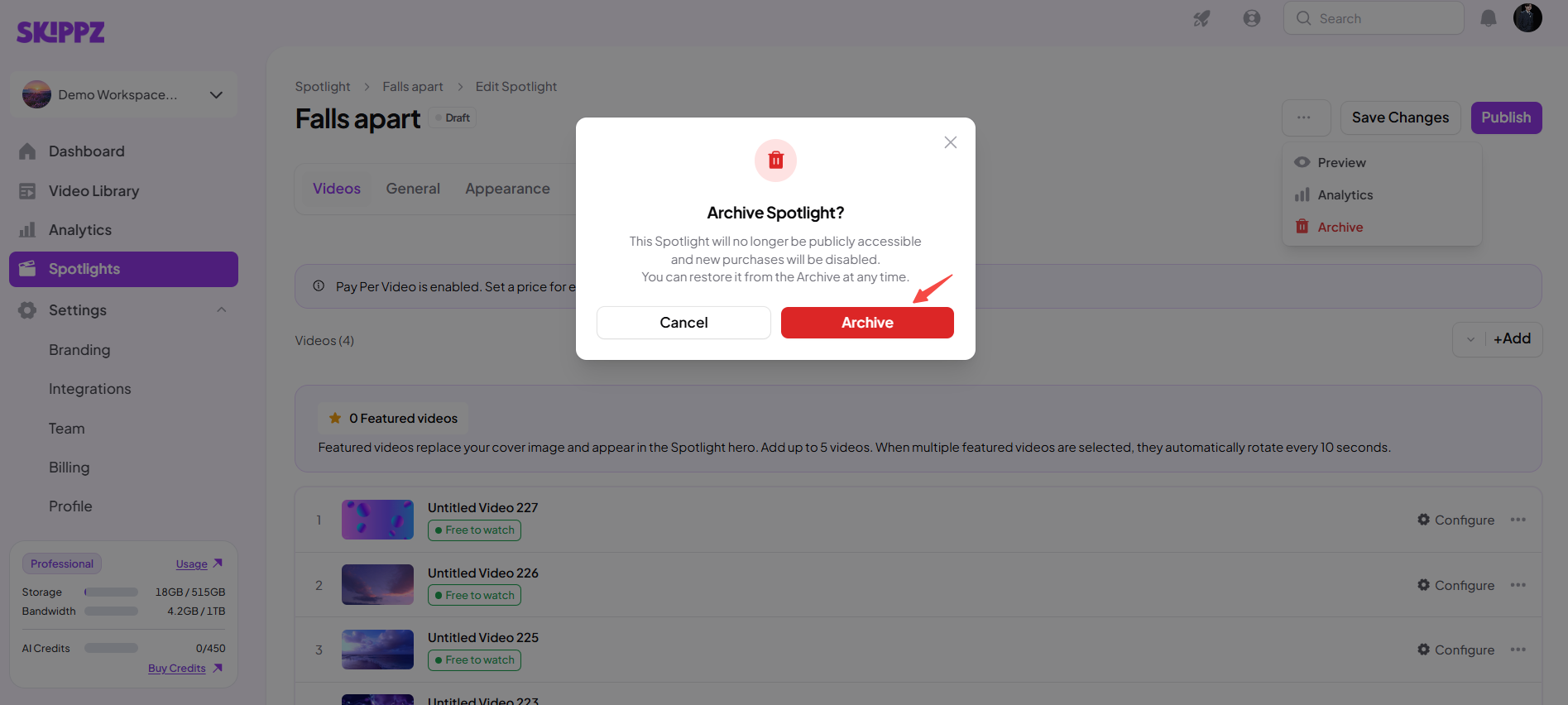
The Spotlight will be moved to the Archive tab.
If you are reviewing a Spotlight's performance, you can archive it directly from its Analytics page.
Open the Analytics page for the relevant Spotlight.
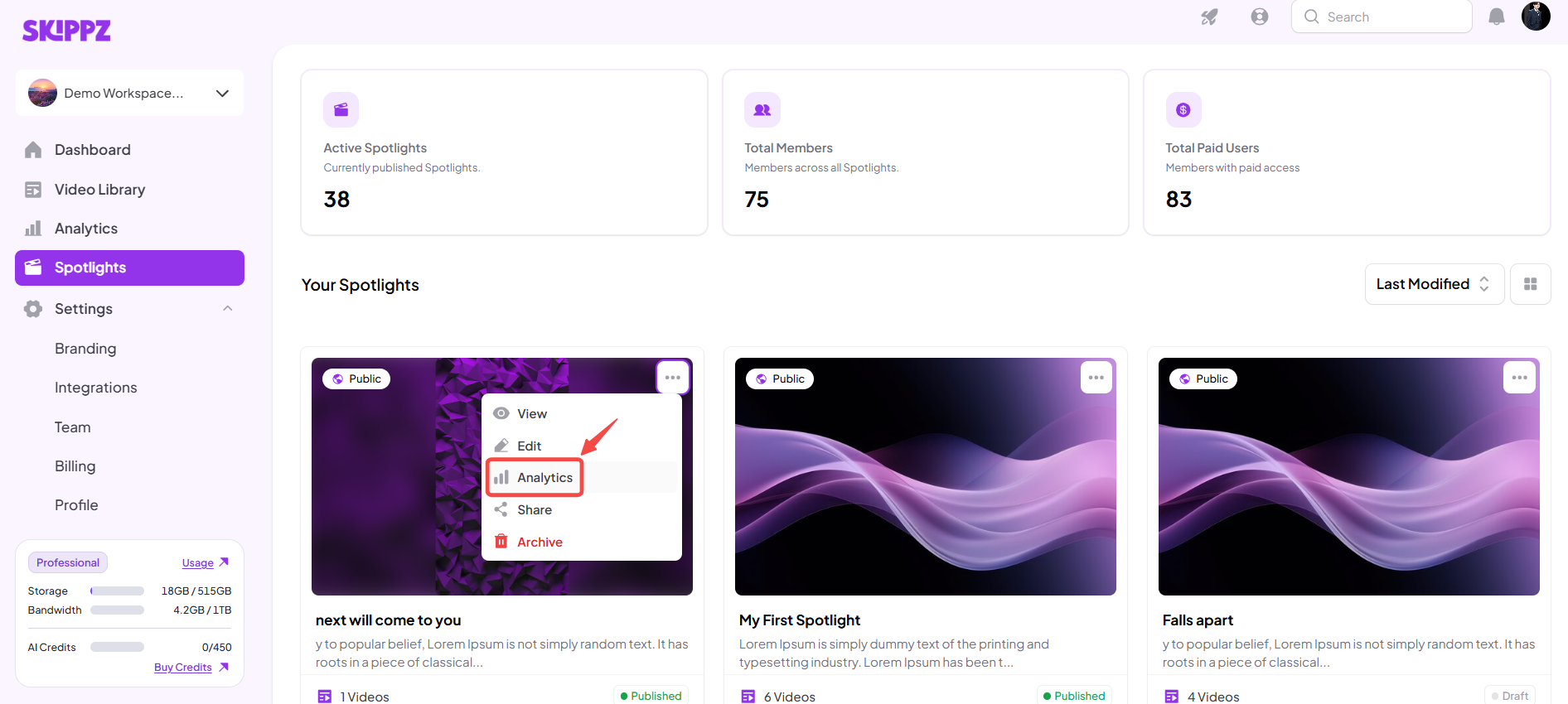
Locate the three-dot dropdown menu.
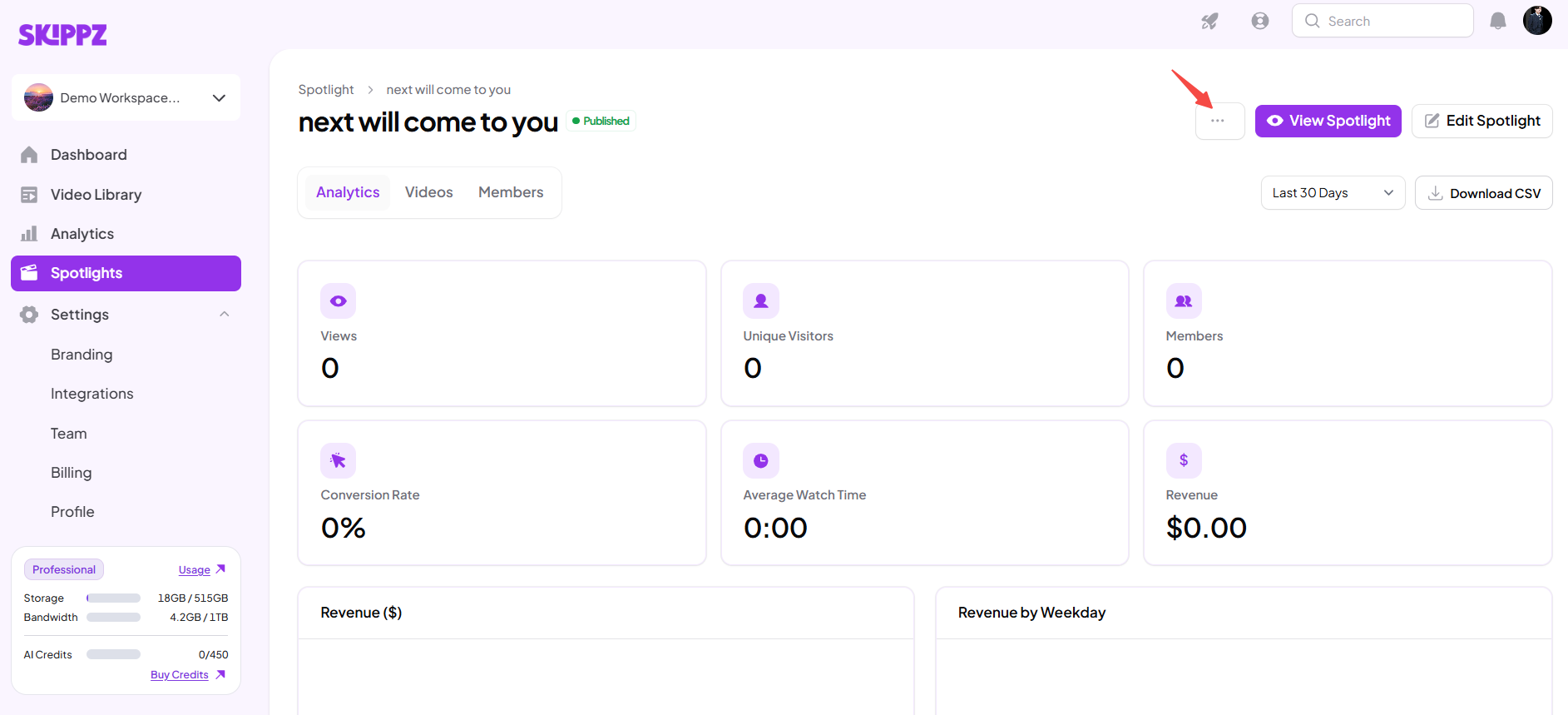
Select the Archive option.
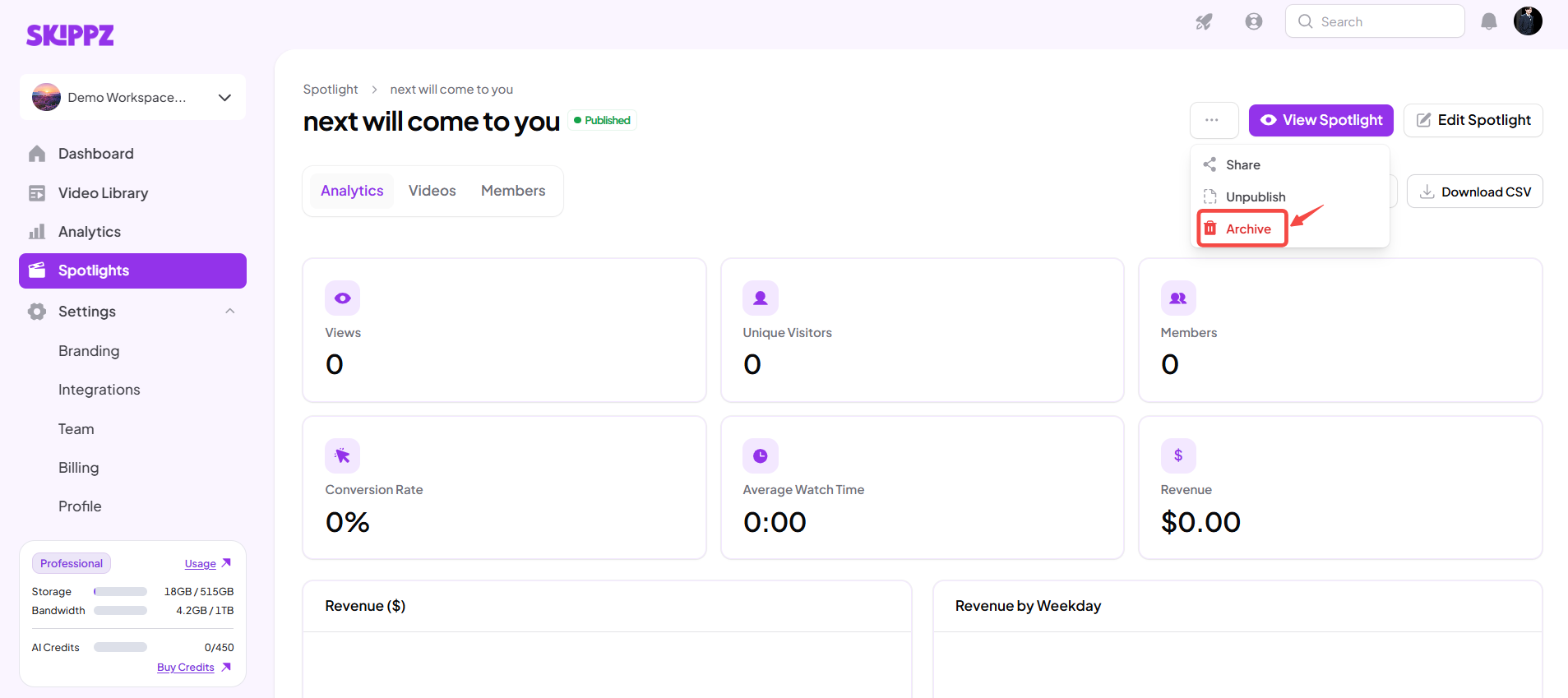
Follow any confirmation prompt shown.
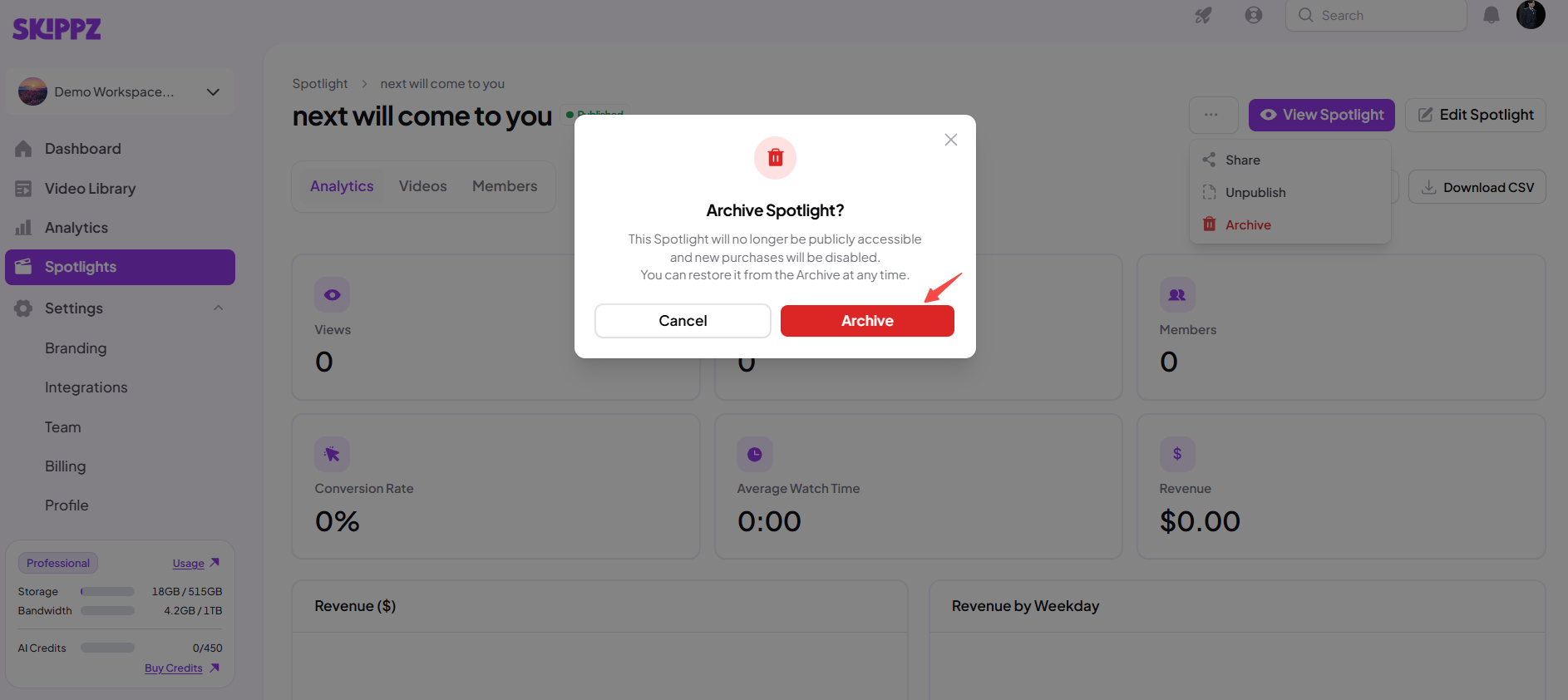
The Spotlight will move to the Archive tab, where you can find it later.
When you archive a Spotlight, it is not immediately permanently deleted. It is moved to the Archive tab so you can still access it.
To find an archived Spotlight:
Open the Spotlight Dashboard.
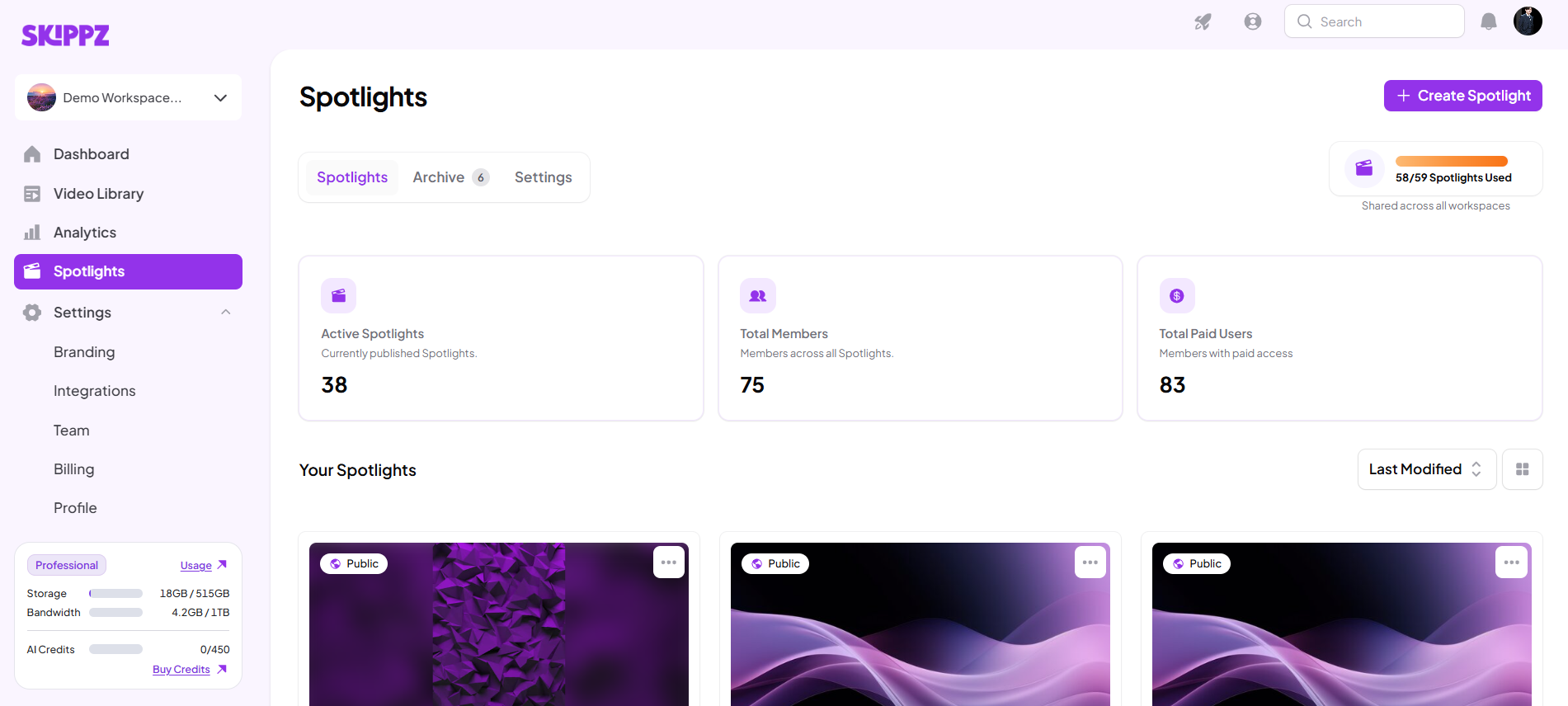
Navigate to the Archive tab.
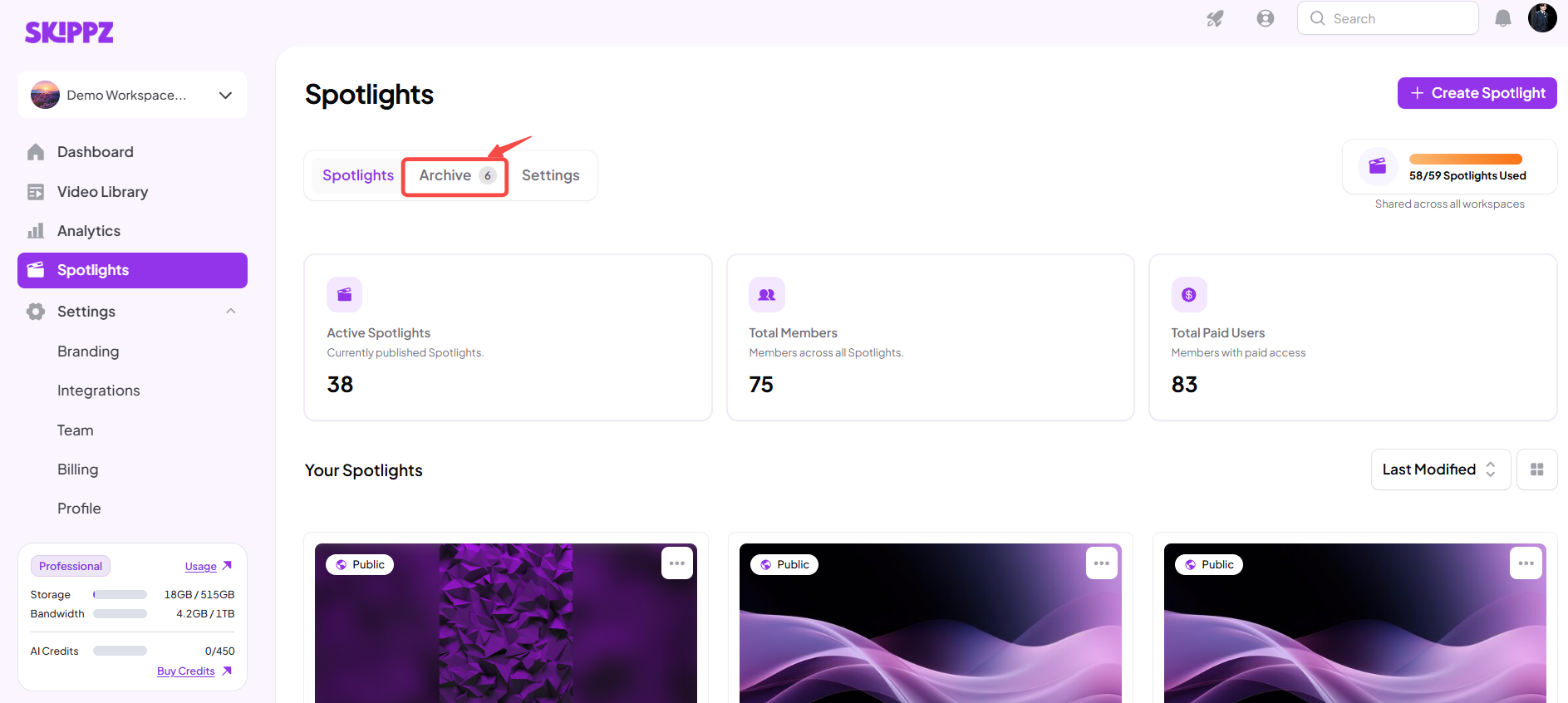
Browse the archived Spotlight cards.
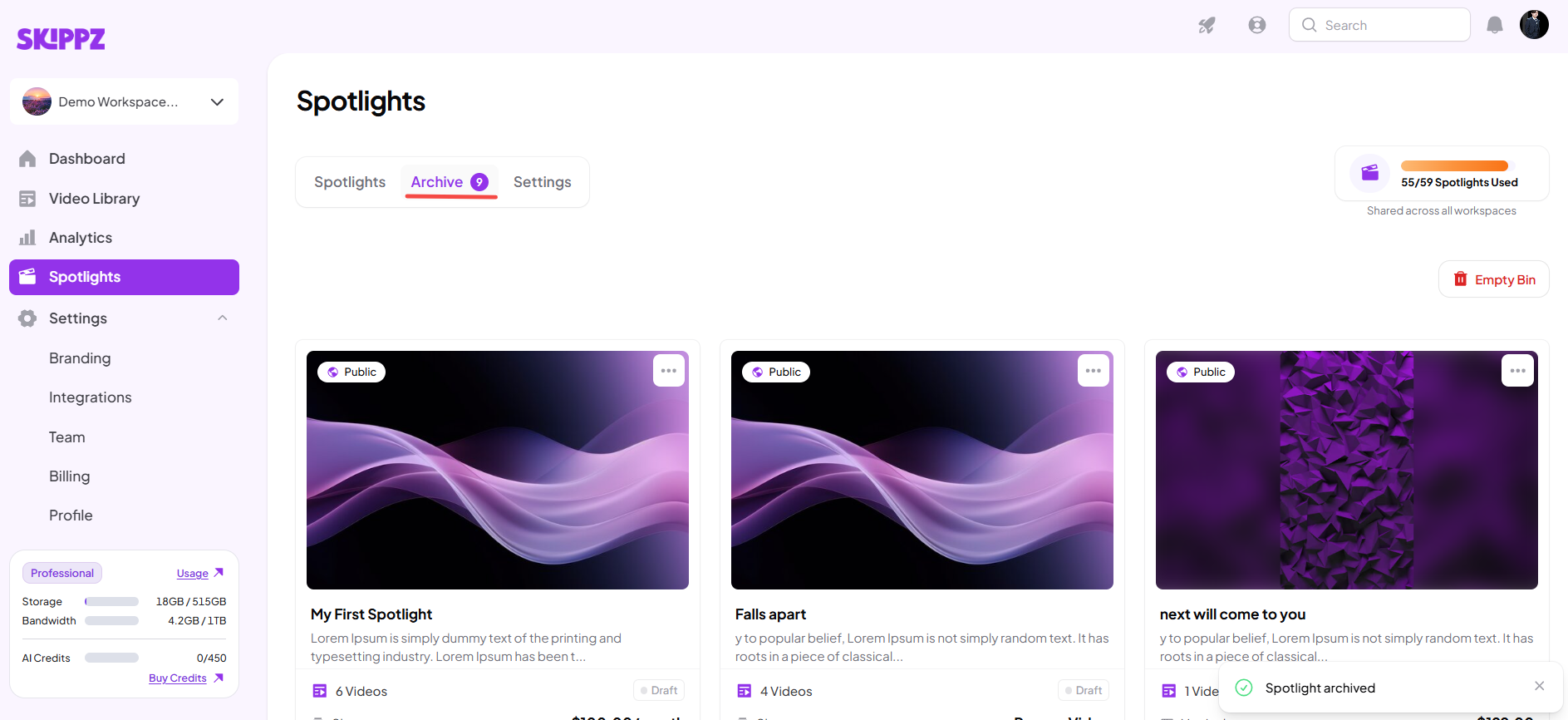
Locate the Spotlight you want to manage.
Each archived Spotlight card has a three-dot dropdown menu with two options: Restore and Permanently Delete.
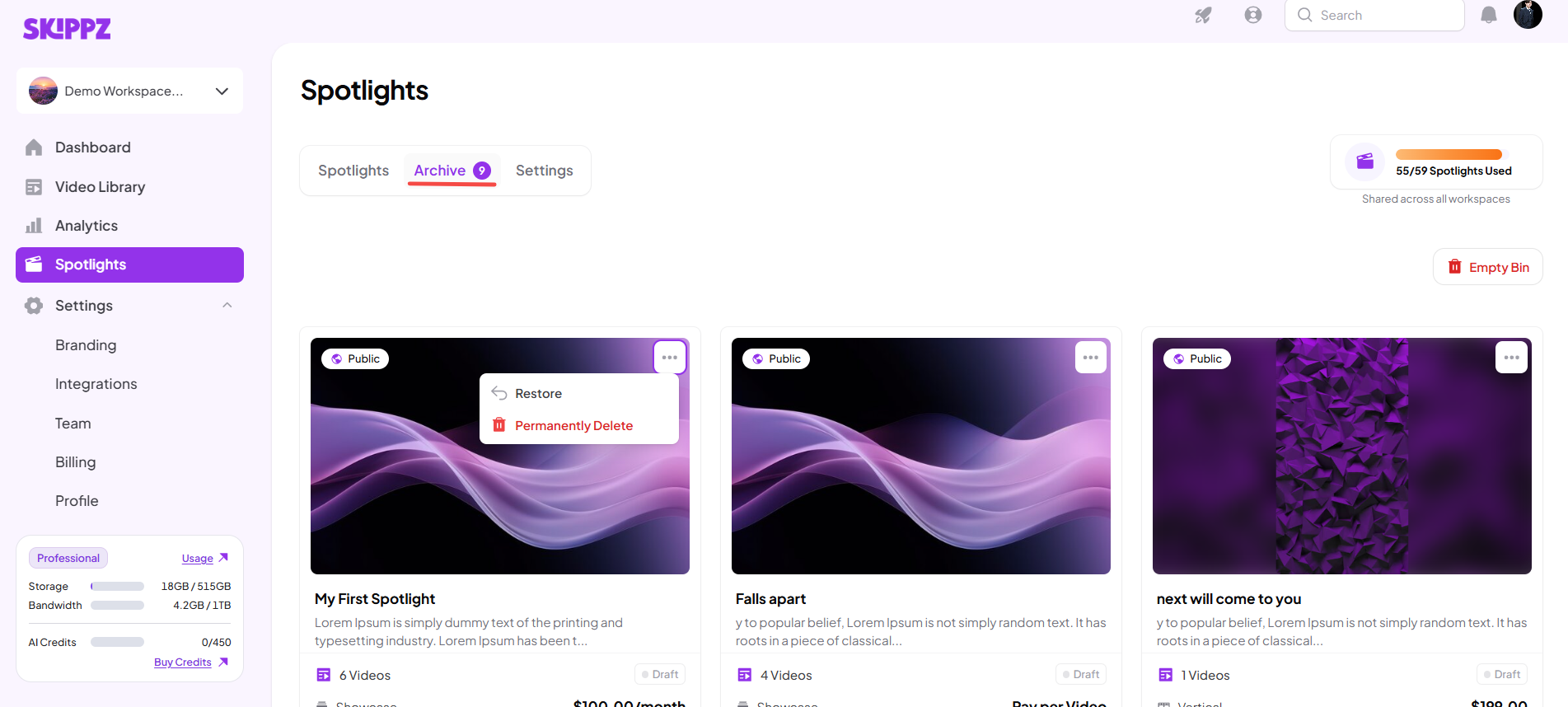
Use these options to decide whether you want to bring a Spotlight back or remove it permanently.
If you archived a Spotlight by mistake or want to use it again, you can restore it from the Archive tab.
Open the Spotlight Dashboard.
Go to the Archive tab.
Find the Spotlight you want to restore.
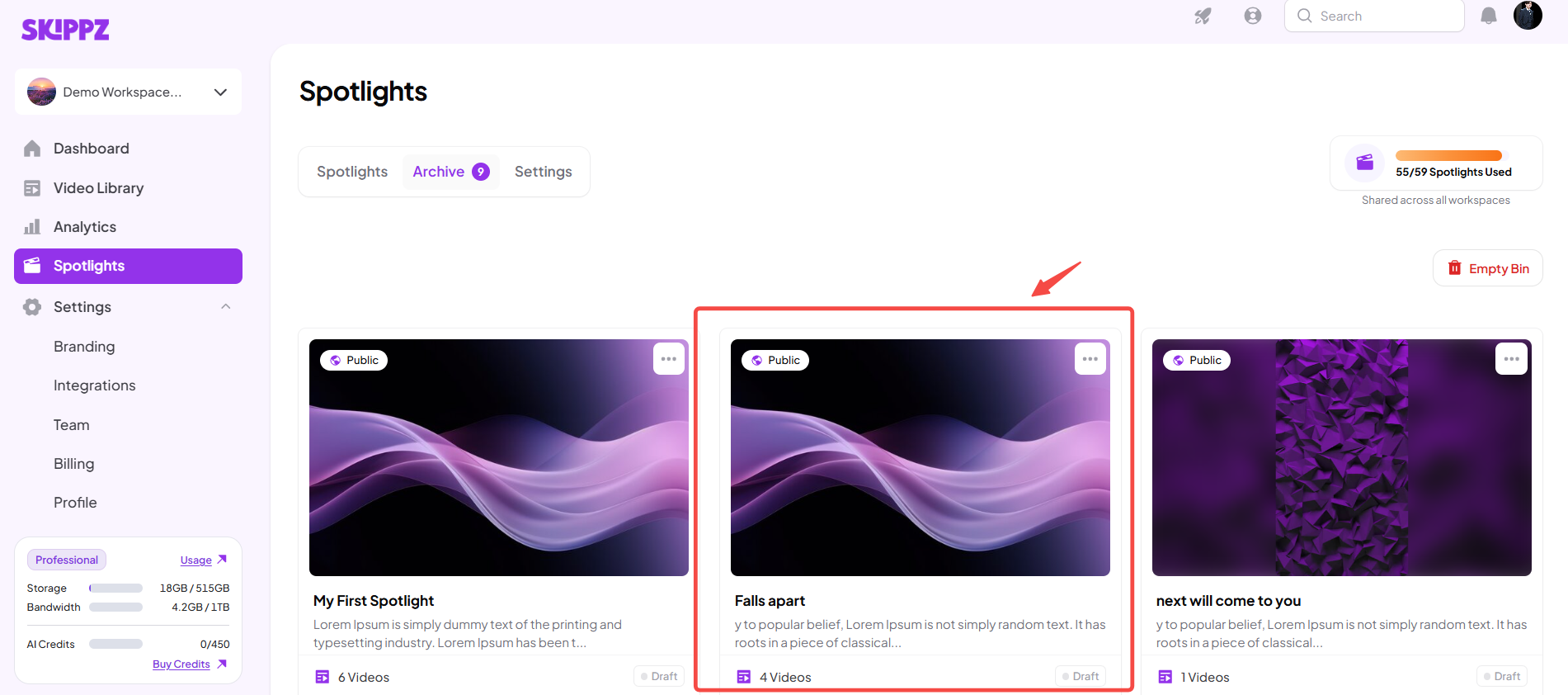
Open the three-dot dropdown menu on its card.
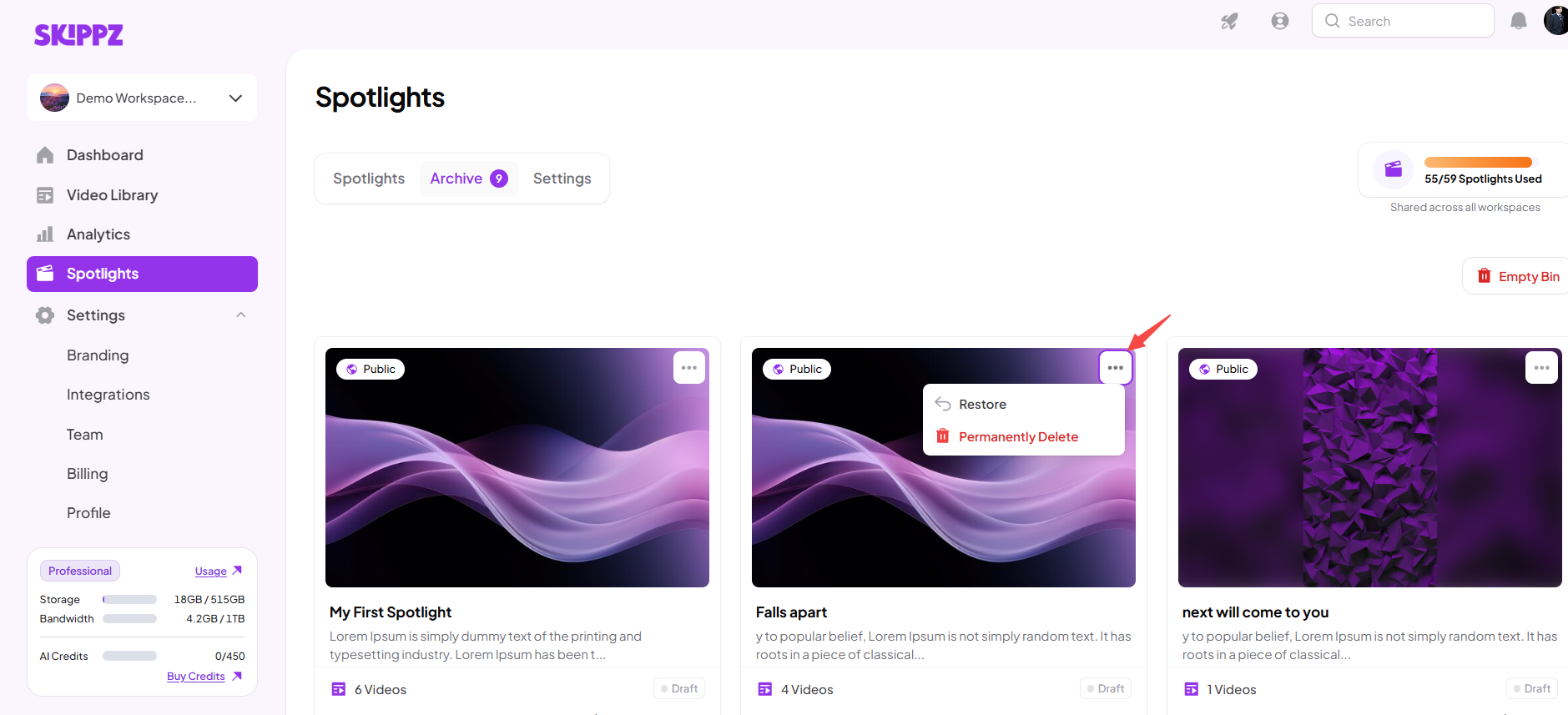
Select Restore.
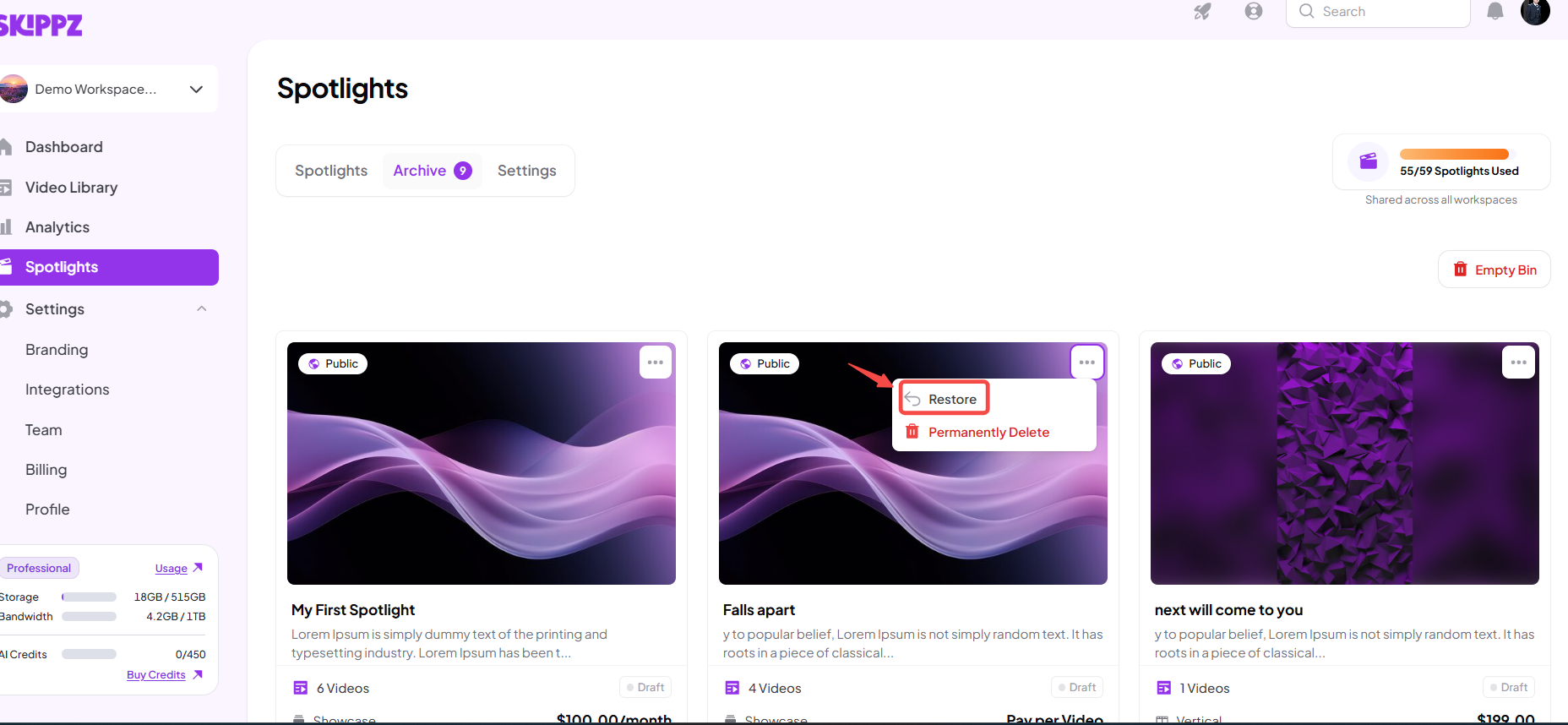
The Spotlight will be restored from the archive, allowing you to access and manage it again.
If the Spotlight is a draft, you can open it from the Dashboard and continue editing it through its Edit Flow. Remember that restoring a Spotlight does not change its type: Showcase Spotlights remain Showcase, and Vertical Spotlights remain Vertical.
If you no longer need an archived Spotlight, you can permanently delete it from the Archive tab.
Open the Spotlight Dashboard.
Navigate to the Archive tab.
Find the archived Spotlight you want to remove.
Open the three-dot dropdown menu on its card.
Select Permanently Delete.
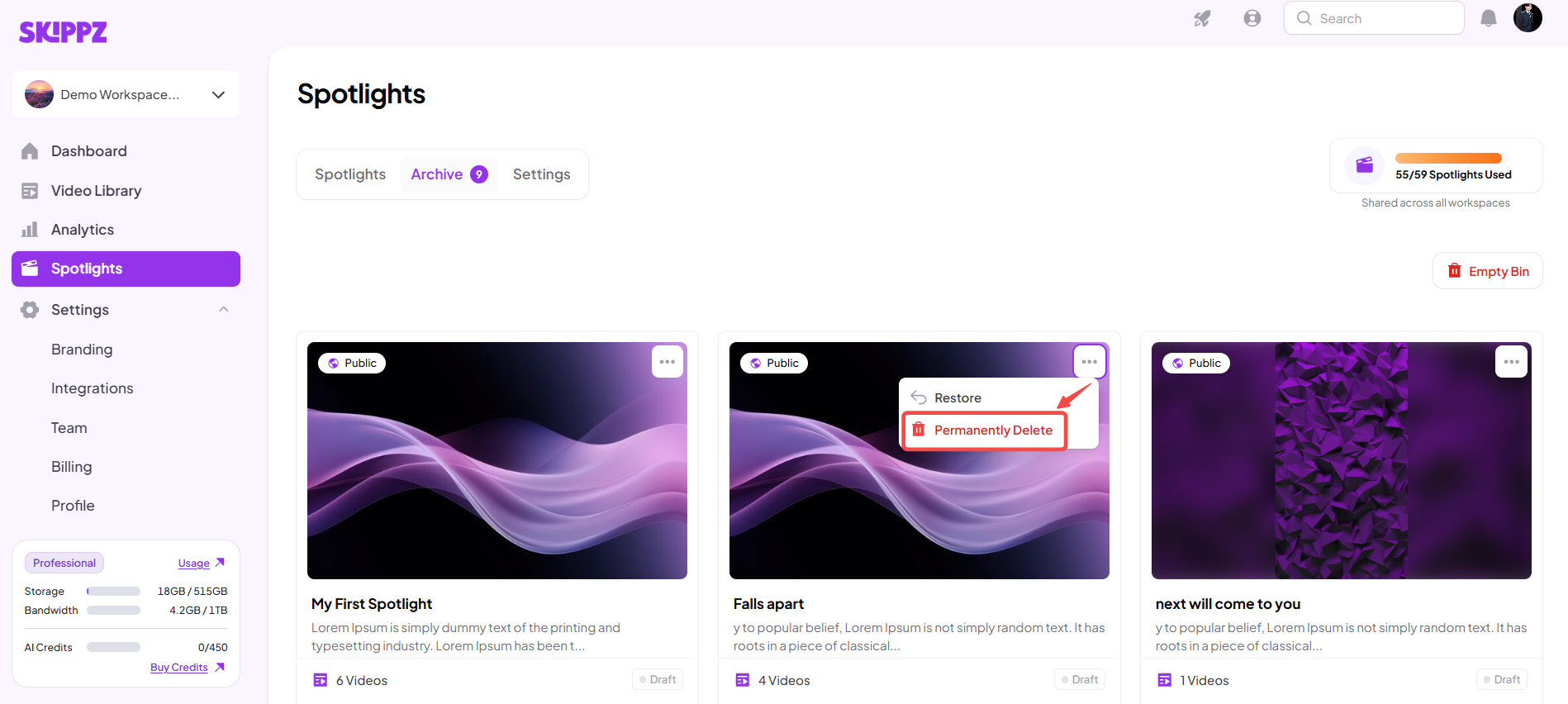
Review any confirmation prompt displayed and confirm only if you are sure.
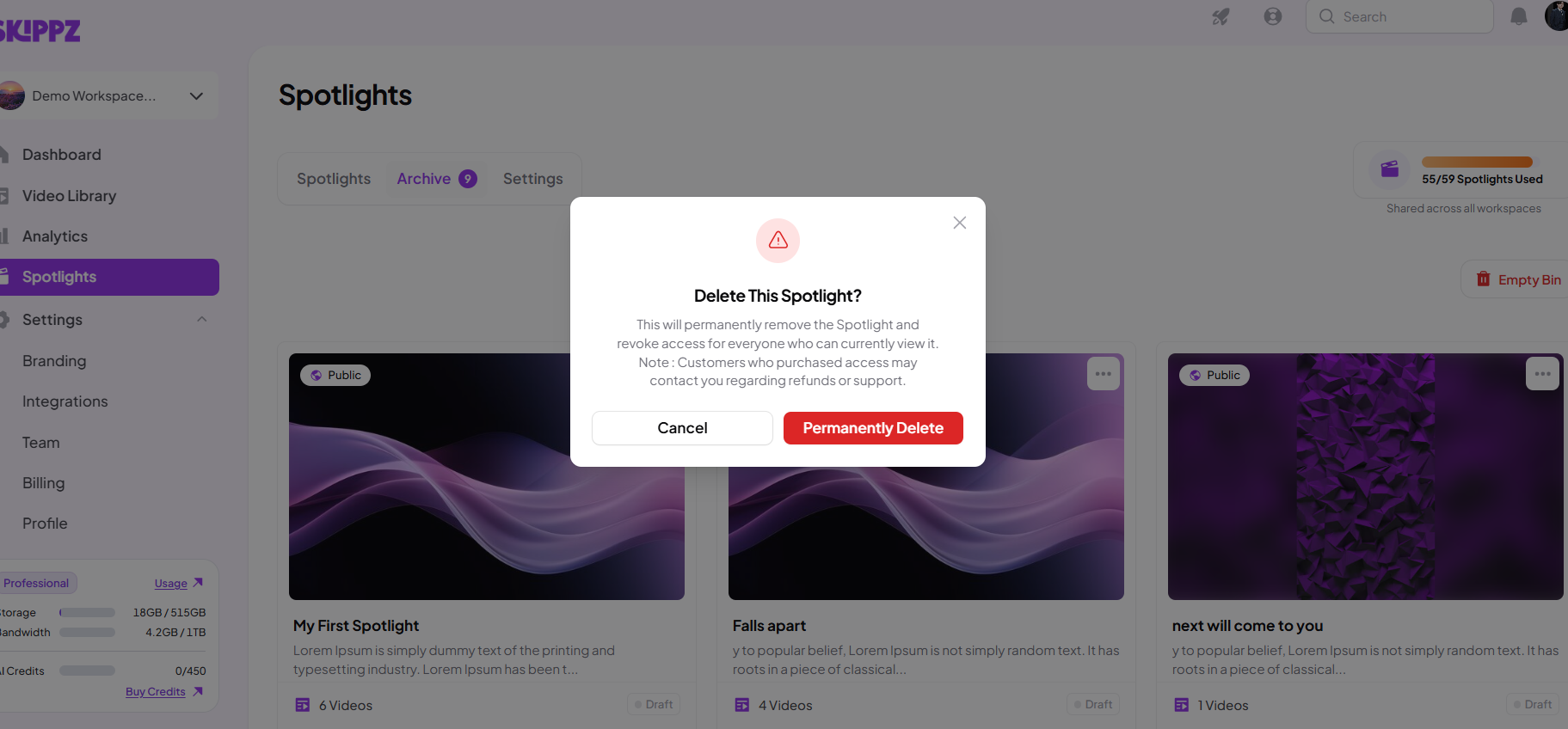
Important: Permanently deleting a Spotlight is different from archiving it. Archiving keeps the Spotlight accessible in the Archive tab, while permanent deletion removes it from the archive. Make sure you have selected the correct Spotlight before confirming.
If you want to clear your archive rather than delete archived Spotlights one at a time, you can use the Empty Bin button on the Archive page.
Follow these steps:
Open the Spotlight Dashboard.
Navigate to the Archive tab.
Locate the Empty Bin button.
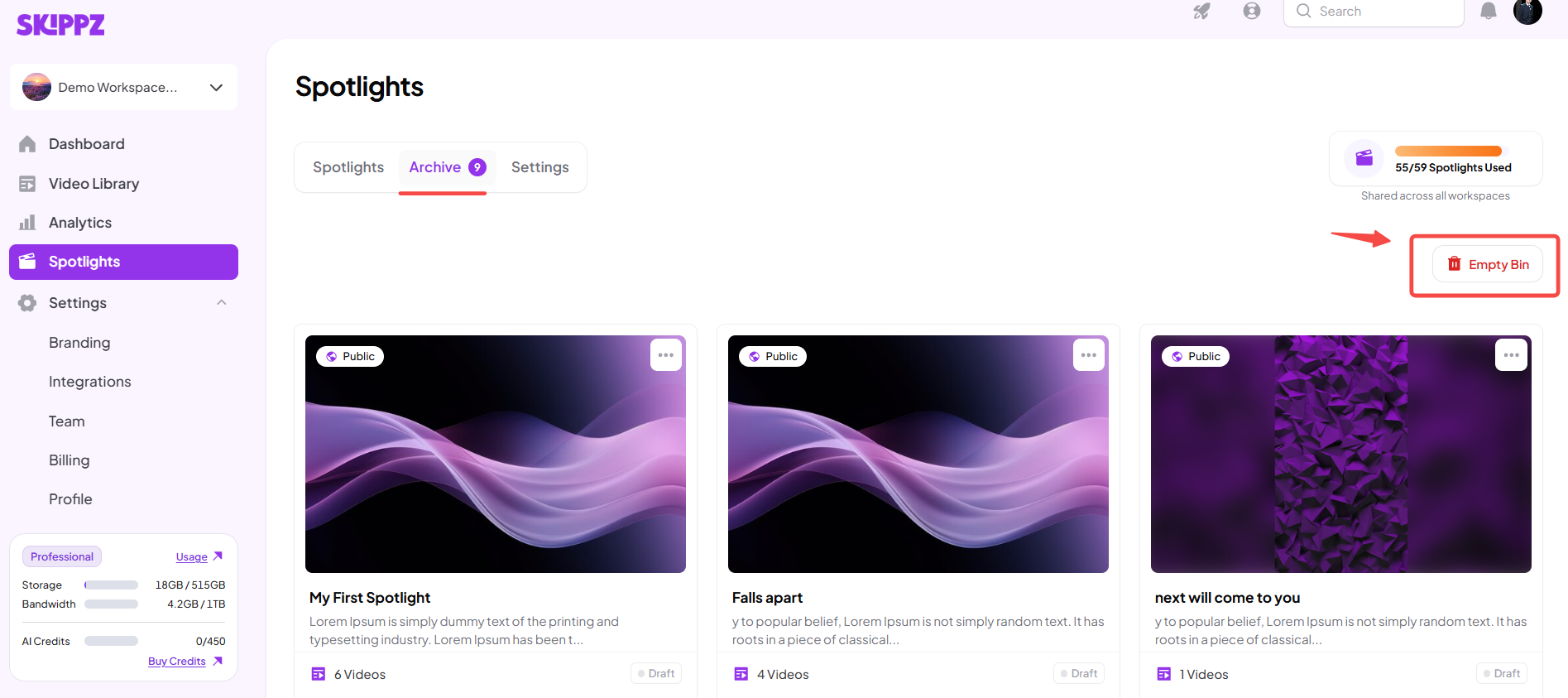
Click Empty Bin.
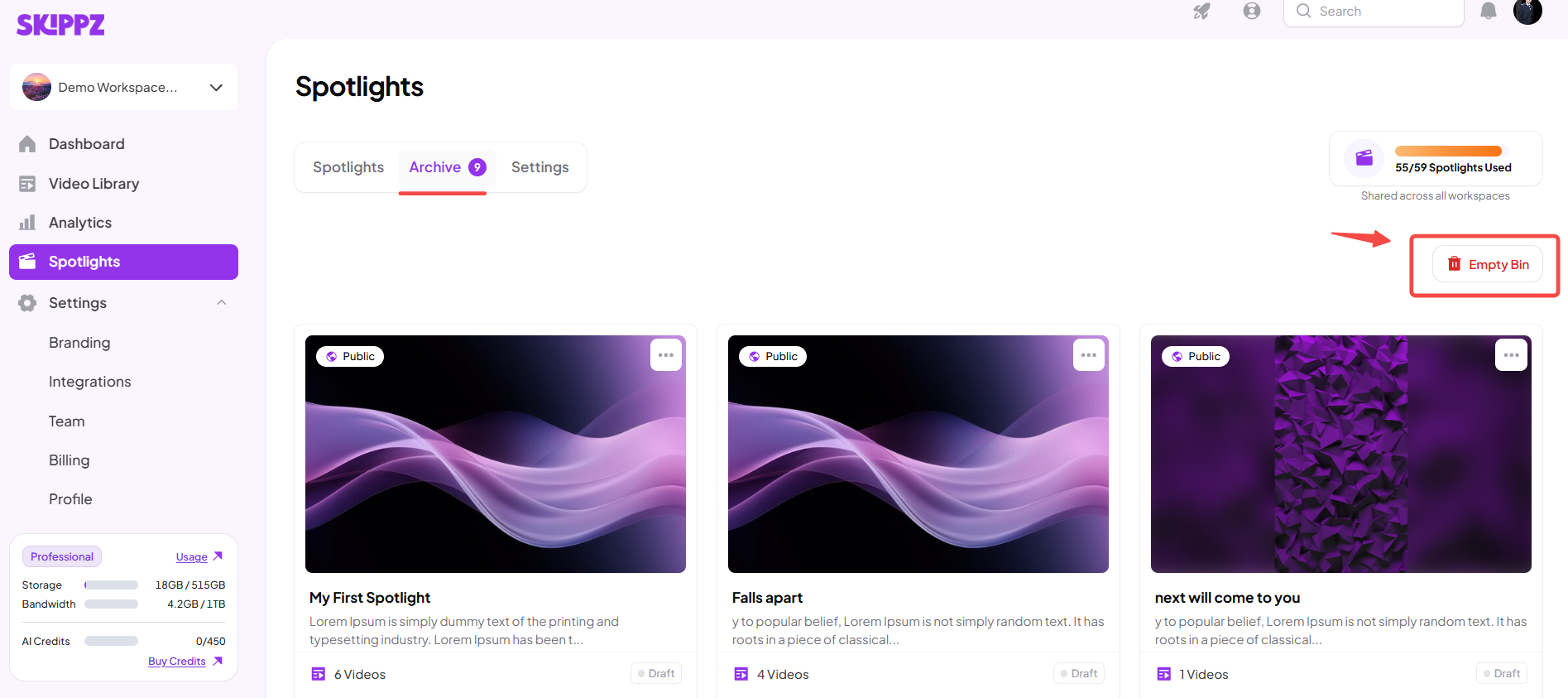
A pop-up will appear asking whether you really want to archive all.
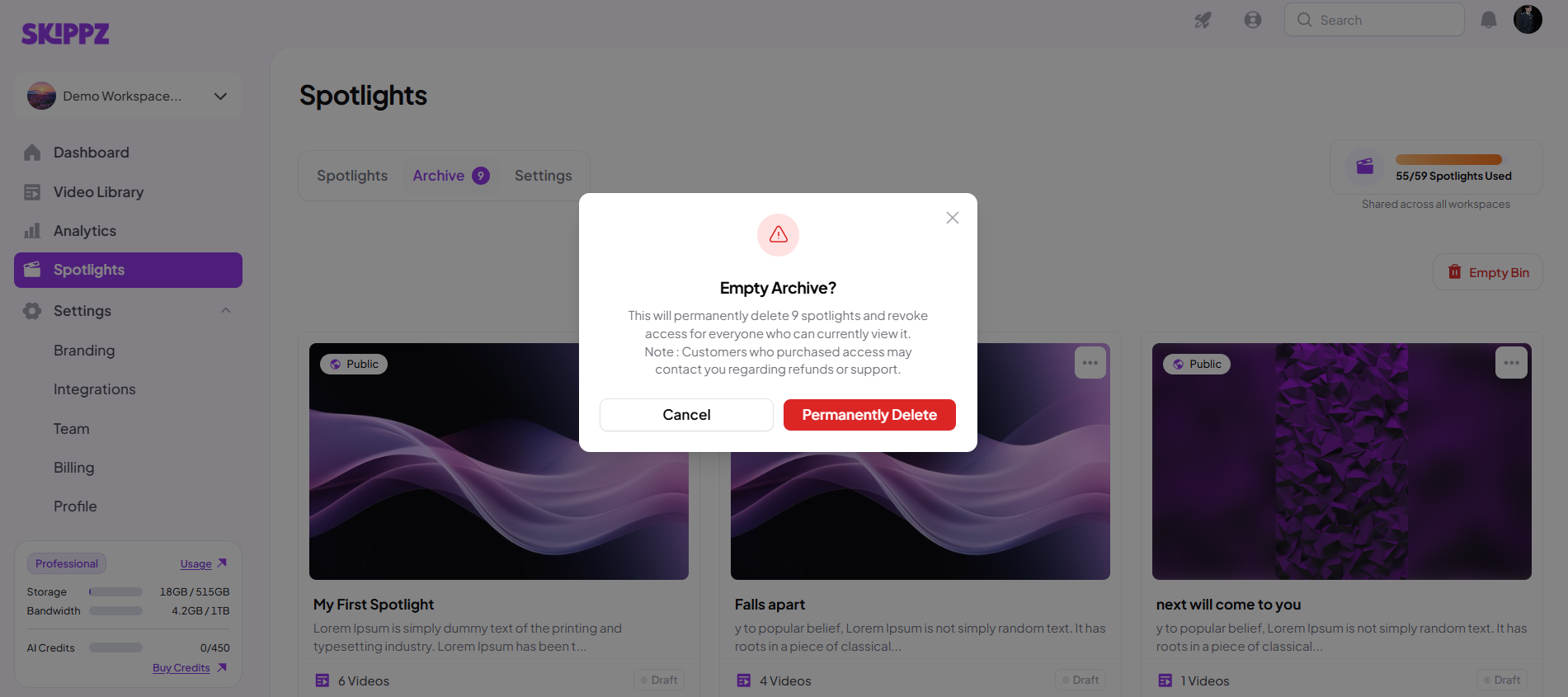
Carefully review the prompt before proceeding.
If you want to continue, confirm the action in the pop-up.
After the action is confirmed, the archived Spotlights will no longer be available for you to find in the archive.
Be careful before using Empty Bin. Unlike archiving an individual Spotlight, clearing the archive is intended to remove all archived Spotlights at once. Review the confirmation prompt carefully before proceeding.
Use this quick guide to decide what to do with a Spotlight.
You no longer need a Spotlight in your regular Dashboard: Archive it.
You want to keep a Spotlight available in the Archive tab: Leave it archived.
You want to use an archived Spotlight again: Restore it.
You are sure you no longer need one archived Spotlight: Permanently delete it.
You want to clear all archived Spotlights: Use Empty Bin, after carefully reviewing the confirmation prompt.
Archiving a published Spotlight that already has paid members or purchasers requires an additional step. Since archiving removes public access, stops new purchases, and may affect existing members and purchasers, Skippz Spotlight provides two options to help you decide how to handle refunds before proceeding.
If you only want to stop new purchases while allowing existing members and purchasers to retain access, unpublish the Spotlight instead of archiving it.
When you attempt to archive a published Spotlight that already has paid customers, a special confirmation window appears instead of the standard archive confirmation.
The window identifies affected users, including:
Active members
Active purchasers
You must choose one of the following options before proceeding with the archive.
This option refunds all eligible purchasers, automatically notifies them by email, and then archives the Spotlight.
Choose this option if you want to archive the Spotlight while refunding eligible purchasers.
What happens when you choose this option?
All eligible purchasers receive refunds.
Purchasers are automatically notified by email.
The Spotlight is archived, removing public access and stopping new purchases.
This option archives the Spotlight without issuing refunds.
Affected purchasers will be notified by email. You remain responsible for handling any resulting refund requests, customer support inquiries, or disputes.
What happens when you choose this option?
No refunds are issued through this archive option.
Affected purchasers receive email notifications.
You accept responsibility for any resulting customer support requests, refund requests, or disputes.
The Spotlight is archived, removing public access and stopping new purchases.
Open the Spotlight Dashboard.
Find the published Spotlight you want to archive.
Open the Spotlight card's three-dot dropdown menu and select Archive. You can also initiate this action from the three-dot dropdown menu in the Spotlight Edit Flow or on the Analytics page.
Review the special confirmation window and the list of affected users, including active members and active purchasers.
Choose either Refund Purchasers and Archive (Recommended) or Archive Without Refunds.
Read the acknowledgment carefully. It explains that archiving removes public access and may affect existing members and purchasers.
Confirm that you understand the consequences and accept responsibility for any resulting customer support, refund requests, or disputes.
Complete the archive action.
Once the action is completed, the Spotlight moves to the Archive tab.
Archiving a published Spotlight removes public access and stops new purchases.
Existing members and purchasers may be affected by archiving.
Refund Purchasers and Archive refunds all eligible purchasers and automatically notifies them by email.
Archive Without Refunds does not issue refunds through this option. You are responsible for handling any resulting refund requests, support inquiries, or disputes.
If you want to stop new purchases while allowing existing members and purchasers to retain access, unpublish the Spotlight instead of archiving it.
Review the confirmation window carefully before proceeding, as your choice determines how refunds and customer notifications are handled.
Archive is a soft delete. It moves a Spotlight to the Archive tab rather than immediately removing it permanently.
You can archive from three locations: the Spotlight Dashboard card's three-dot dropdown, the Edit Flow window's three-dot dropdown, or the Analytics page's three-dot dropdown.
Archived Spotlights remain visible in the Archive tab until they are restored or removed through the available archive actions.
Restore and Permanently Delete are available from each archived Spotlight card's three-dot dropdown menu.
Empty Bin applies to all archived Spotlights. Review the confirmation prompt carefully before confirming.
After Empty Bin is confirmed, you will no longer be able to find those Spotlights in the archive. Do not use it if you still need access to archived Spotlights.
Archiving and publishing are different actions. A draft remains unpublished until you publish it; archiving moves a Spotlight out of the regular Dashboard.
How to Edit, Publish, and Manage Your Spotlight
Understanding the Spotlight Dashboard
How to Find, Sort, and Organize Your Spotlights