Once your video has uploaded and finished processing, you are ready to put it in front of people. Skippz gives you two ways to do that: share it as a link, or embed it on a page.
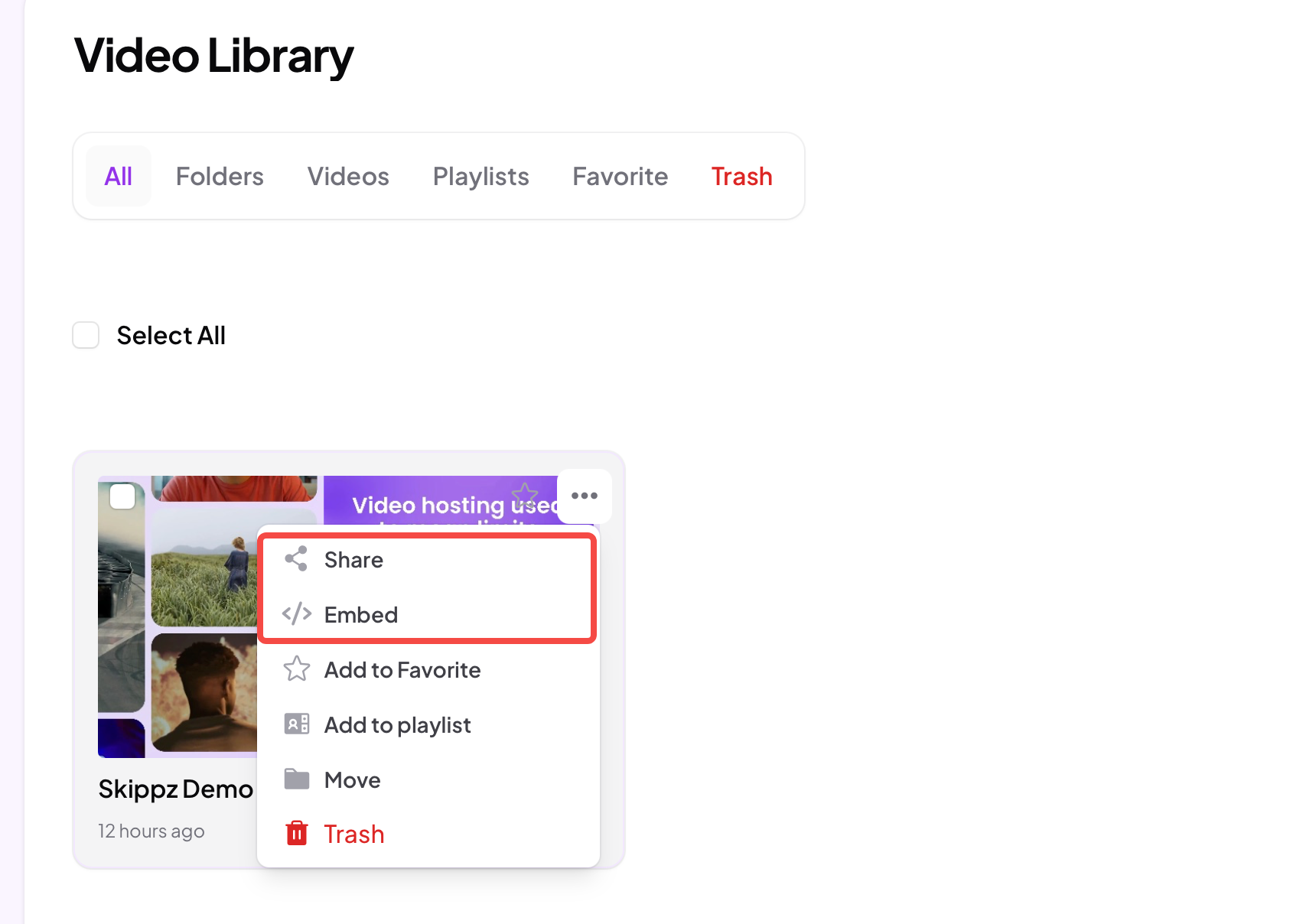
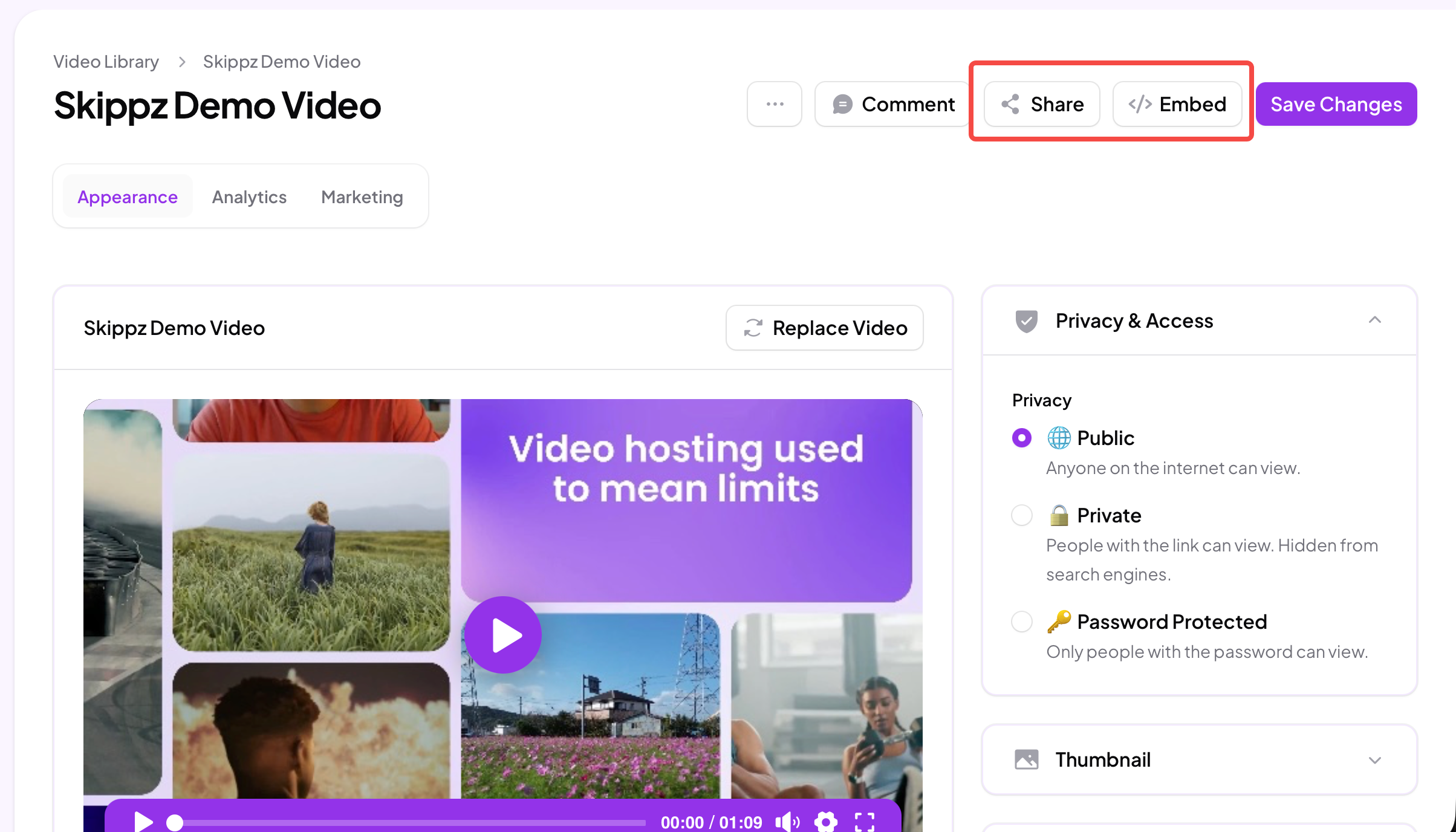
You will find both options in the same two places: the "..." menu on the video's card in your Video Library, and the Share and Embed buttons on the video's own page.
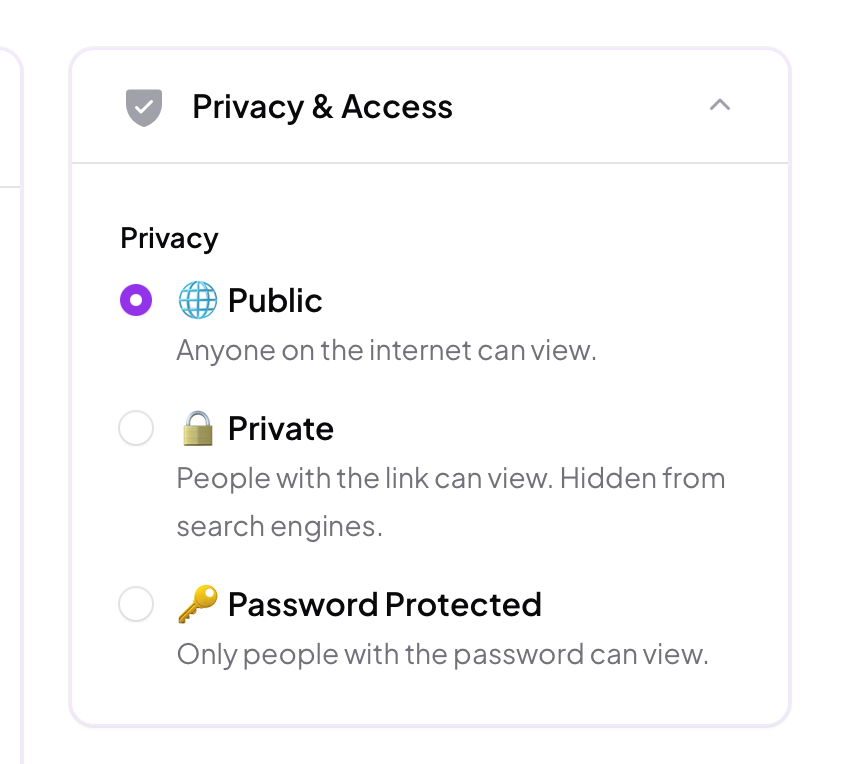
Before you share, decide who should have access. On the video page, open Privacy & Access and choose one of three levels:
Public. Anyone on the internet can view it.
Private. Only people with the link can view it, and the video stays hidden from search engines.
Password Protected. Only people with the password can view it.
This setting applies wherever the video is shared or embedded, so set it before you send your link out.
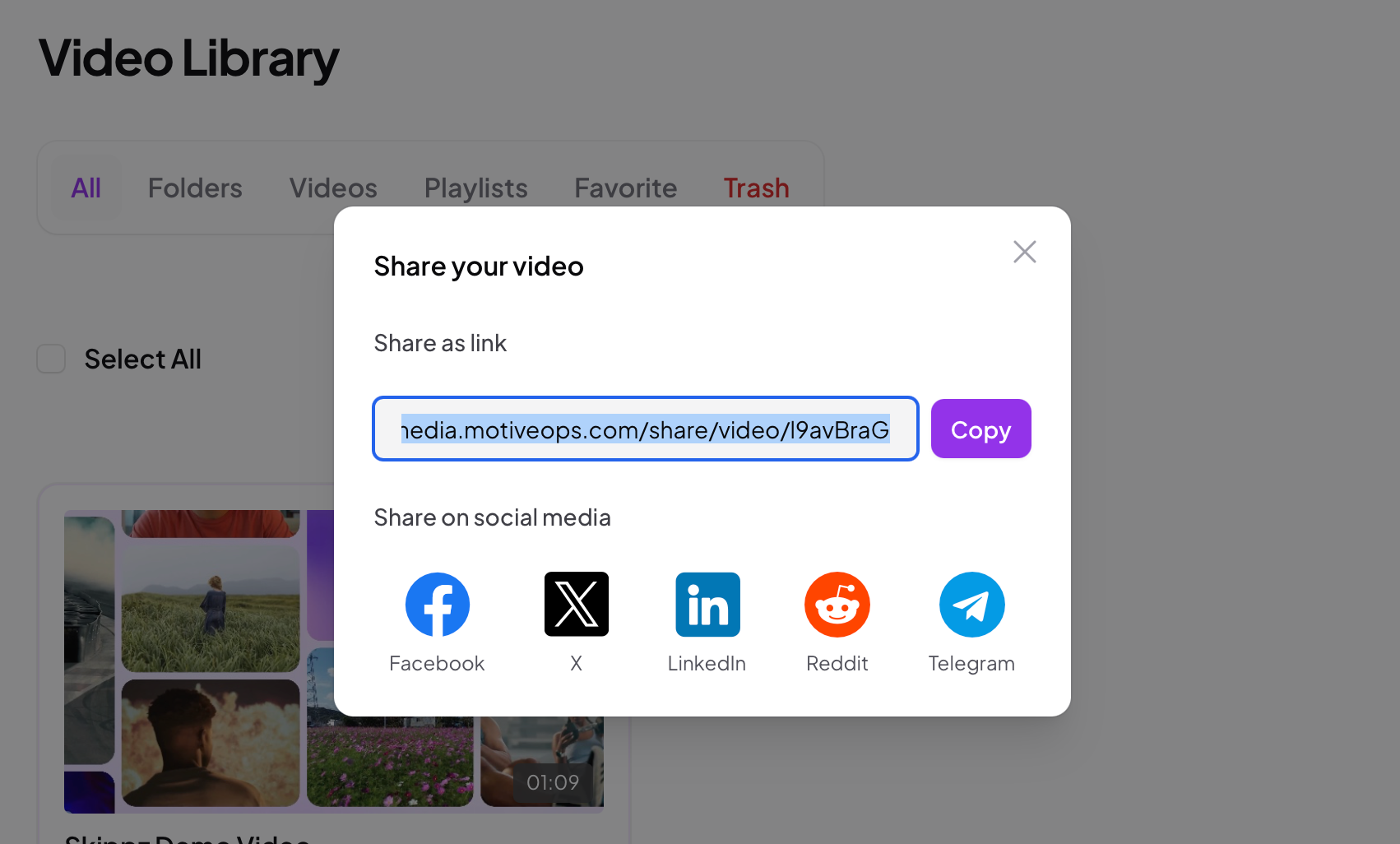
Open Share to get a direct link to your video. The link uses your workspace subdomain, or your own custom domain if you have set one up, so it stays on your brand rather than ours. This is the quickest, simplest way to send a video to your audience. Anyone who opens the link lands on a clean page with your video ready to play.
The same window also gives you one click sharing buttons for Facebook, X, LinkedIn, Reddit and Telegram, so you can post your video straight to social media without copying anything.
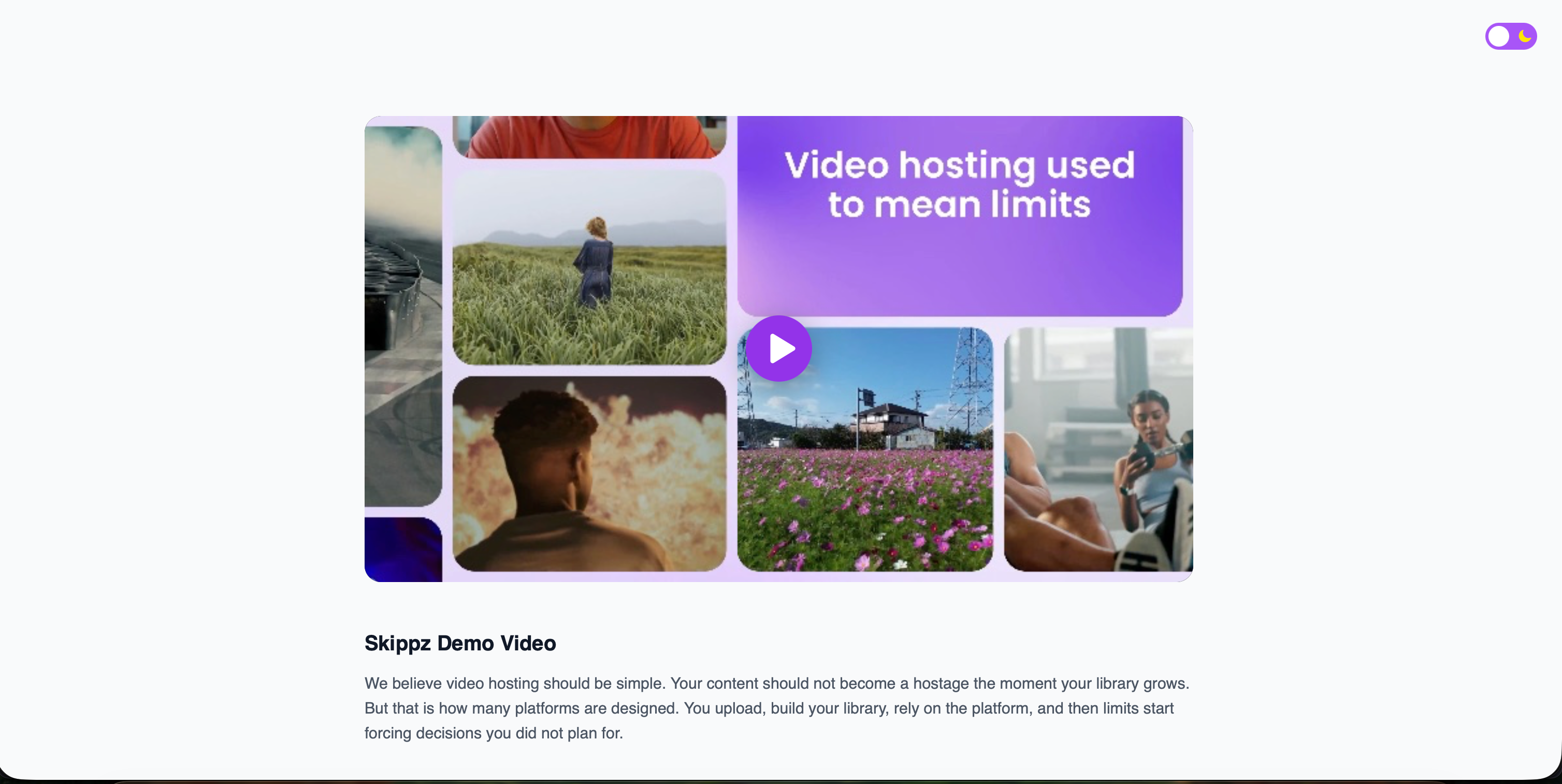
Embedding places the video directly on your own website or page. Open Embed and you will see two layouts to choose from: On page and Lightbox.
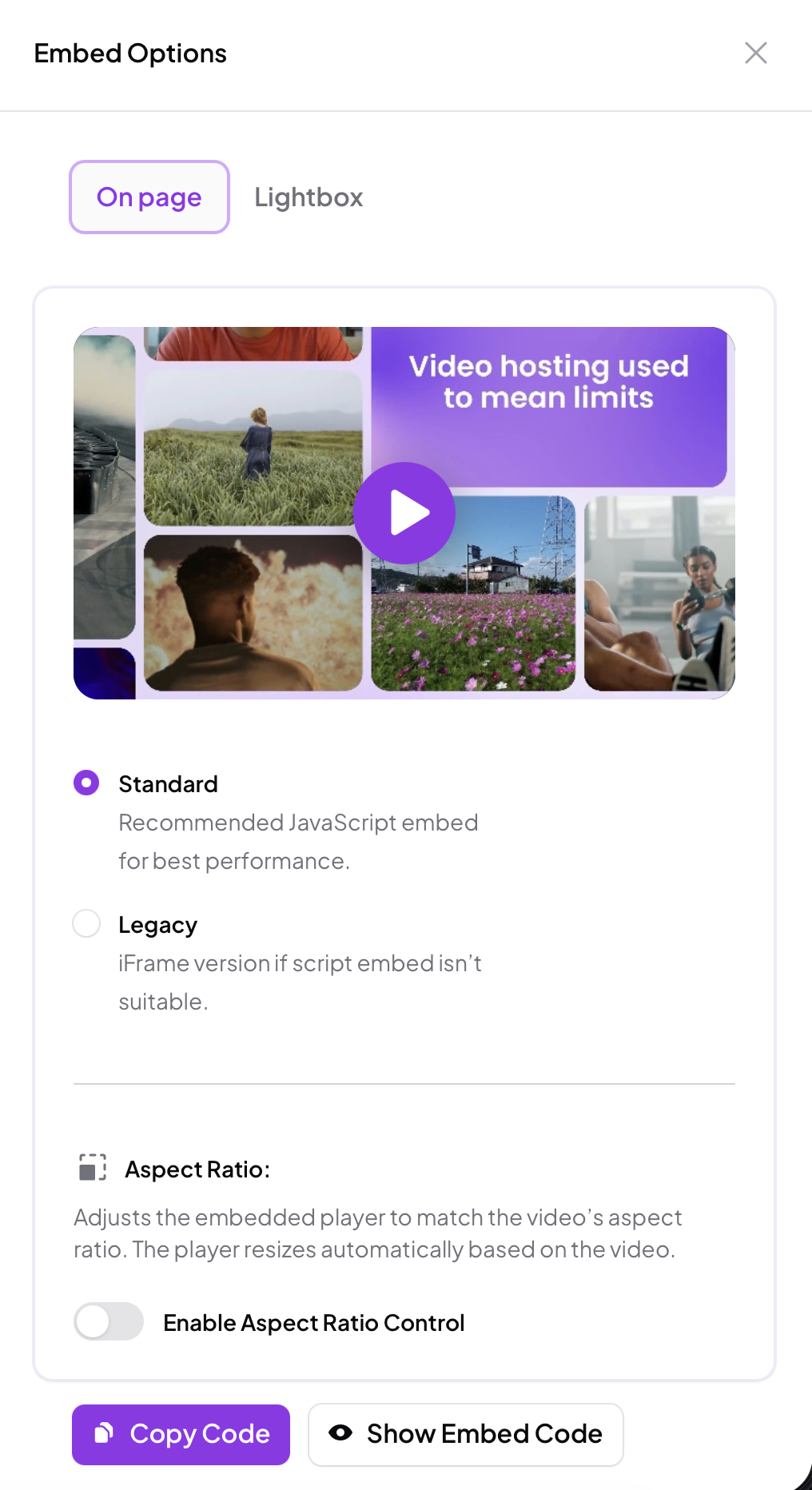
This puts the player straight into your page, sitting inline alongside your other content. You can choose between two versions:
Standard. The recommended option. It is a lightweight code snippet that works with almost any website builder or platform that lets you paste in a piece of code, which is nearly all of them, including tools like WordPress, Webflow and Squarespace. It gives the best playback performance.
Legacy. An older iframe version. Choose this only if your platform does not accept the standard snippet, or if the standard one does not display correctly for you. It plays the same video in a simpler, more widely compatible way.
Both produce a playable video wherever you paste the code. When you are ready, click Copy Code to grab it, or Show Embed Code to see exactly what you are pasting first.
Aspect ratio. Turn on Enable Aspect Ratio Control and the embedded player automatically matches the shape of your video and resizes to fit. This is especially useful for portrait videos, such as reels or footage shot on a phone, so they display tall and full instead of being squeezed into a wide box with empty space on the sides.
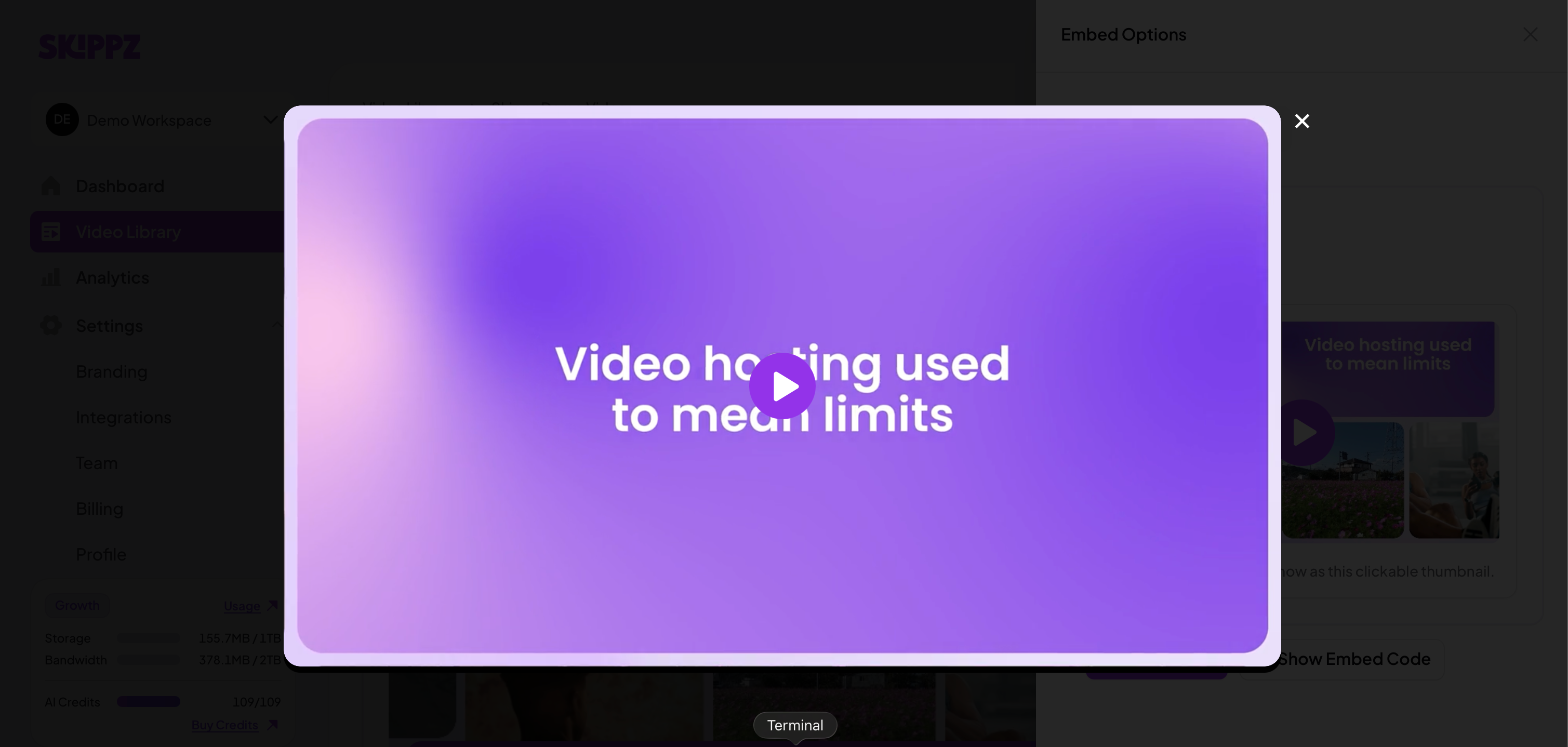
A lightbox works differently. Instead of sitting inline and playing in place, the video opens in a focused overlay on top of your page when someone clicks it, with the rest of the page dimmed behind. It keeps your layout clean until the viewer chooses to watch, and gives them a distraction free view when they do.
You can trigger a lightbox in two ways:
Show as Thumbnail. Your page shows the video's thumbnail with a play button, and clicking it opens the video in the lightbox. This suits a landing page or homepage where you want a neat preview image that expands into a large, focused view on click, without a full player taking over your layout.
Show as Text Link. Your video opens from a plain text link, worded however you like. This suits a blog post, newsletter or help article where you would rather drop in a simple line such as "Watch the walkthrough" that opens the video in a lightbox, rather than embedding a full player into the middle of your writing.
Both use Copy Code and Show Embed Code in the same way as the on page embeds.
That is it. Wherever your video is shared or embedded, every view feeds back into Skippz. You will see watch data and performance for the video in your analytics, so you always know how it is doing.