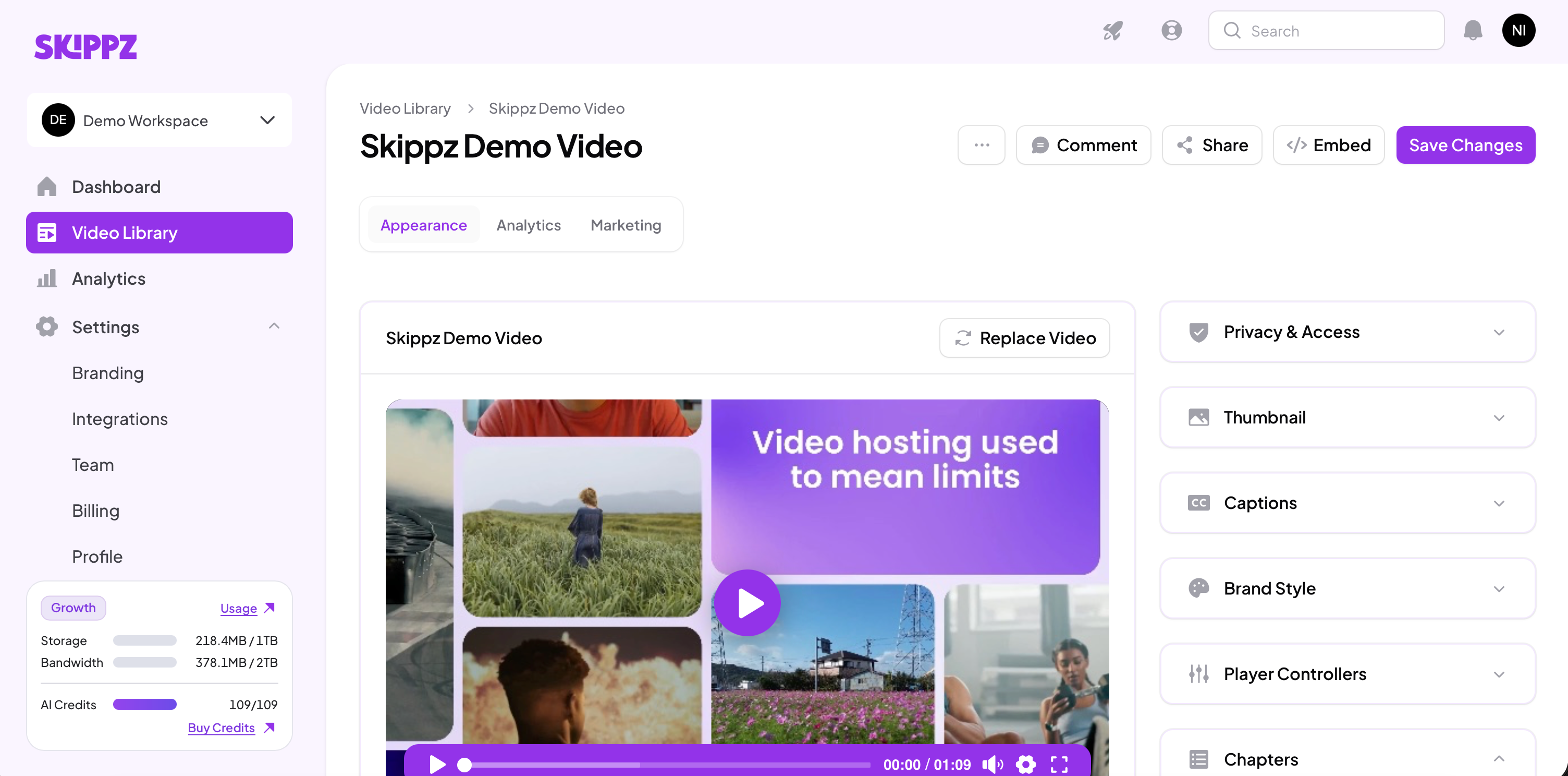
Every video has its own page, which you open by clicking it in your library. This page is where you control everything about that video, from its name to how it looks and who can see it. It opens on the Appearance tab, where all the settings below live. This article covers the everyday essentials and points you to the right guide for the deeper options.
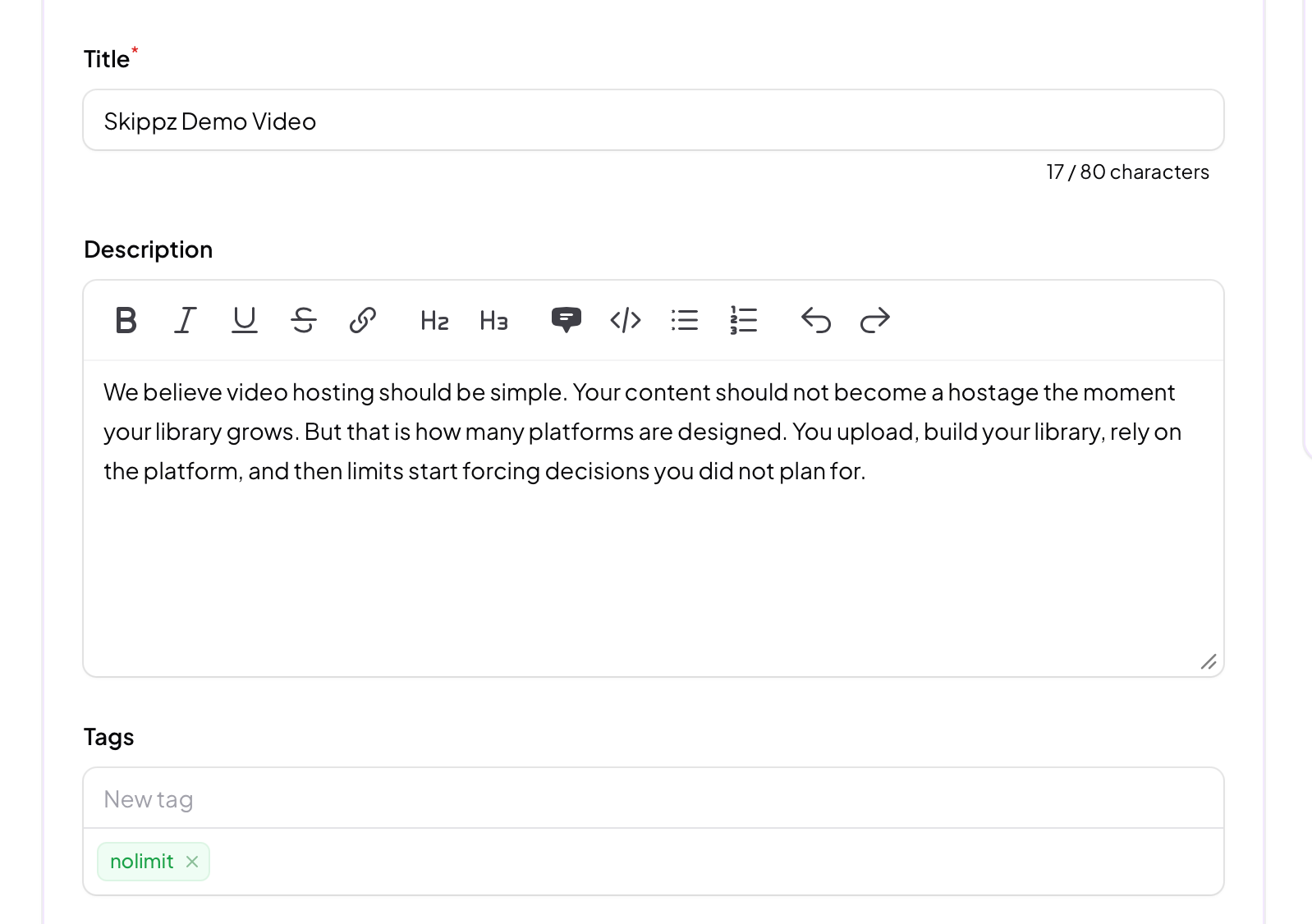
Title. Give your video a clear, descriptive name. A title is required, can be up to 80 characters, and is what shows in your library, on your share page and in search results, so make it something both you and your viewers will recognise.
Description. The description uses a rich text editor, so you can format it with bold, italics, headings, lists and links. Use it to add context, notes or links for your viewers, or just to keep useful detail attached to the video.
Tags. Tags are short labels you attach to a video, and they are how you group and find videos across your whole library rather than just within one folder. Because search matches tags as well as titles and descriptions, a few well chosen tags make any video easy to surface later.
Skippz does not auto save. Whenever you change anything on this page, the title, description, tags, privacy, thumbnail, player settings, anything at all, click Save Changes in the top right to keep it. Make it a habit, so your work is always safely saved and nothing is lost.
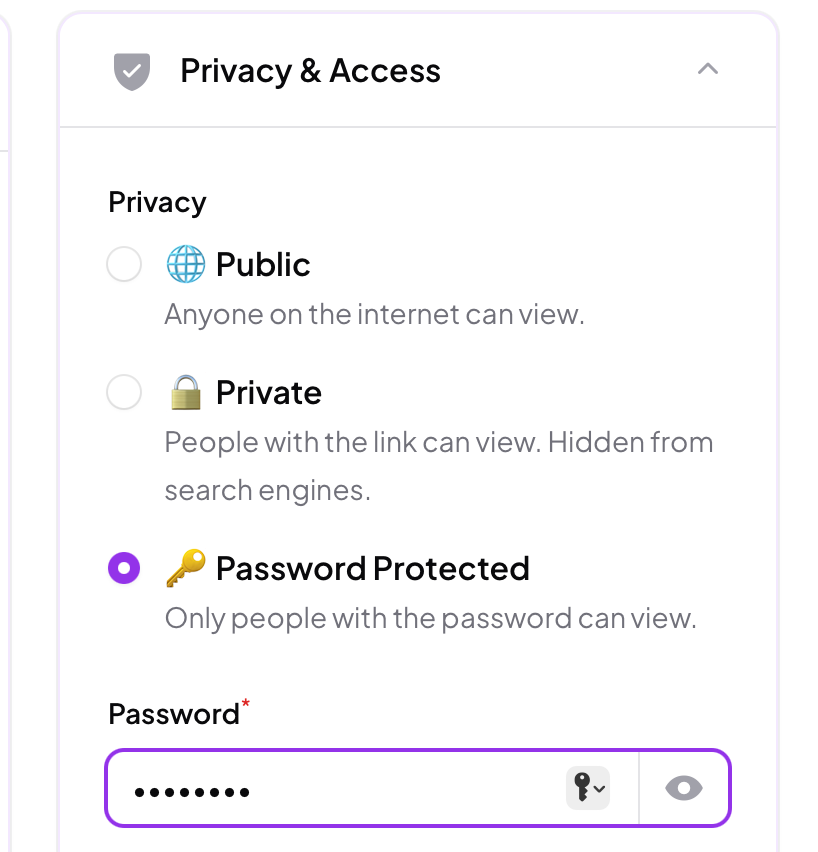
Open Privacy & Access to choose who can view the video. This setting applies everywhere the video is shared or embedded:
Public. Anyone on the internet can view it.
Private. Only people with the link can view it, and it stays hidden from search engines.
Password Protected. Only people with the password can view it, whether they open your share page or an embed.
Your thumbnail is the preview image people see before they press play. Open Thumbnail to set it. You can capture a frame straight from the video, or upload your own image. For an uploaded image, use at least 1280 x 720 at the same aspect ratio as your video, up to 1 MB.
You can also choose between two types:
An image thumbnail, the standard still image.
A video thumbnail, a short clip shown in place of the still. A video thumbnail can play automatically or only on hover, and it loops continuously, which keeps it eye catching and invites a click.
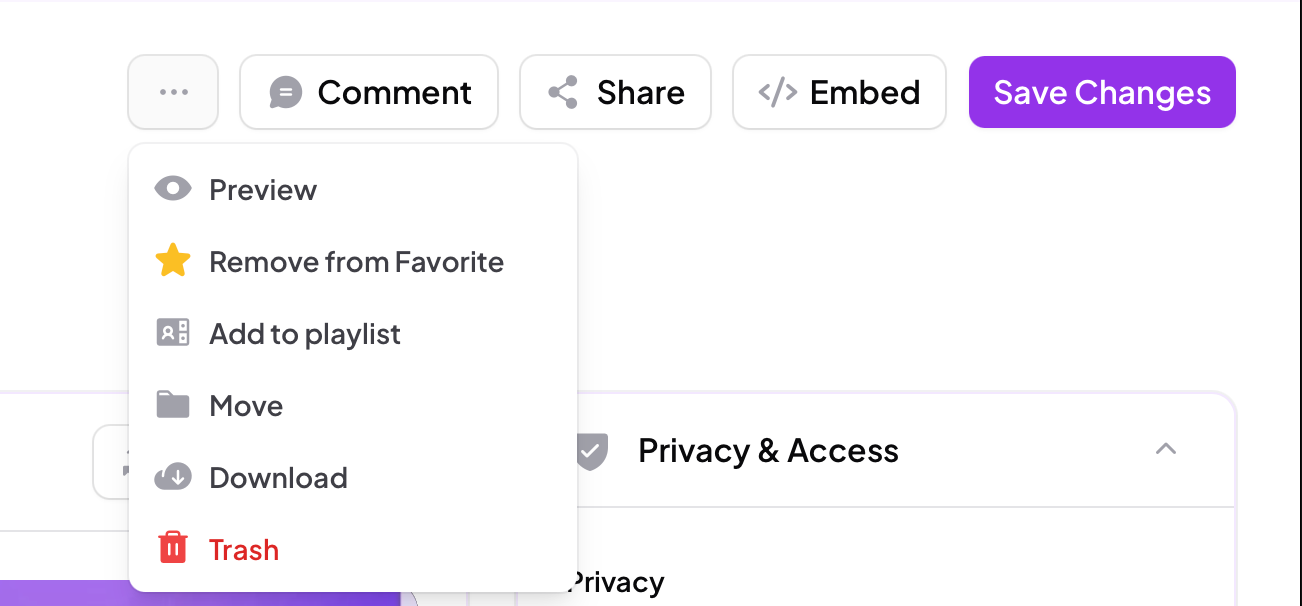
The buttons across the top of the page give you quick actions for the video:
Preview opens the video's share page, so you can see exactly what your viewers will.
Add to Favorite, or Remove from Favorite, pins the video. See Favouriting videos and folders.
Add to playlist adds it to a playlist. See Playlists and embeddable playlists.
Move sends it to another folder. See Organising your library.
Download saves the original file back to your device.
Trash removes the video. See Trash: deleting and restoring.
Share and Embed give you the link, social options and embed code. See Embedding and sharing your video.
Comment is for working through a video with your team, covered in Team and collaboration.
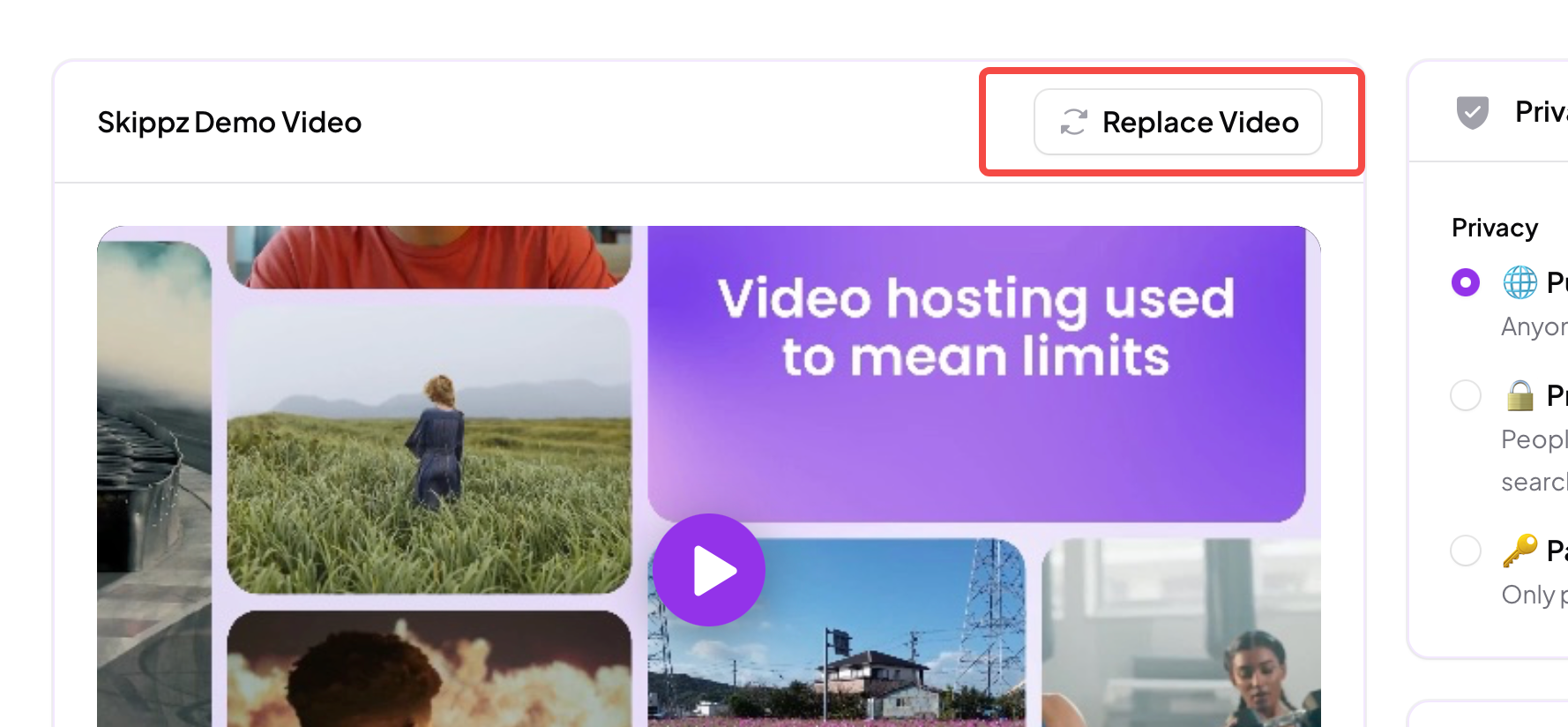
You will also see Replace Video, which swaps the underlying file while keeping the same video, and its title, settings and place, intact. Because that can affect anything you have already shared or embedded, it has its own article: Replacing a video.
Further down the page are more panels. Each is covered properly in its own guide, so here is just what they do:
Brand Style matches the player to your brand, with your colour, logo and watermark. See Player and branding.
Player Controllers turn individual player controls and behaviours on or off. See Player and branding.
Chapters break a video into sections, added manually or generated for you. See Player and branding.
Captions add and manage subtitles, with more in our captions guide.
Alongside Appearance, the video page has a few more tabs for what happens after people watch. Analytics shows how this particular video is performing, while Marketing and Leads are part of the Marketing Suite, for turning views into action and capturing leads.
Some of these features depend on your plan.