A playlist is a collection of videos from your library, presented and shared as one. You can embed a whole playlist anywhere with a single piece of code, and add or remove videos later without ever touching the embed again. That makes playlists one of the most useful ways to put a set of videos to work.
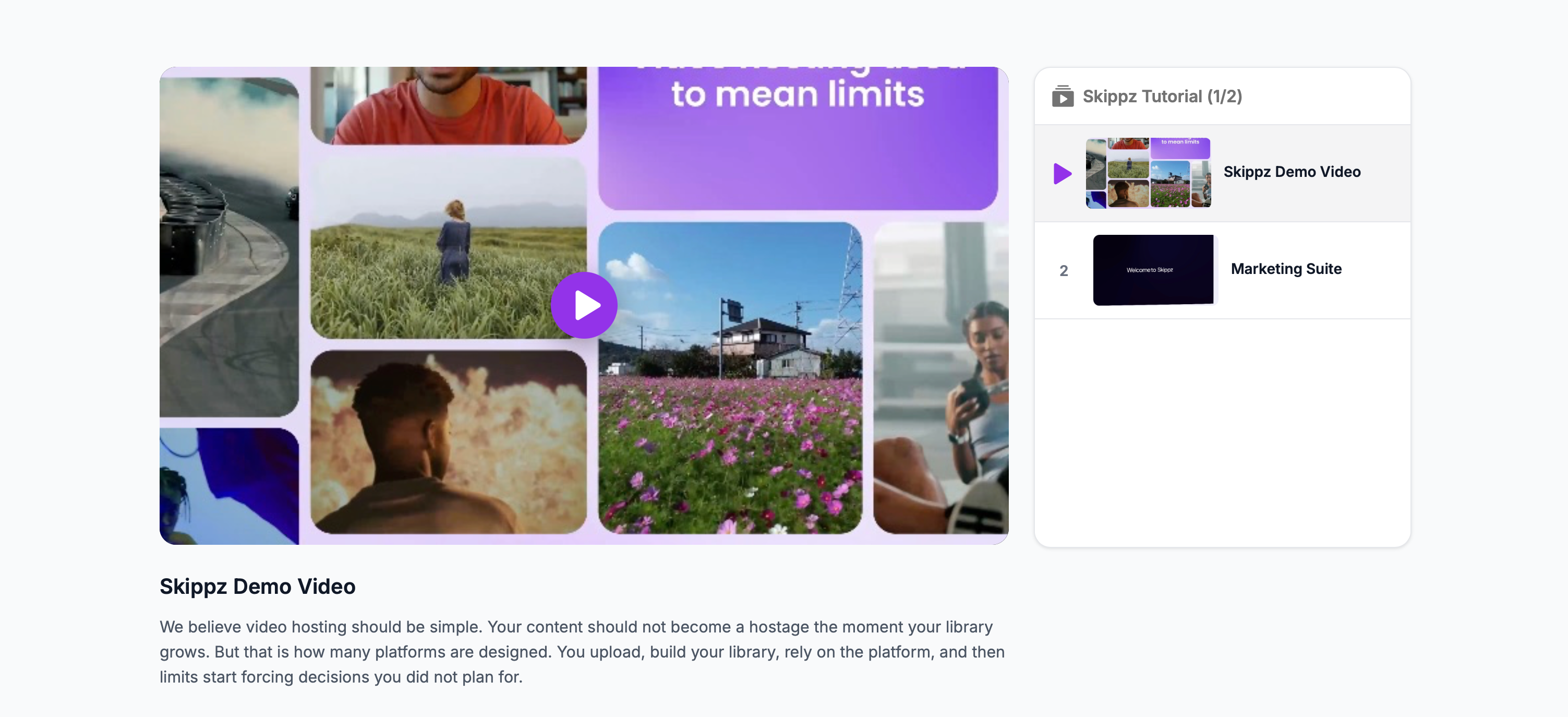
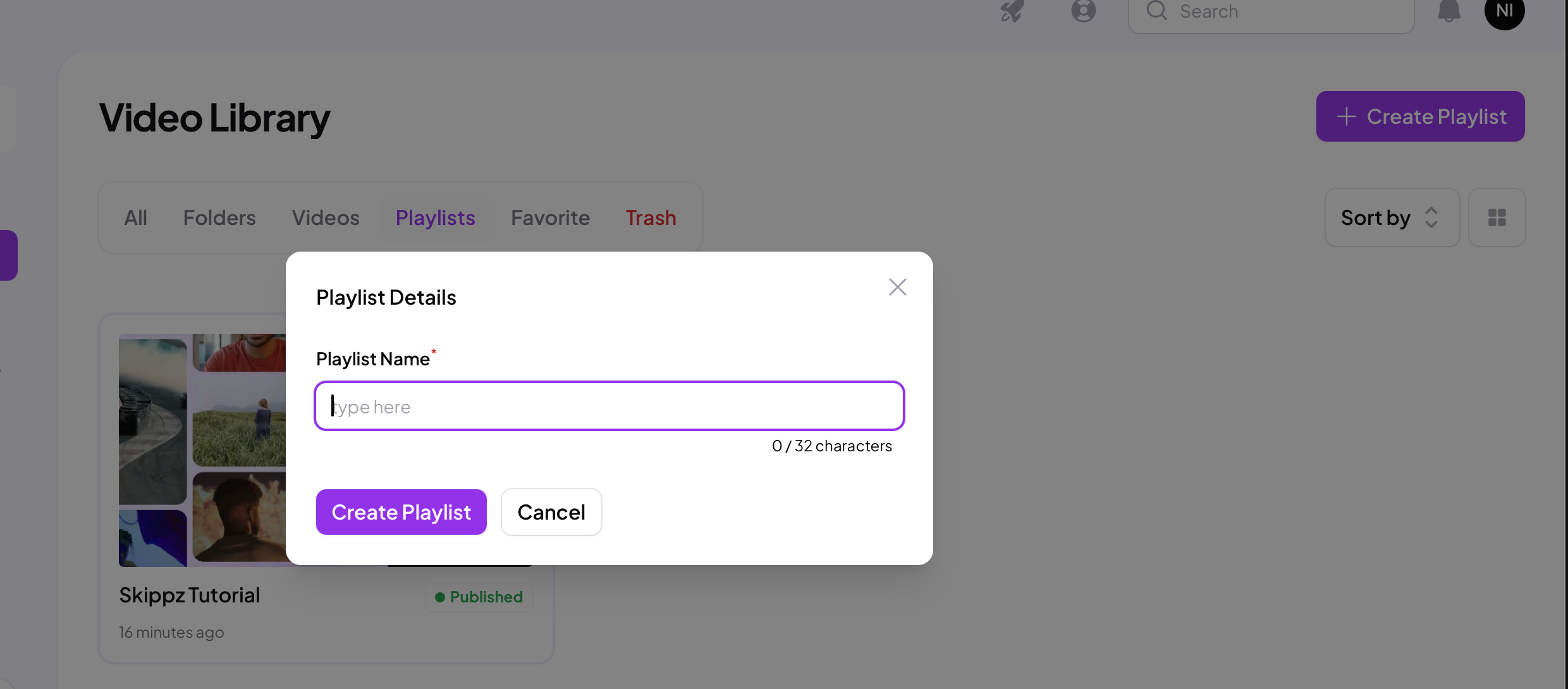
In your Video Library, open the Playlists tab and click Create Playlist. Give it a name, which you can rename at any time.
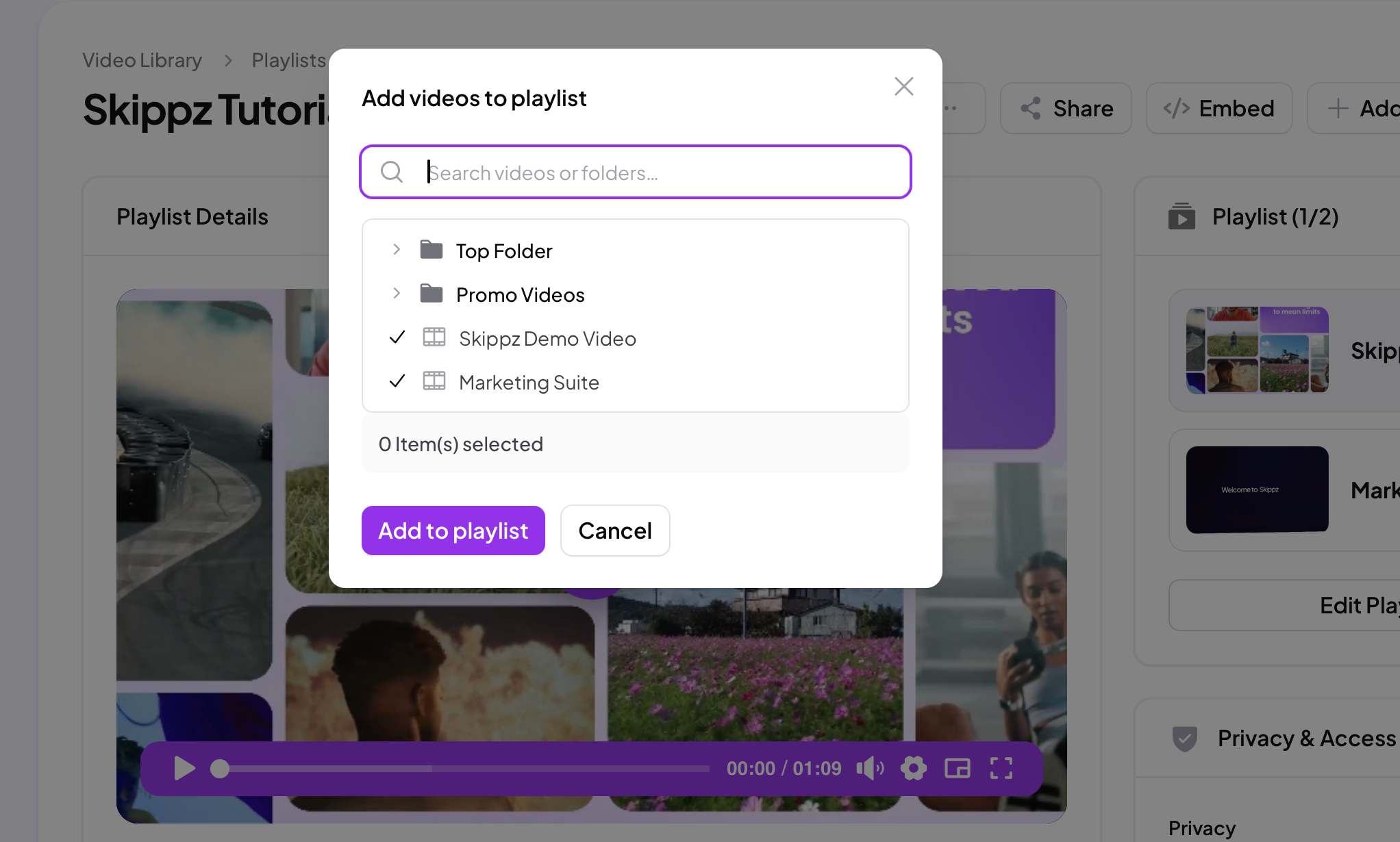
Click Add Videos to open the picker. Search or browse your library, including inside folders, tick the videos you want, and click Add to playlist. You can also add a video to a playlist from the video's own ... menu, as covered in Managing a video. Add as many as you like.
A playlist has two statuses:
Draft is the default, a work in progress that is not yet shareable. Build it up and use Save Draft as you go.
Published is live. Publishing unlocks sharing, embedding and playlist analytics.
Publish once it has the videos you want, and you can unpublish at any time to take it back to a draft.
The simplest way to picture a playlist is as its own player, with its own settings, separate from the videos inside it.
Each video brings its own content into the playlist. Its title, description, thumbnail and captions all come along.
The playlist, however, takes over presentation and access for everything in it. The playlist's own privacy, branding and player controls apply across the whole thing, replacing the individual settings of each video while it sits inside the playlist.
This never changes your original videos. Each video keeps its own privacy, branding and player settings, and still uses them whenever it is watched or embedded on its own. The playlist is simply a separate container that behaves on its own terms.
If you have added marketing elements, such as calls to action or forms, to individual videos, they are not shown in a playlist by default. Turn on Marketing Elements in the playlist's options to surface those per video marketing elements across the playlist, so it keeps working for you while people watch.
Other playlist options, like autoplay and casting, are covered in Player and branding.
Once your playlist is published, you can:
Share it with a link, the same way you share a single video.
Embed the whole playlist with one JavaScript snippet. Playlists use the standard JavaScript embed, so just click Copy Code and paste it where you want it.
Add or remove videos at any time and every embed updates automatically. You never have to re-embed.
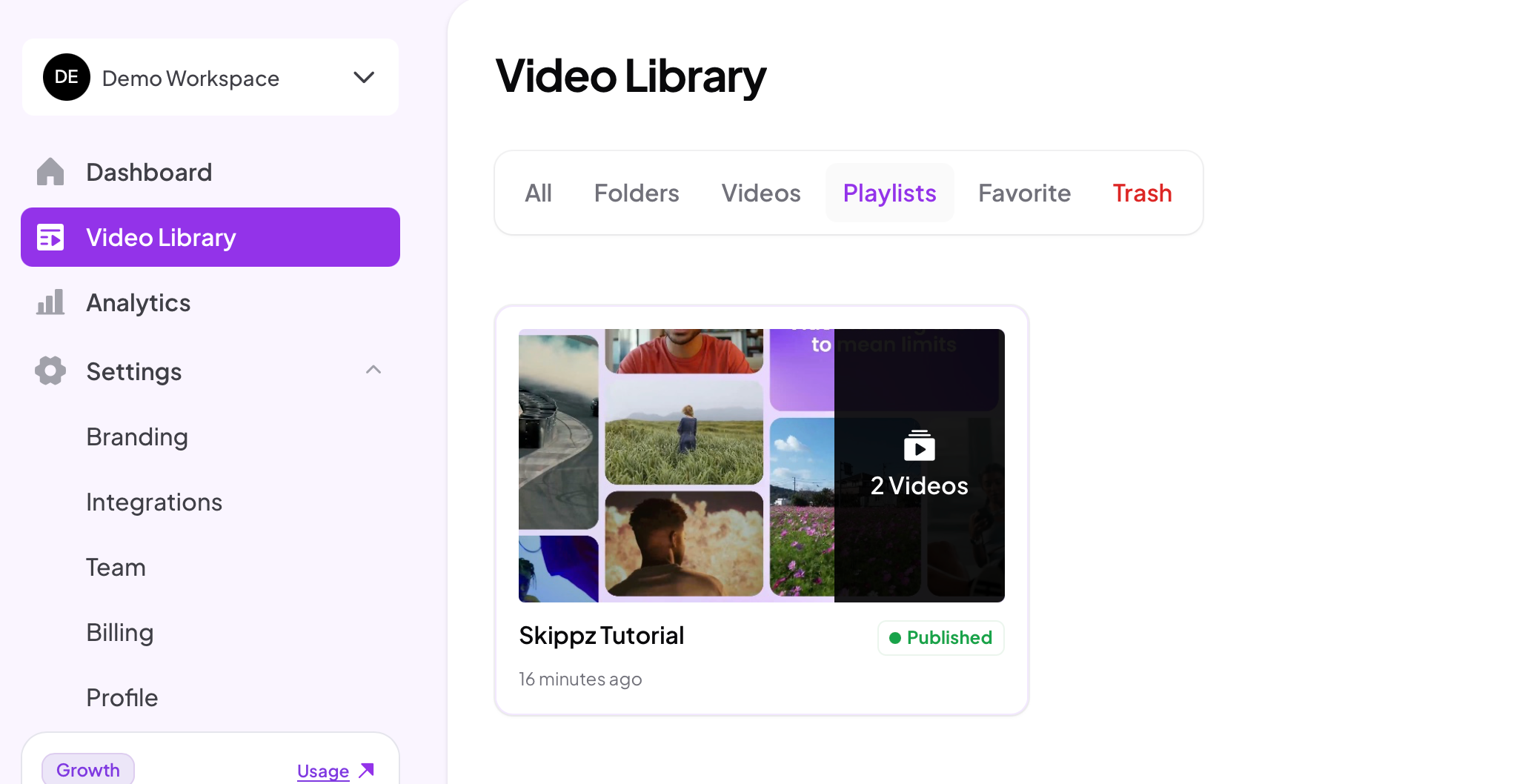
In the Playlists tab of your library, each playlist appears as a card showing its video count and its status, draft or published, at a glance.
Removing a video from a playlist only takes it out of that playlist. The actual video stays safe in your library.
Deleting a playlist only deletes the playlist. Every video it contained stays in your library, untouched.