Captions make your videos easier to follow and open them up to a much wider audience. You can add them in two ways: upload your own, or generate them with AI. You will find both in the Captions panel on a video's Appearance tab, and every caption can be edited at any time.
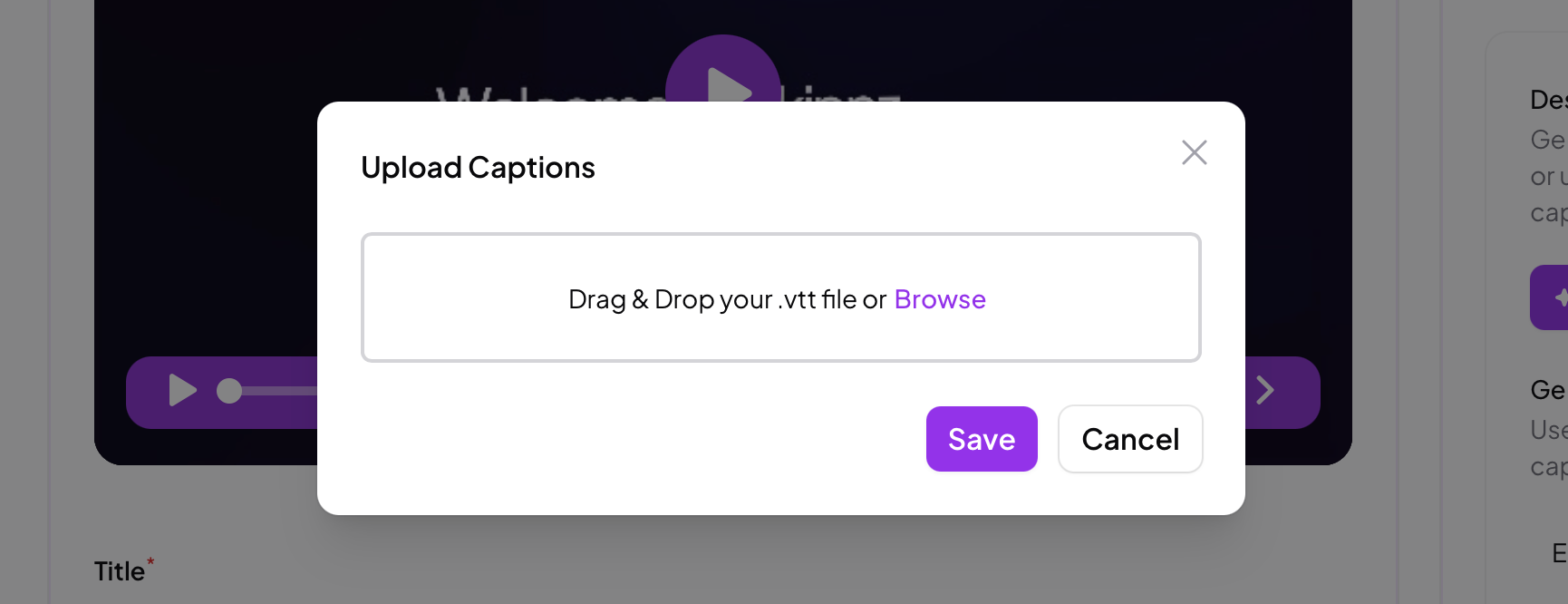
If you already have a transcript, or captions made elsewhere, click Upload and add your VTT file. Once it is uploaded, choose the language it is in.
You can upload more than one file, each in a different language, to offer your video with captions or translations in several languages.
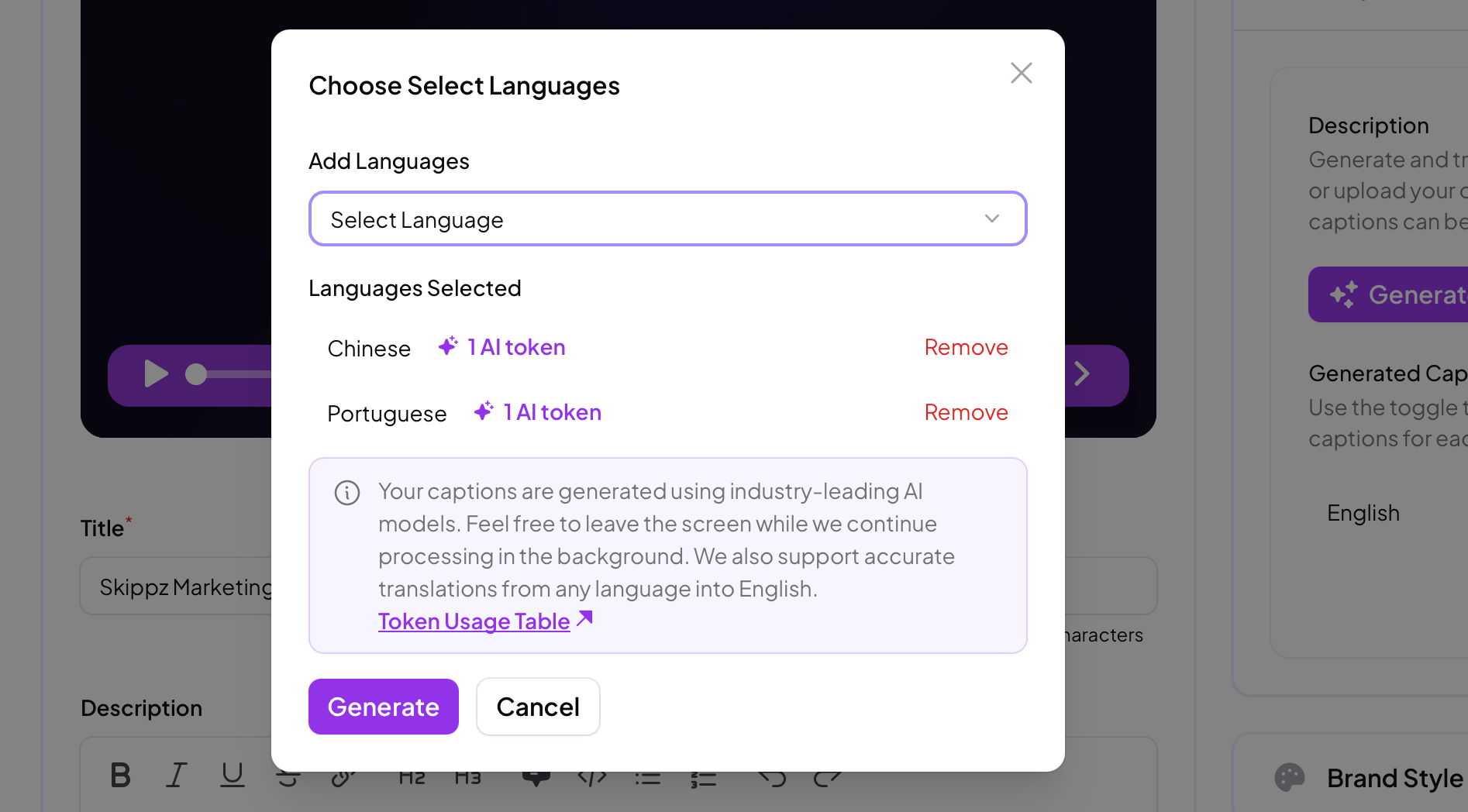
To create captions automatically, click Generate, choose the language you want, and click generate. Skippz supports around 100 languages and uses strong AI models to transcribe your video accurately.
A few things worth knowing:
Generate several languages at once by selecting more than one language before you generate.
It is quick. Generation usually takes a minute or two depending on the length of the video. You can safely leave the page or carry on with other things in the app and come back to it.
Cost. Generating and translating captions uses AI tokens, based on the video's duration, and translations cost the same as the original language. For how tokens work and renew, see AI tokens.
Generating captions across several languages is one of the simplest ways to widen your reach. Captions help people watching with the sound off and support viewers who are deaf or hard of hearing, and AI translation lets a single video speak to audiences in their own language.
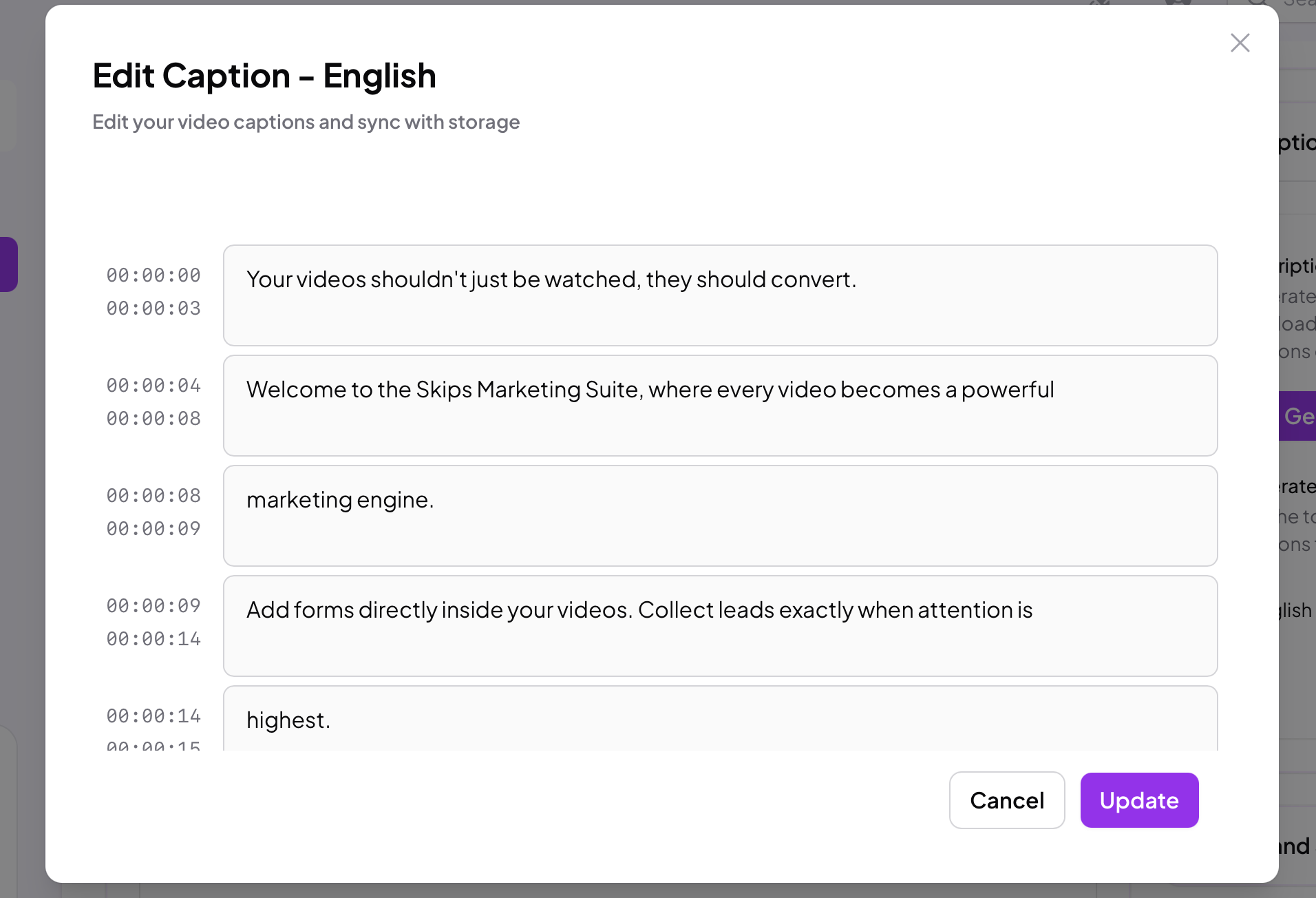
AI transcription is accurate, but it can occasionally mishear a name, a brand term or an unusual pronunciation. That is what the built in editor is for. Open a caption, adjust any line against its timestamp, and save. This works for both uploaded and AI generated captions.
Uploaded and AI captions happily sit side by side, but each language can hold only one caption. If you have uploaded an English caption, you cannot also generate an English one with AI, and the other way around. You are free to mix methods across different languages, for example an uploaded English caption alongside an AI generated Spanish one.
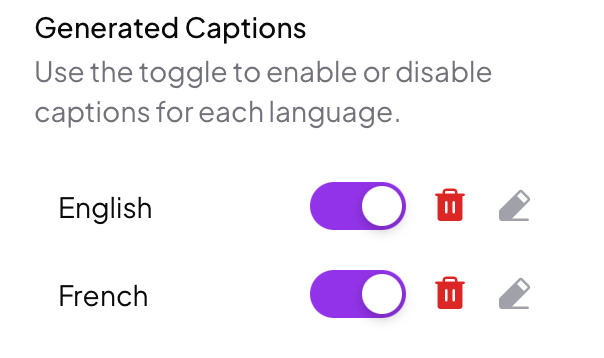
Each language you add appears in your list of captions with a toggle to enable or disable it, along with options to edit or delete. Disabling a caption keeps it stored, ready to switch back on whenever you want.
Once a video has one or more captions, a CC / Subtitle control appears in your Player Controllers. Switch it on so your captions reach viewers on your share pages and embeds. For more on the player controls, see The video player and its controls.
From the viewer's side, a CC button lets them turn captions on or off. If the video has more than one language, they will also find a language option under the player's gear icon, so they can pick the one they prefer.