This is your home screen. At the top you get a quick snapshot of your account: total videos, bandwidth used, storage used and total video views. Below that, Recently Uploaded shows your newest videos and Top Performing Videos shows what is getting watched. It is a glance, not the full picture. For detailed, broken down numbers, head to Analytics.
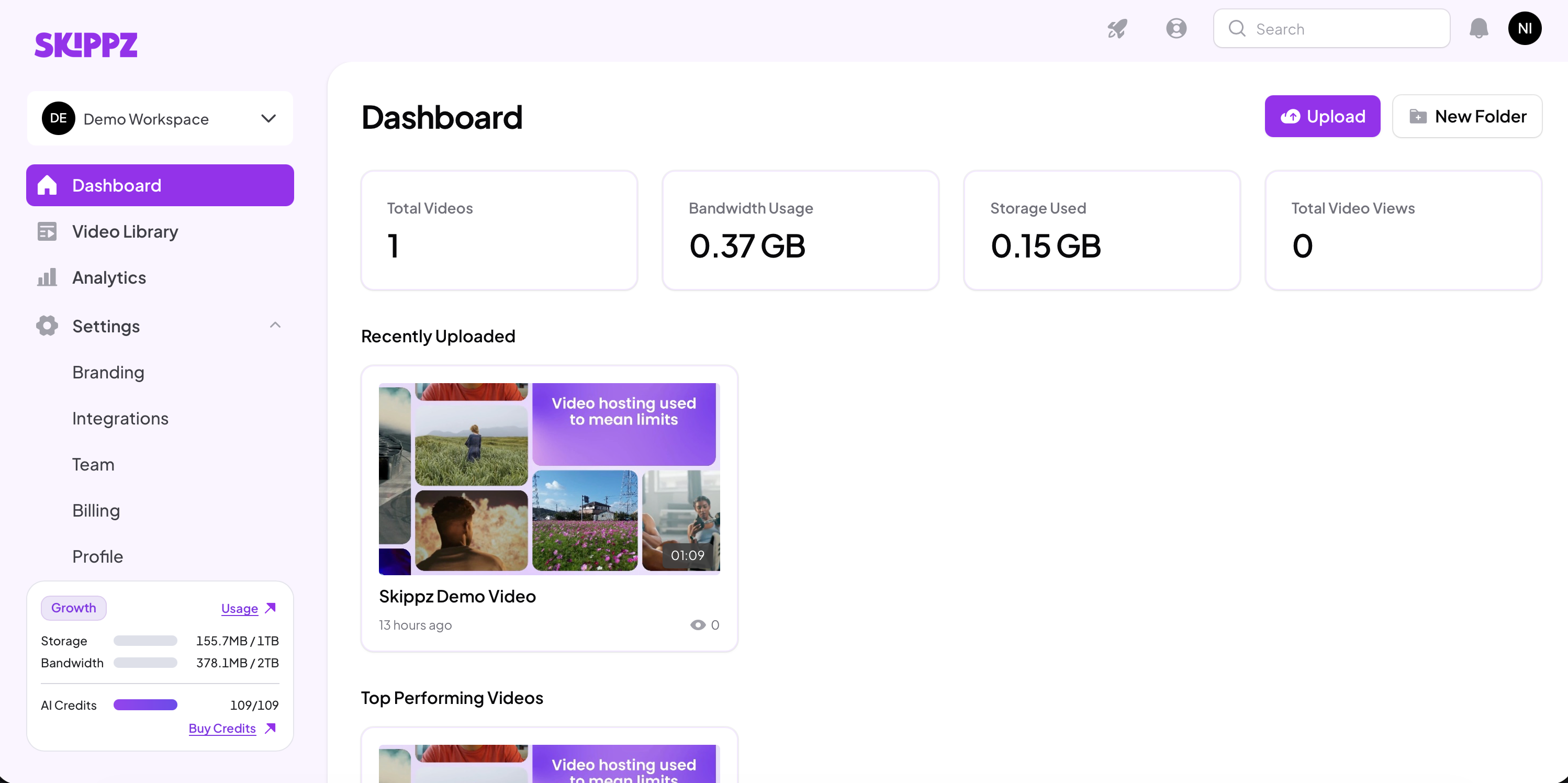
At the very top of the sidebar is your workspace switcher. A workspace is a self contained space for your videos, branding and team. From here you can move between workspaces in one click, and manage or add new ones depending on your plan. Setting up your workspace covers this in detail.
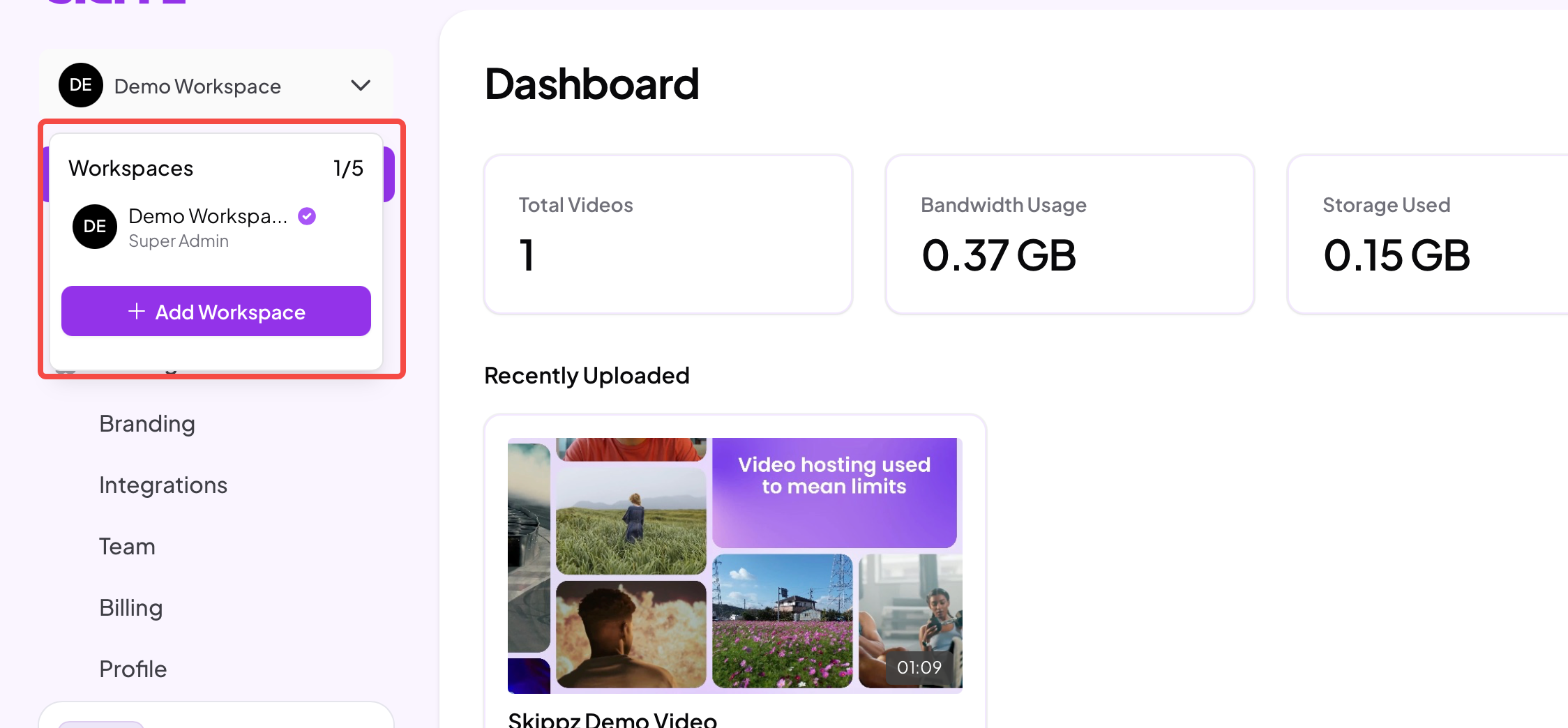
This is the heart of Skippz, where every video you upload lives. Organise your videos into folders and subfolders, or keep them at the top level. You can filter and sort them, by date added or alphabetically, and switch between a tile view, which is the default, and a list view. There is more on managing your library in the Video Management guides.
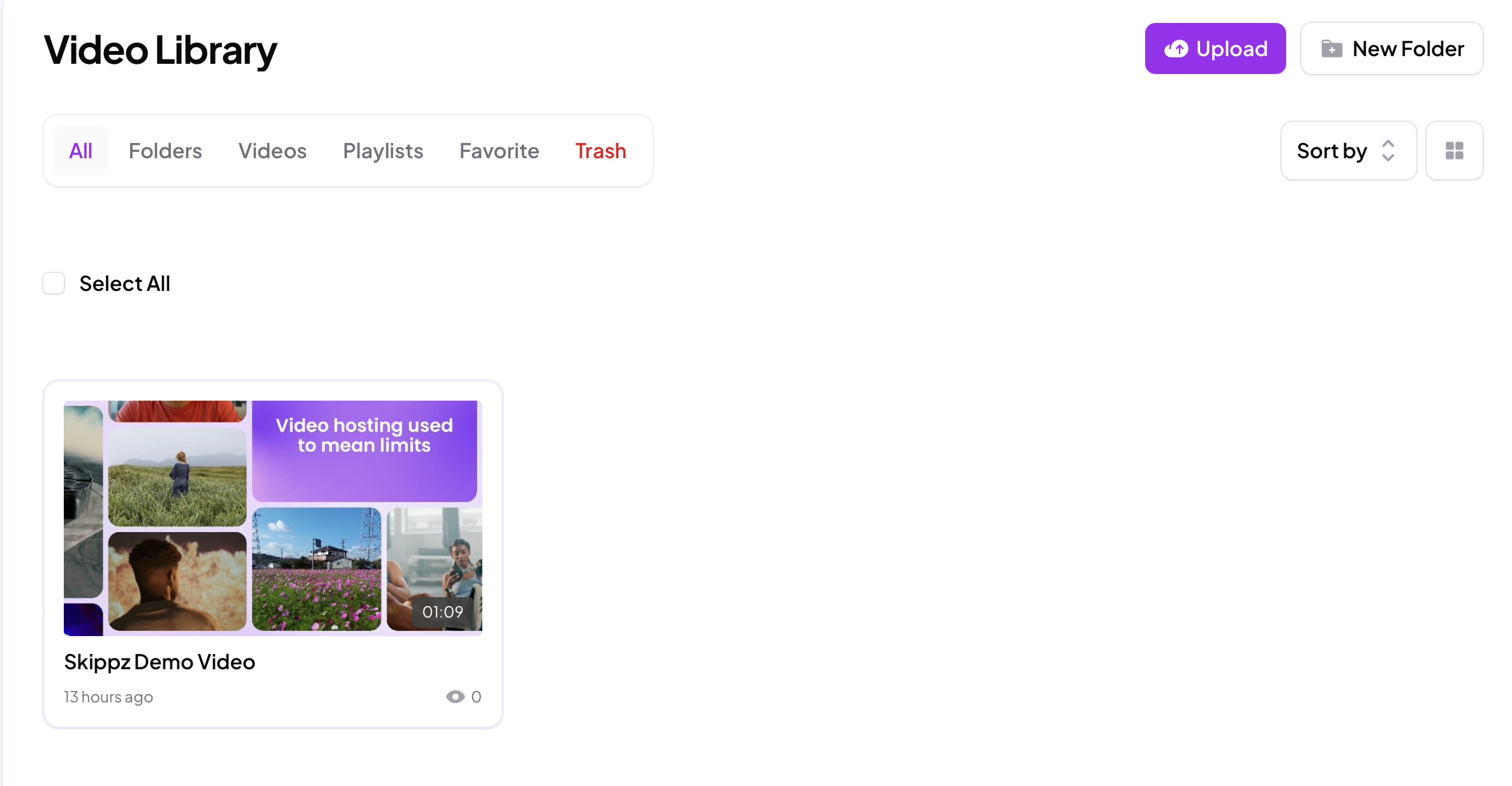
The Analytics page gives you the full performance picture across your entire library: total plays, watch time, engagement and completion rates, unique visitors, views by country and your top performing videos, with a plays over time chart. Choose a date range at the top, and export everything to CSV when you need it.
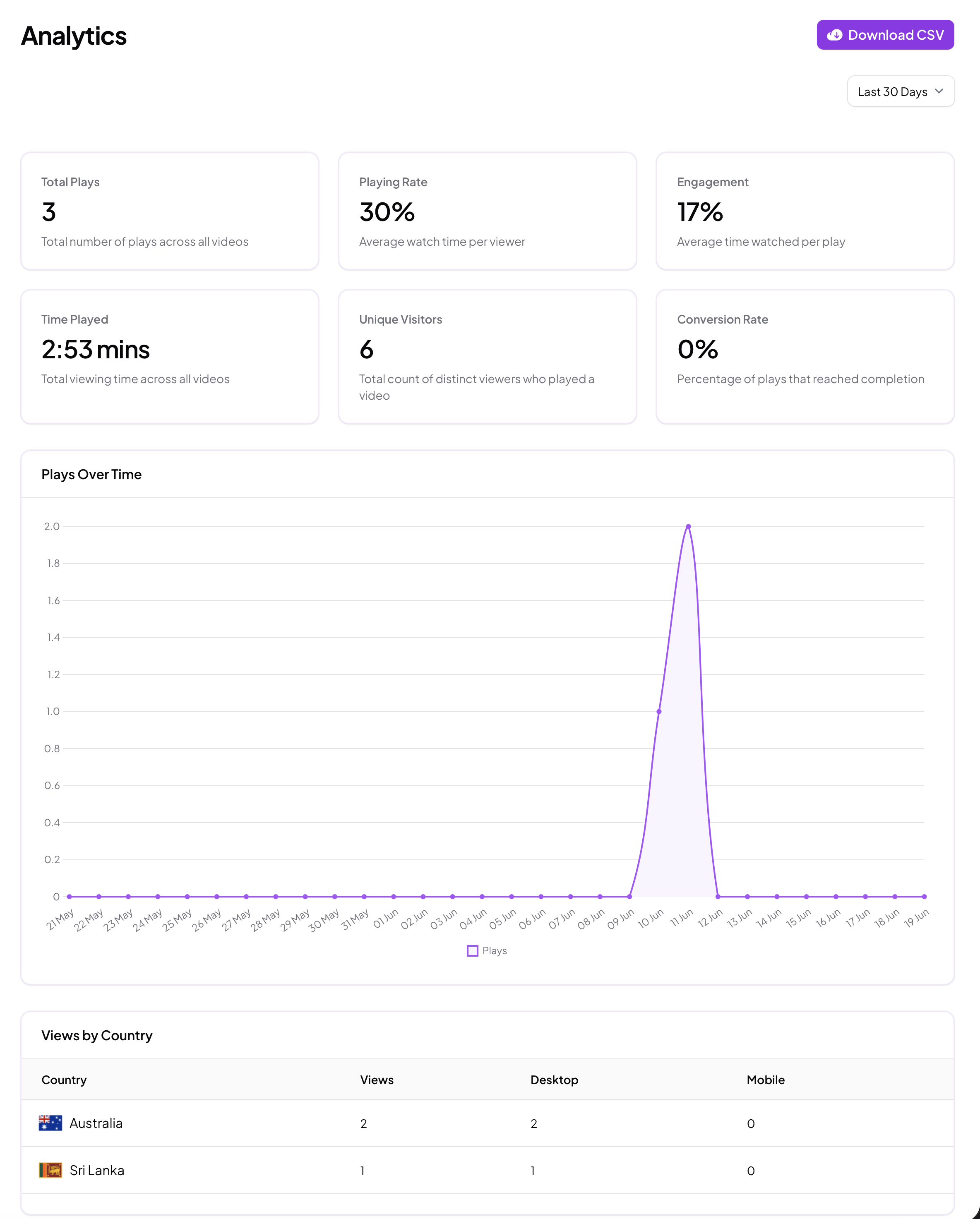
The Settings section, expanded from the sidebar, holds everything to do with how your workspace looks and runs:
Branding. Customise your workspace branding: your logo, colours, default player controls and share page look. Whatever you set here is applied automatically to every new video you upload, and you can still adjust any video individually. This is also where you connect a custom domain, if your plan includes one.
Integrations. Connect Skippz to your other tools, such as CRMs and webhooks, so data like leads captured from your videos flows across automatically with no manual work. More integrations are on the way.
Team. Invite people to collaborate with you, within a single workspace or across your whole account, with roles that control what each member can do. Available depending on your plan.
Billing. See your full payment history, manage your pay as you go settings and add-ons, and change, upgrade, downgrade or cancel your plan. You can also open billing through Stripe to download invoices and receipts.
Profile. Your personal account details: your name and profile photo, which make collaborating with your team clearer, along with your login details and two factor authentication for extra security.
A couple of useful things live across the top of the screen:
Help and support. Click the help icon, the lifebuoy ring, to open support. You can start a live chat with our team, raise a ticket, or get instant answers from our knowledge base through our AI assistant, Cue.
Roadmap. The rocket icon opens our public roadmap. See what we are building next, and send us your own issues and feature requests.

The panel at the bottom of the sidebar is always visible, showing your current plan and how much storage, bandwidth and AI credits you have used. Quick links there take you to your detailed usage and to top up credits.