Skippz keeps things to two levels: folders, and subfolders inside them. You can create as many folders as you like, and as many subfolders inside each folder as you like. What you cannot do is create another folder inside a subfolder.
This is deliberate. Two levels keep your library easy to scan and your videos easy to find. Folders buried inside folders inside folders are exactly where things get lost. Two clean levels give you structure without the maze.
From your Video Library, or from the Dashboard, click New Folder and give it a name. Your new folder appears in your library, ready to fill.
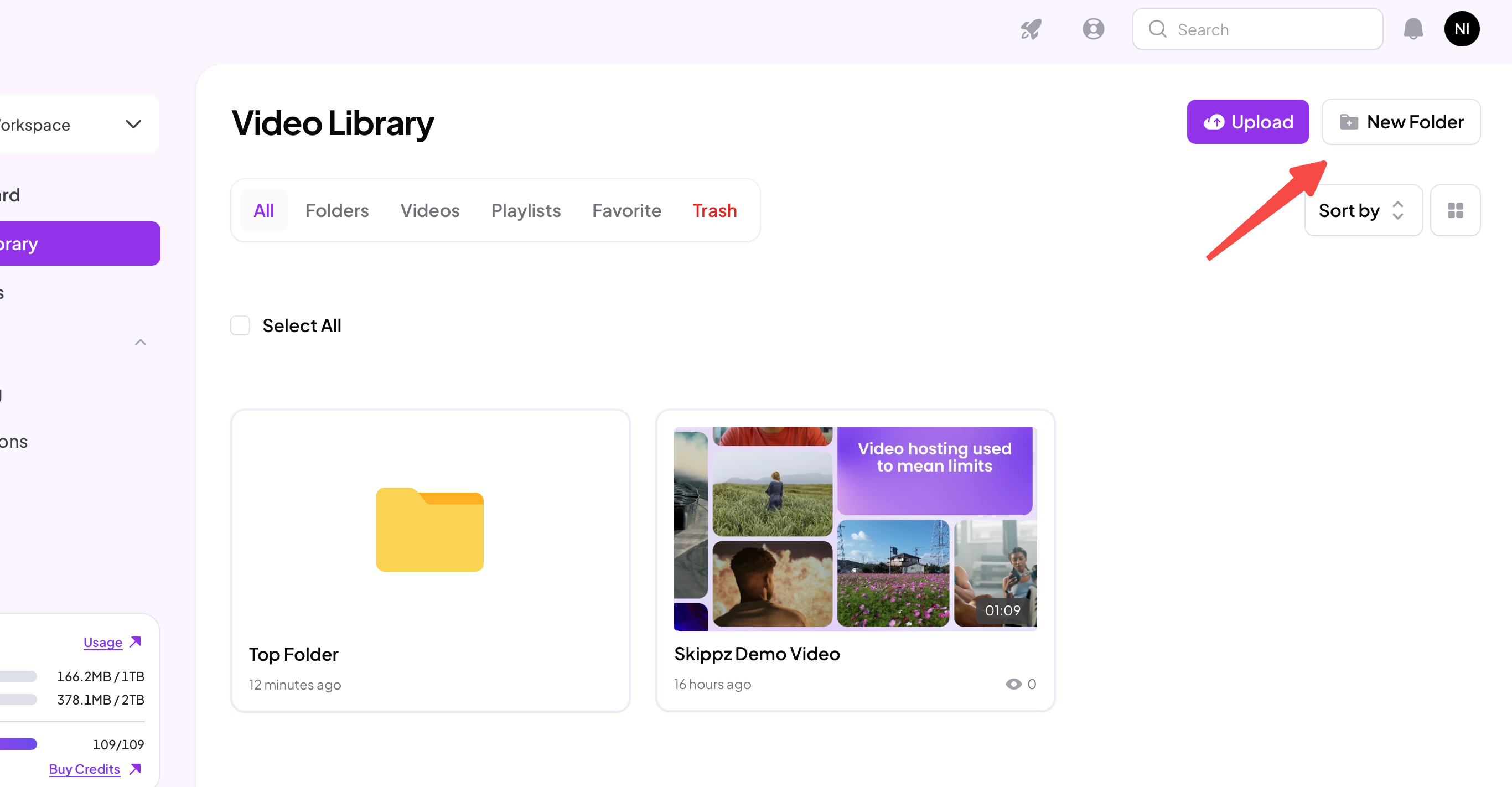
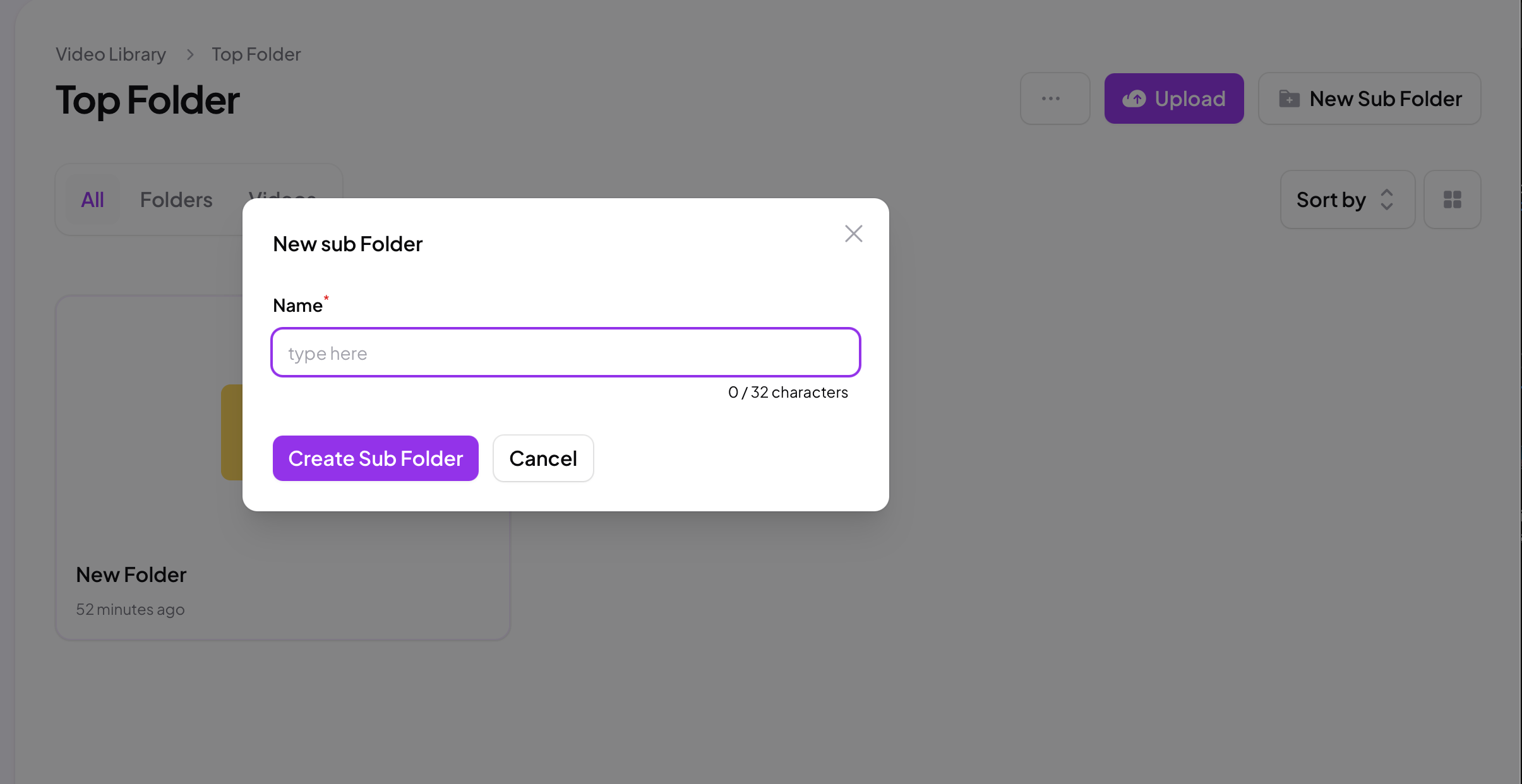
Open a folder, then click New Sub Folder and name it. Subfolders sit inside a folder and help you break a topic down further.
There are two ways to get videos into a folder:
Upload straight in. Open the folder and click Upload. Anything you upload from there lands in that folder.
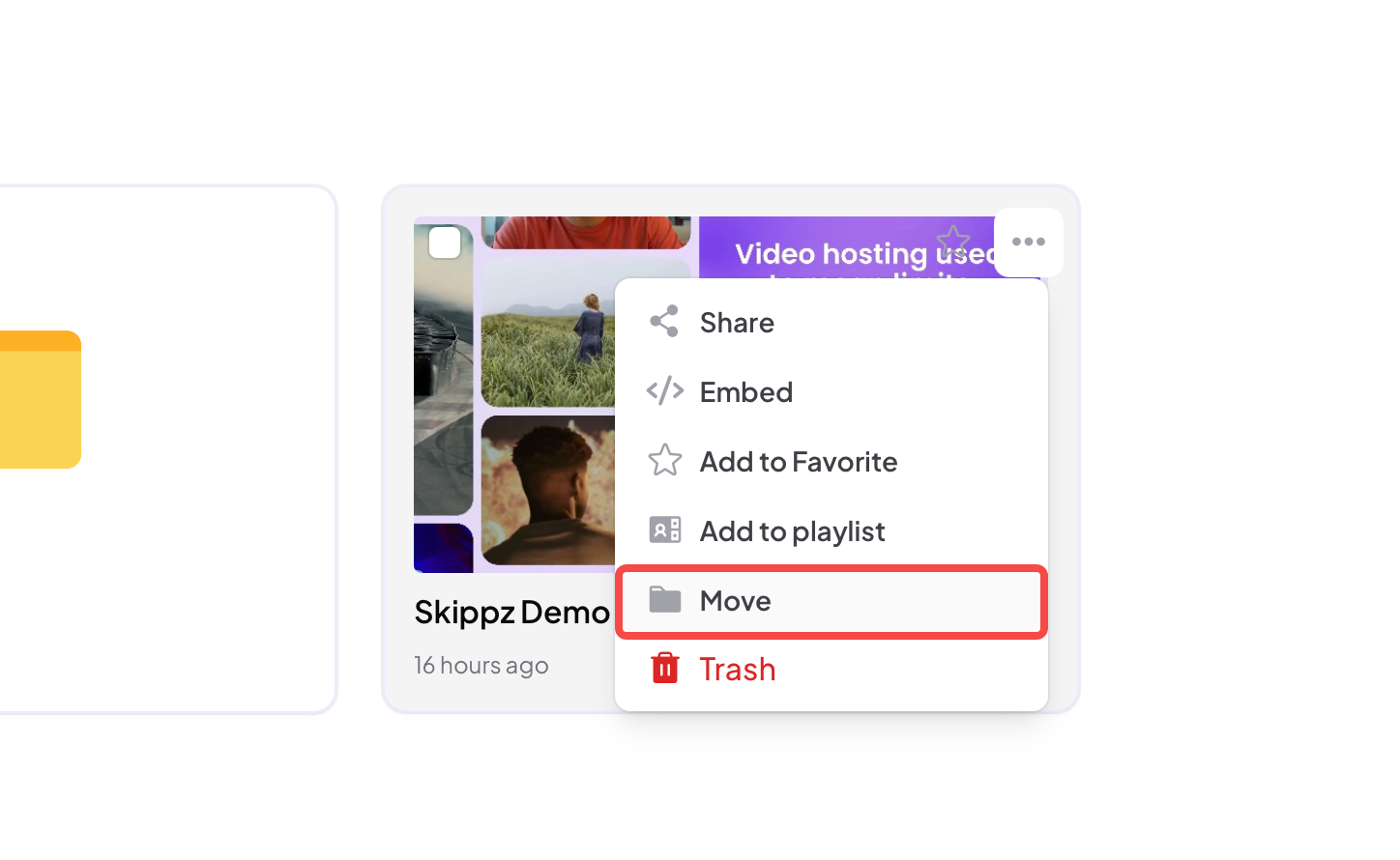
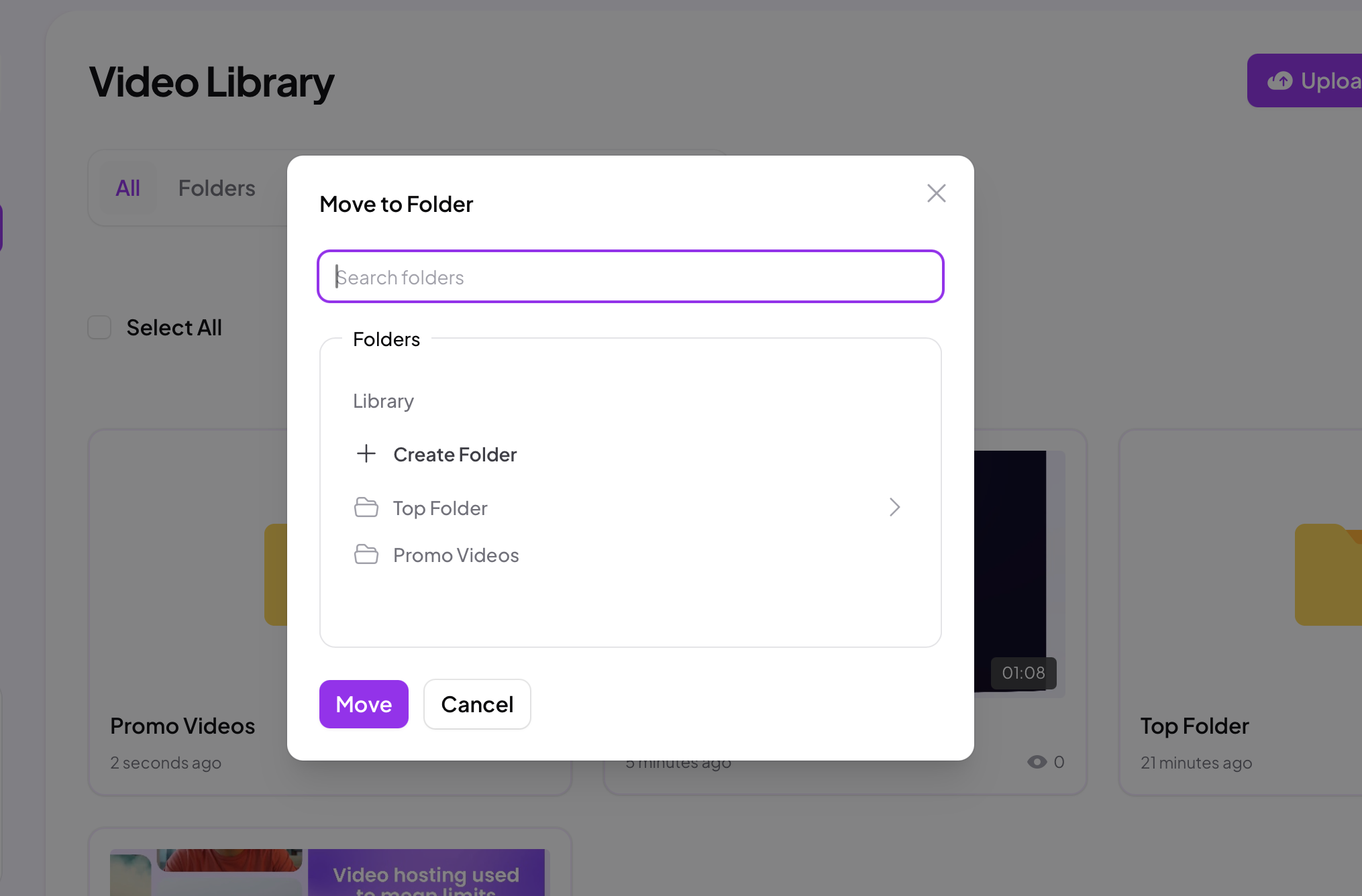
Move a video in. On any video, click the ... menu and choose Move, then pick the folder or subfolder you want.
Both work exactly the same way for folders and subfolders.
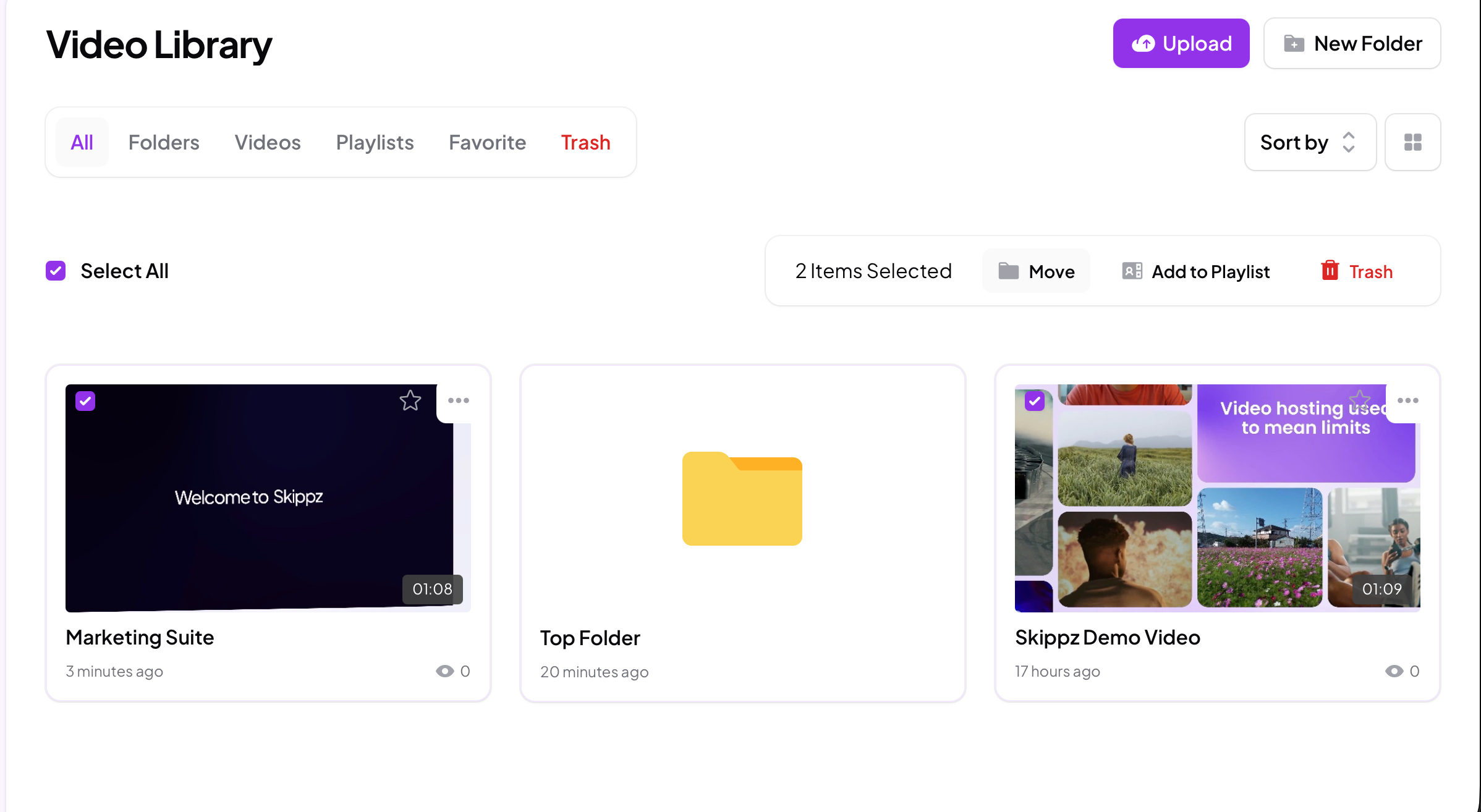
To move more than one video together, tick Select All or select just the ones you want. A bar appears with bulk actions, including Move. Click it and choose the destination folder or subfolder, and everything moves together.
You can also move a whole folder, along with all its videos, into another folder, as long as that folder does not already contain subfolders. This keeps everything within the two levels. If a folder has subfolders inside it, move or clear those first, then move the folder.
A few tabs at the top of your library change what you see, so you can focus on what you need:
All shows your root: the folders and the videos that sit at the top level, outside any folder.
Folders shows just your folders, for a quick overview of how your library is structured.
Videos shows every video across your whole library at once, including those tucked inside folders and subfolders, so you can find a video without remembering exactly where you filed it.
Inside a folder, you get the same idea on a smaller scale. The All, Folders and Videos tabs let you see everything in that folder, just its subfolders, or just its videos.