
How trash works
When you trash a video, folder or playlist, it moves to the Trash tab rather than being deleted. From there you can either restore it or remove it for good. This two step approach means an accidental delete is easy to undo, which is exactly what trash is for.

Restoring something
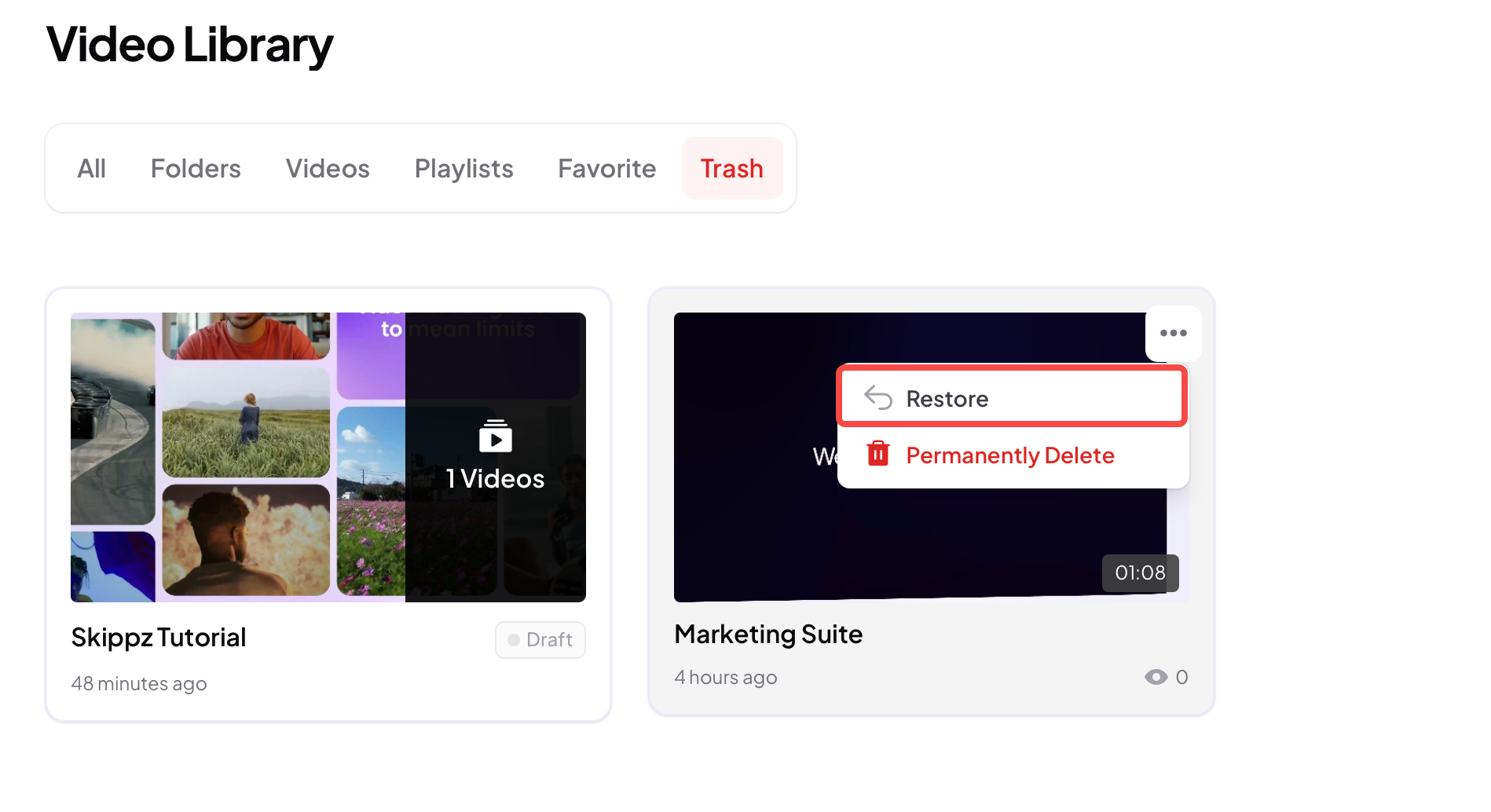
Open the Trash tab, find the item you want back, click its ... menu and choose Restore. It returns to your library exactly as it was.
Trashed items still use your storage
This is worth knowing: while something sits in the trash, it has not actually been deleted, so it still counts towards your storage usage. To free up that space, you need to permanently delete it.
Permanently deleting
Permanent deletion only happens from the trash, so anything you remove always goes there first. When you are sure, you have two ways to delete for good:
Delete one item. Open its ... menu in the trash and choose Permanently Delete.
Empty everything. Click Empty Bin to clear the whole trash at once.
Permanently deleting removes everything tied to that item, the original file you uploaded along with all of its assets, and it cannot be undone. Once it is gone, your storage usage updates to reflect the space you have freed.