Open Settings, then Branding, to decide how your videos and share pages look by default. Set it once and every new video you upload picks it up automatically, so your player and share pages are on brand from the moment you hit upload.
One thing to be clear about before anything else: these are defaults. They apply to every new video you upload from now on. They do not change videos you have already uploaded, and you can fine tune most of them on each video individually afterwards.
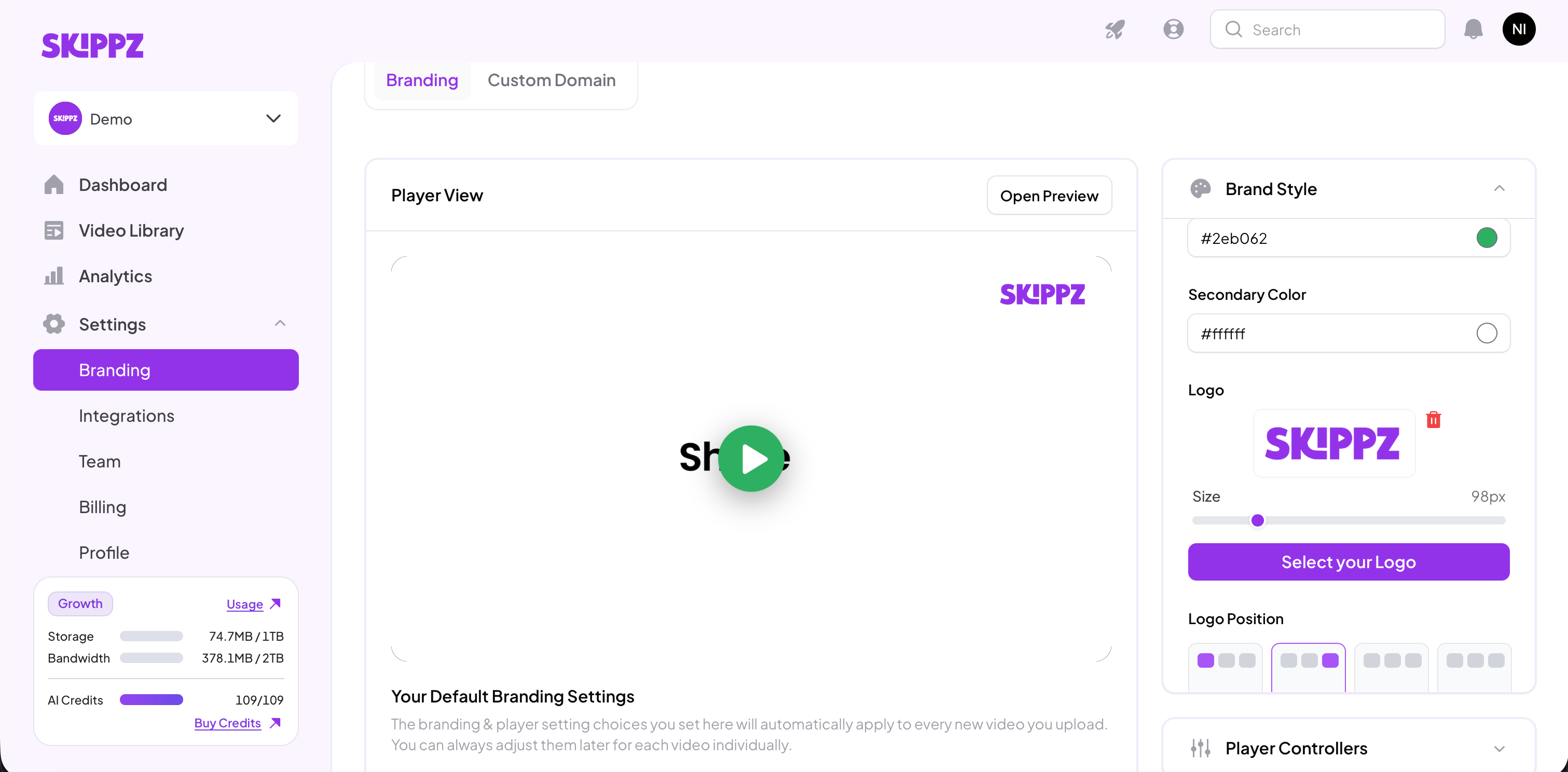
Brand Style sets the look of both your player and your share pages.
Brand Name appears on your share pages. If you upload a logo, the logo shows in its place instead.
Brand Colour is your player's main colour, used for the play button, progress bar and controls. Set it to match your brand.
Secondary Colour is used for the player's text and icons. A good rule is to pick a lighter secondary colour against a darker, bolder brand colour, so the controls stay easy to read.
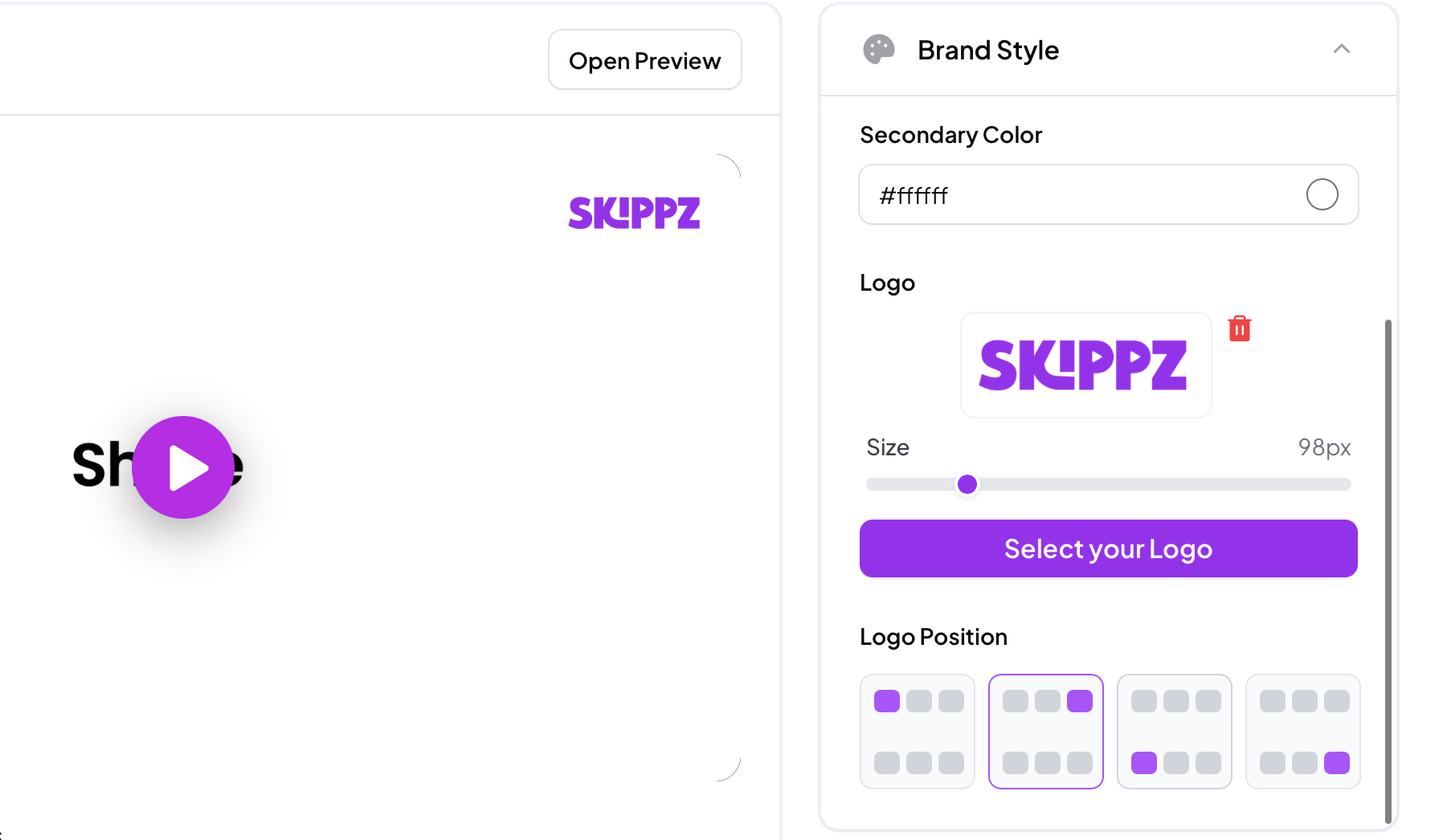
Logo lets you upload your mark, then set its Size and Position.
Here is something worth knowing. After you upload a logo and adjust its size or position, you will not see anything change at first. That is because the logo doubles as an optional watermark on your player, and it stays off until you switch it on.
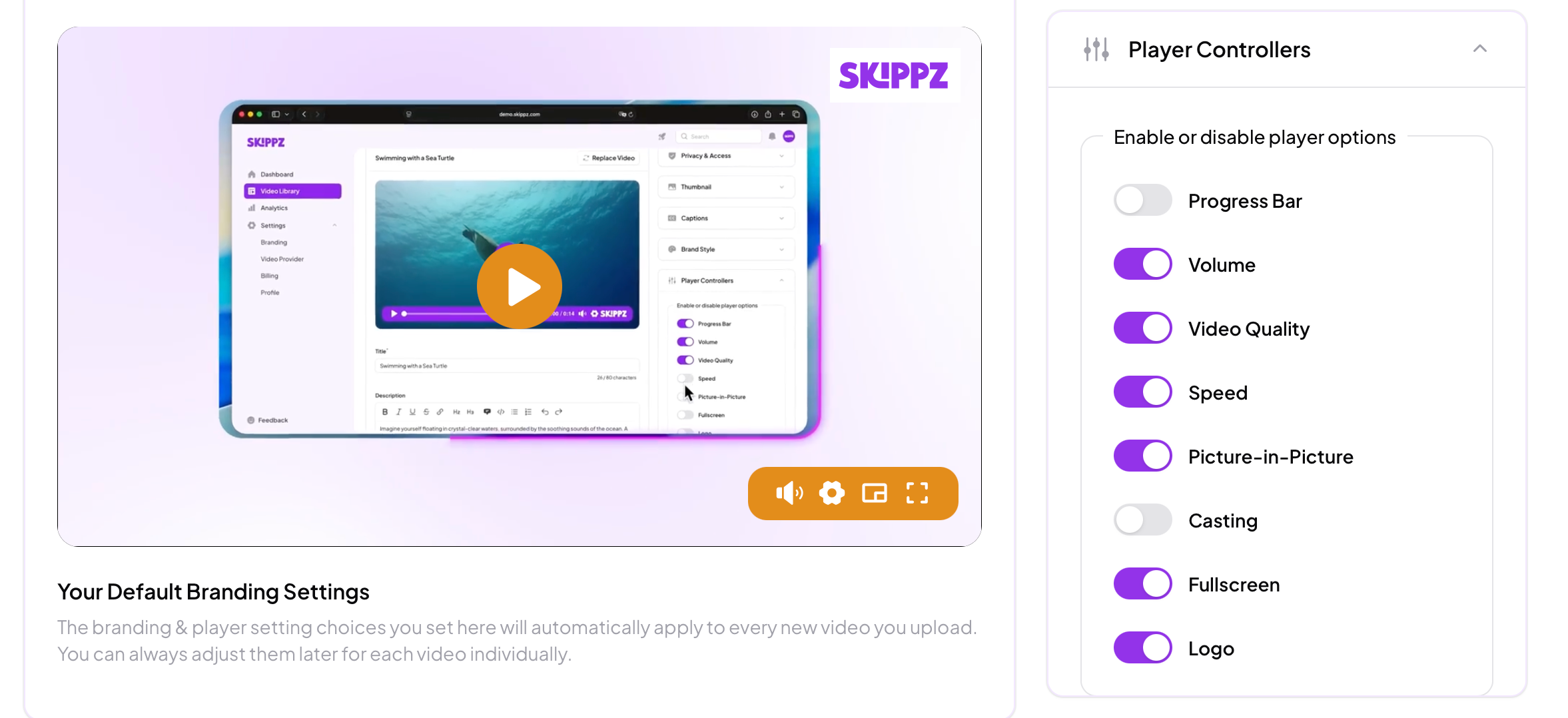
To turn it on, open Player Controllers and enable Logo. With a logo uploaded and that toggle on, your watermark appears on the player at the size and position you chose.
Two things to remember. This watermark is a player setting, so it does not appear on your share pages. And like the rest of your player branding, it can be overridden on each video.
The controllers you switch on here, such as the progress bar, volume, quality, speed and fullscreen, become the default for new videos. We cover these in detail in Player and player controllers. As with the rest of your player branding, each video can change them later.
This distinction is the key to how branding works in Skippz:
Player branding, meaning your colours, player controls and logo watermark, is a starting point. Any video can override it in its own settings.
Share page branding, meaning your brand name or logo and the share page options below, is set here for the whole workspace and stays consistent everywhere. It is not changed per video, and it applies to both individual video share pages and playlist share pages.
If you need a different share page identity for a different brand or client, that is what a separate workspace is for.
These options control what appears on your share pages, for individual videos and playlists alike.
Video Title and Video Description are on by default and show on each share page. Turn either off if you prefer a cleaner page.
Show Skippz Branding is off by default on every plan. Switch it on to show a subtle Skippz mark, a small way to support us if you are a fan. It is entirely optional.
Click Save Changes when you are done. From that point, every new video you upload starts with these settings, while your existing videos stay exactly as they are.