Your thumbnail is the first thing people see before they press play, so it is worth getting right. Skippz gives you two kinds, an image thumbnail and a video thumbnail, and you decide which one is active. You will find both in the Thumbnail panel on a video's Appearance tab.
Every video already has a thumbnail: we generate one automatically while the video is encoding. Everything below is about replacing or refining it.
The image thumbnail is a still picture, and it is the default on every video for the best performance and compatibility. You can set your own in two ways.
Upload an image. Click Upload Thumbnail Image and choose your file. Use an image of at least 1280 x 720, at the same aspect ratio as your video, and up to 1 MB.
Pick a frame from the video. Play the video to the moment you want, then click Use Current Frame to grab it. For the sharpest result, pause on the exact frame first. You can capture while it plays, but pausing gives you more control over the moment.
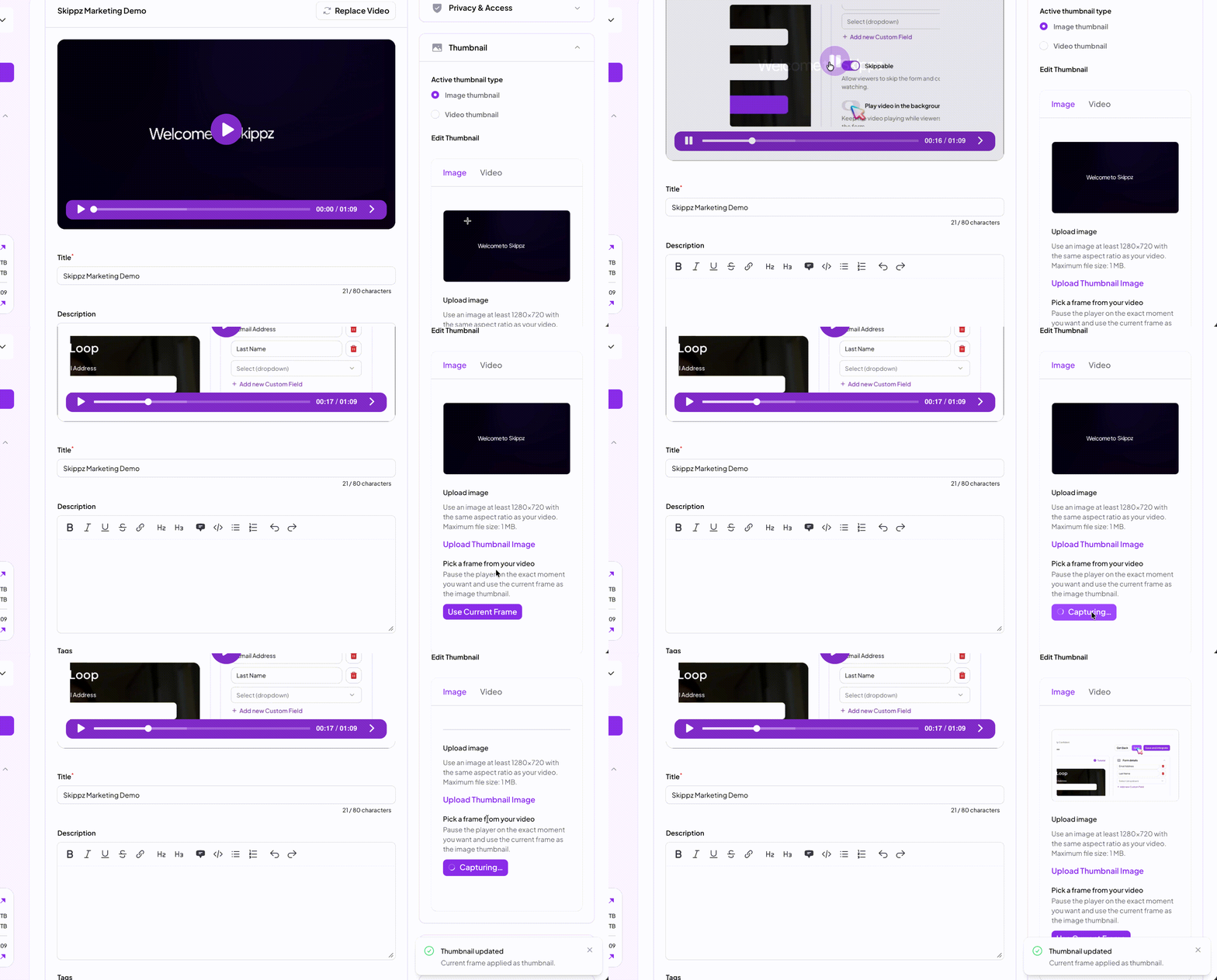
Not happy with what you set? Hover over the thumbnail image and click delete. Skippz always keeps the thumbnail we generated during encoding as a backup, so your video falls straight back to that. You never end up without one.
A video thumbnail is a short, silent clip shown in place of the still image. It catches the eye and is a great way to draw attention to a video, especially when it is embedded on a page. Click Upload Thumbnail Video and add a short clip, with 5 to 30 seconds working well. It always plays without sound. As with the image, deleting your clip reverts to the generated thumbnail.
You can choose how it behaves:
Autoplay thumbnail. The clip plays on its own, with no sound. Tick Loop while autoplaying if you want it to repeat. Looping only applies when autoplay is selected.
Play on hover. The clip stays still until someone hovers over the video, then plays.

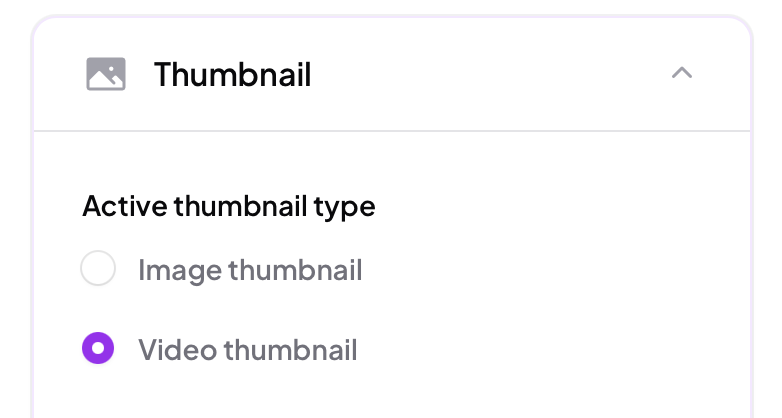
A video can have both an image and a video thumbnail set, but only one shows at a time. Under Active thumbnail type, choose Image thumbnail or Video thumbnail to set which one viewers see. Image is the default, for maximum performance and compatibility.
If you have switched on Autoplay in your player's additional settings, viewers may see little or none of your thumbnail, because the video starts playing before the thumbnail has its moment. Worth keeping in mind when you decide whether to autoplay. See Additional playback settings.