Beyond the on or off controls, Player Controllers includes a set of Additional Options that change how a video behaves when it loads and plays. You set these in the same place as the rest of your controls, in your defaults, on a single video, or on a playlist. A single video and a playlist offer a slightly different set, which is covered below.
Like all player settings, these only take effect on the viewer's side. To see them in action, check a Preview, share page or embed, rather than the in app editor.
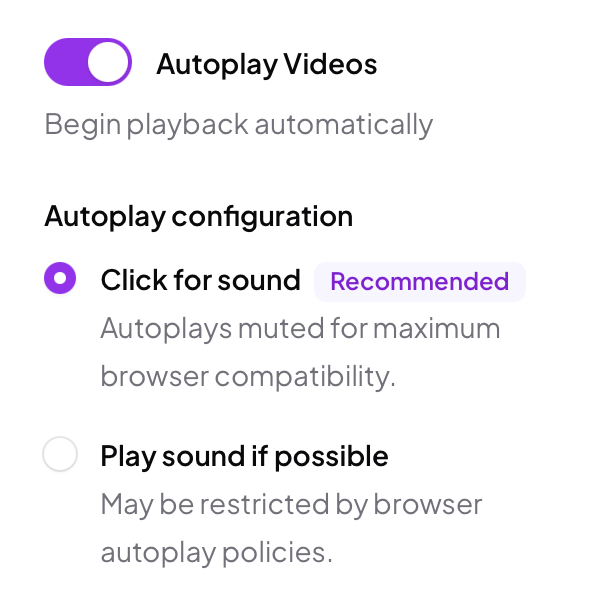
Autoplay begins playback automatically when the video loads. When you switch it on, you choose how sound is handled:
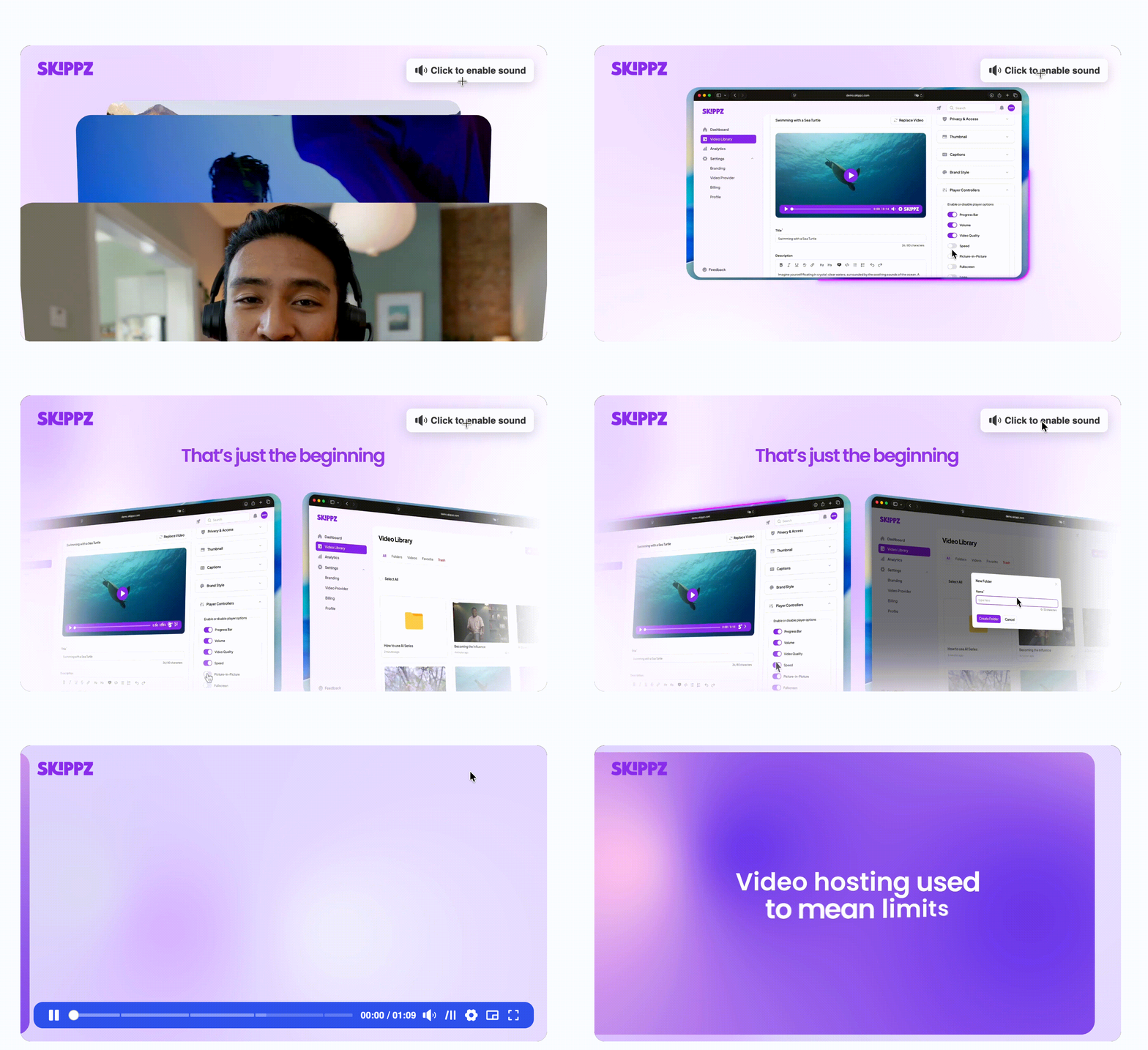
Click for sound (recommended). The video autoplays muted, then shows a prompt the viewer taps to turn the sound on. This is the recommended setting because browsers such as Chrome and Safari generally block autoplay that starts with sound, allowing it only when the video is muted. Muted autoplay is the reliable path: the video plays everywhere, starting from the beginning, and sound begins the moment the viewer opts in.
Play sound if possible. This attempts to autoplay with sound. Browsers may restrict it under their autoplay policies, so choose it only when you understand the trade off or have a specific case for it.
Normally the player loads with a clean play button and nothing else, which is the default. Switch Show controls on loadon to show the full set of controls before playback begins. It turns on automatically, and stays on, whenever autoplay is enabled, since an autoplaying video never shows the viewer a play button.
This adds a cast control so viewers can send the video to a supported device: AirPlay on Apple devices and Google Cast, which Chromecast uses, on Android and Chrome. Off by default.
Off by default, and worth a moment's thought before you change it. Switching it on adds a download control to the player, letting viewers save the video straight from your share pages and embeds. It gives them your original uploaded file, not the optimised streaming version, so only enable it when you are happy for people to have the source video.
Replays the video automatically from the start once it finishes.
A playlist offers the same autoplay, show controls on load, casting and download options described above, and they behave the same way. It has one extra:
If your individual videos carry marketing elements, like forms or calls to action, this brings them through into the playlist. It is off by default, so a playlist will not show its videos' marketing elements until you switch it on. For the wider picture of how a playlist presents its videos, see Playlists.