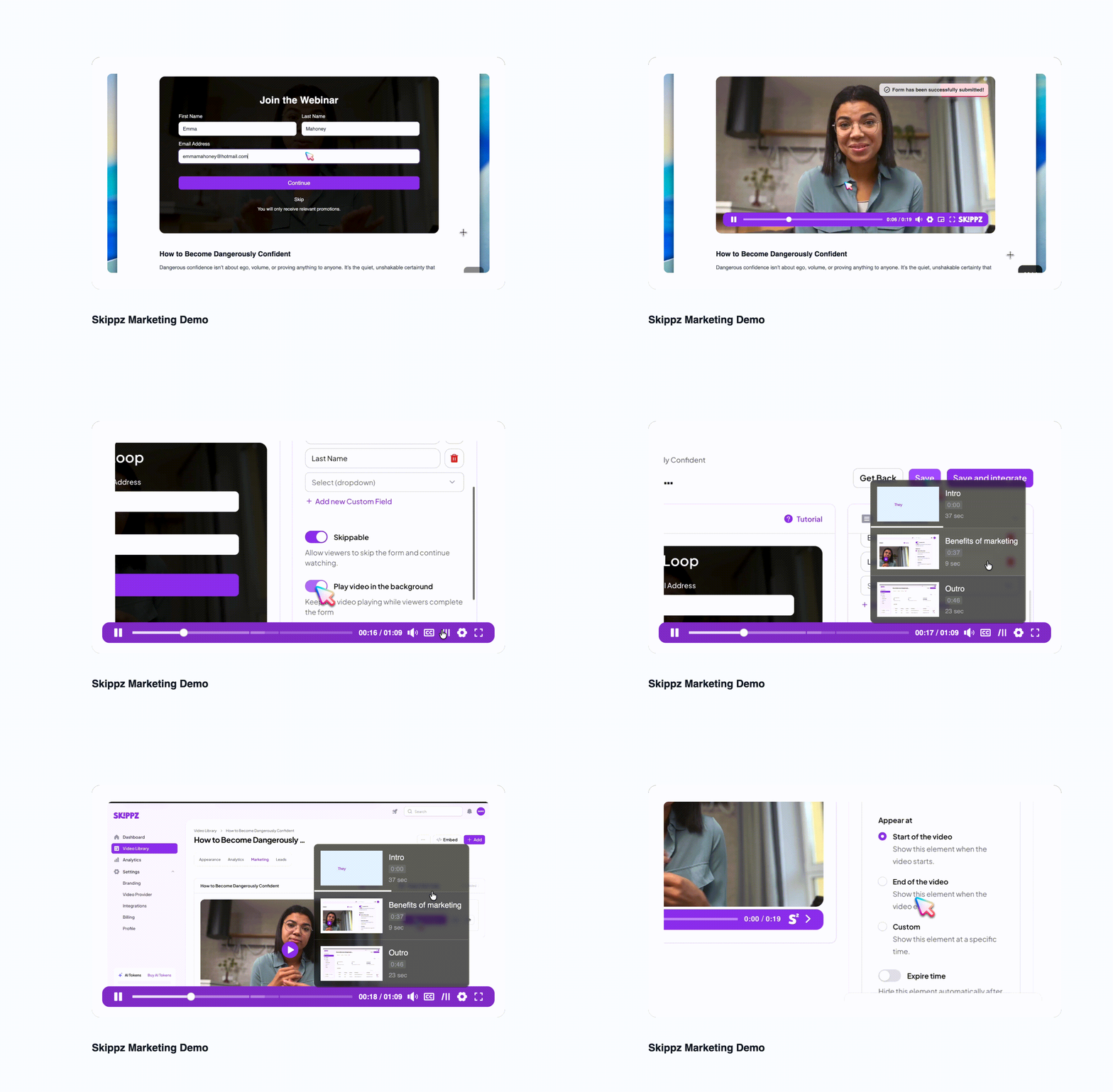
Chapters divide a video into labelled sections, so viewers can see what it covers at a glance and jump straight to the part they want instead of scrubbing for it. In the player they appear as a chapter menu and as segments along the progress bar. Like captions, you can add chapters manually or generate them with AI, both from the Chapters panel on a video's Appearance tab.
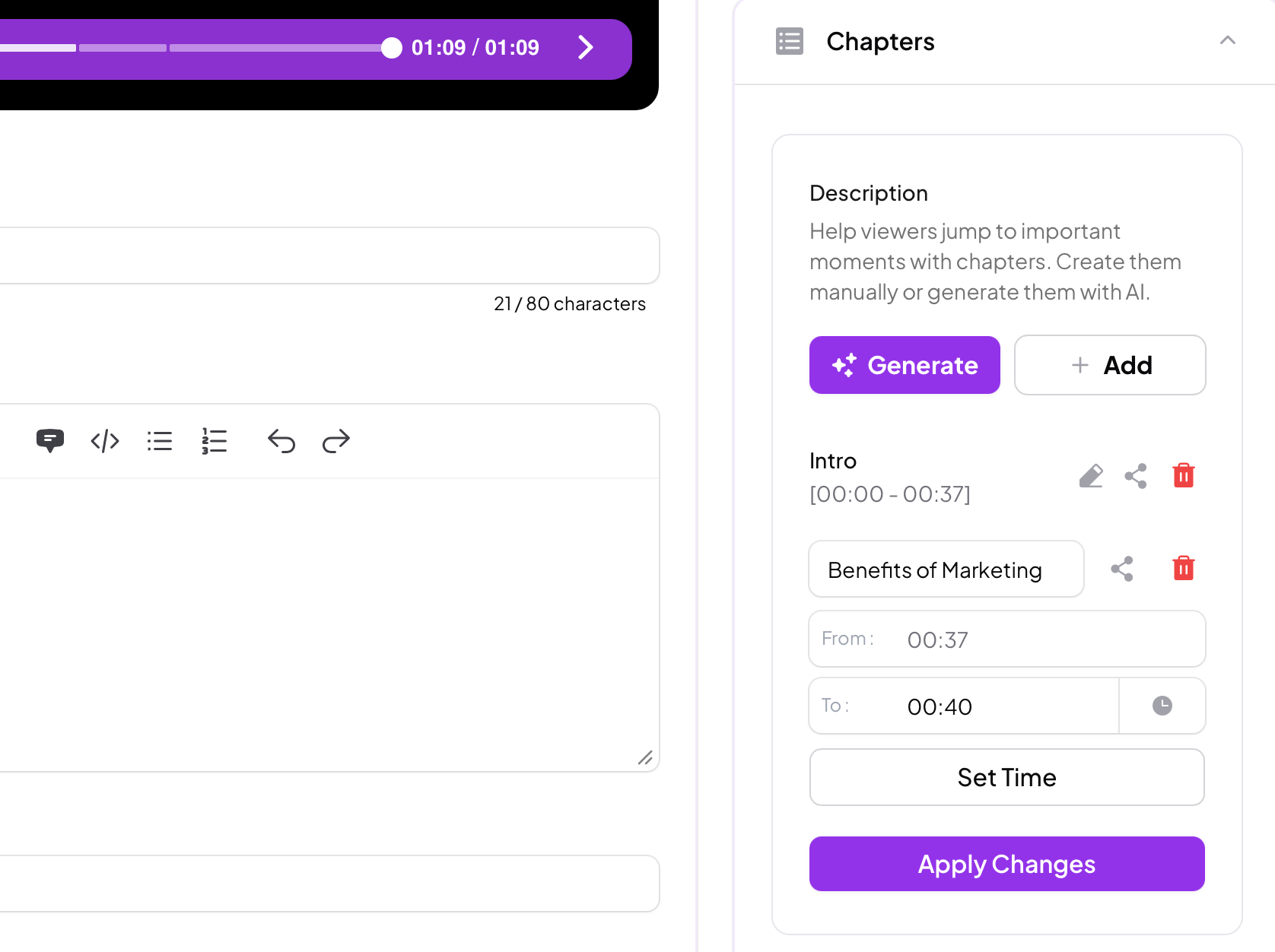
Click Add to start a chapter, then give it a Title.
The From time fills in for you, at the start of the video for your first chapter, and at the previous chapter's end time for the ones after, so your chapters always join up cleanly. For the To time, play the video to the point where the chapter should end and click the clock icon to capture the player's current time. There is no need to read the timestamp and type it in, which makes building chapters quick and accurate. You can still enter a time by hand if you prefer.
Two buttons save your work in slightly different ways:
Set Time saves the chapter and immediately opens a fresh one, so you can move through the whole video in a single flow.
Apply Changes saves your chapters too, and if they do not yet reach the end of the video, Skippz turns the leftover time into a final chapter called End.
Because of that last point, it is best to build your chapters yourself from the start of the video right through to the end.
You can edit or delete any chapter at any time. If your chapters run start to end and you delete one in the middle, the gap does not stay empty: the chapter before it stretches to fill the space, taking on the deleted chapter's end time. Your timeline stays continuous.
Chapters are built in sequence, so once you have a full set running start to end, you cannot drop a new one straight into the middle. To insert a chapter between two existing ones, delete the chapters from that point onward, add your new chapter, then rebuild the ones that follow. It is a little more work, but it keeps every chapter's timing clean and in order.
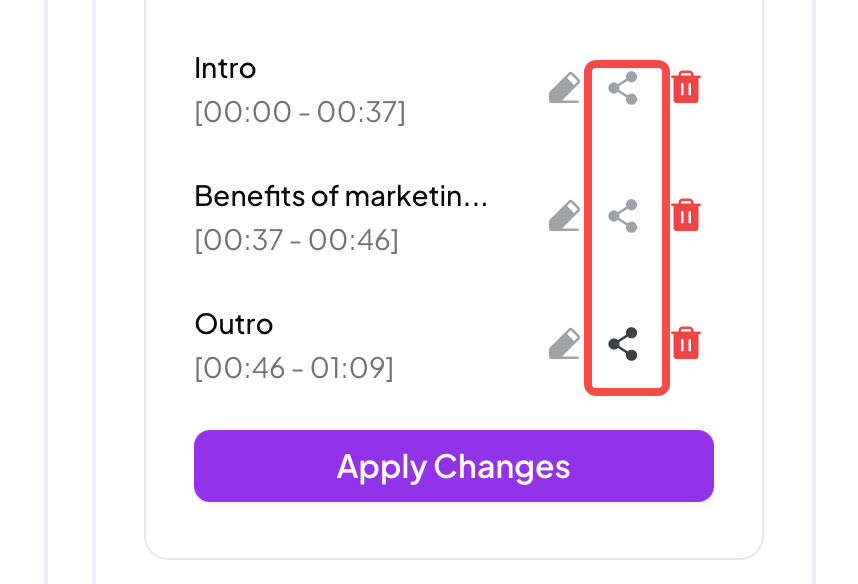
Each chapter has a share icon. Copy that link and it opens the video right at that chapter, a handy way to point someone straight to the moment that matters to them.
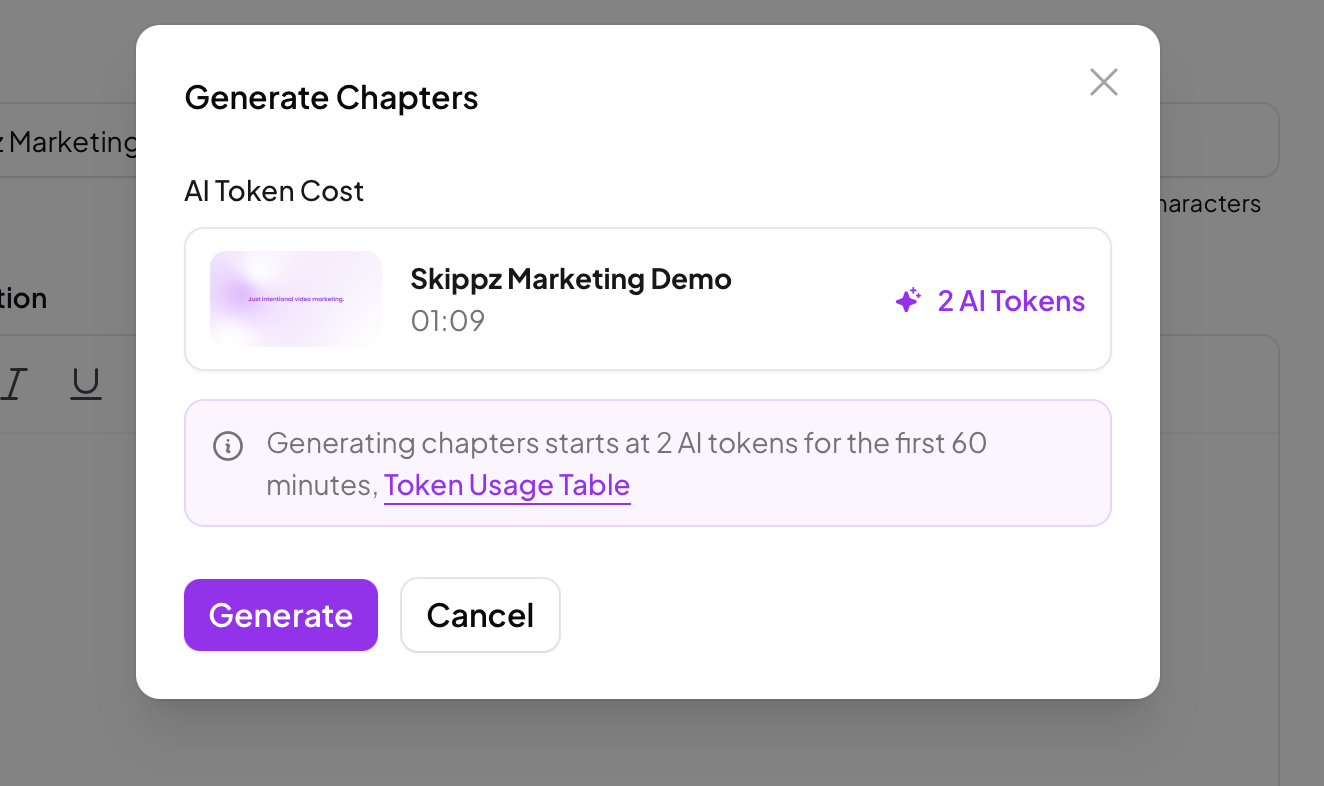
To create chapters automatically, click Generate. Skippz works through your video and builds a set of chapters for you. Two things to know: generating replaces any chapters you added manually, so build by hand or generate, not both at once, and it can take a little time, with your chapters appearing once it is done. You can edit any of them afterwards.
Generating chapters uses AI tokens. For the details, see the AI chapters usage table.
The Chapters panel is built for creating and editing, so it does not render the finished result inside the app. To see how chapters look to your viewers, including the chapter menu and the hover preview along the progress bar, use Preview, or open your share page or embed.
As with captions, a Chapters control appears in your Player Controllers once a video has chapters. Switch it on so viewers can use them. See The video player and its controls.
From the viewer's side, a chapters control in the player lets them jump straight to any chapter, with a preview as they hover.