To add a form:
Open your video
Go to the Marketing tab
Click Add Element and select Form

Once added, you can fully configure how the form looks, behaves, and interacts with the video.
You can decide exactly what information you want to collect from viewers.
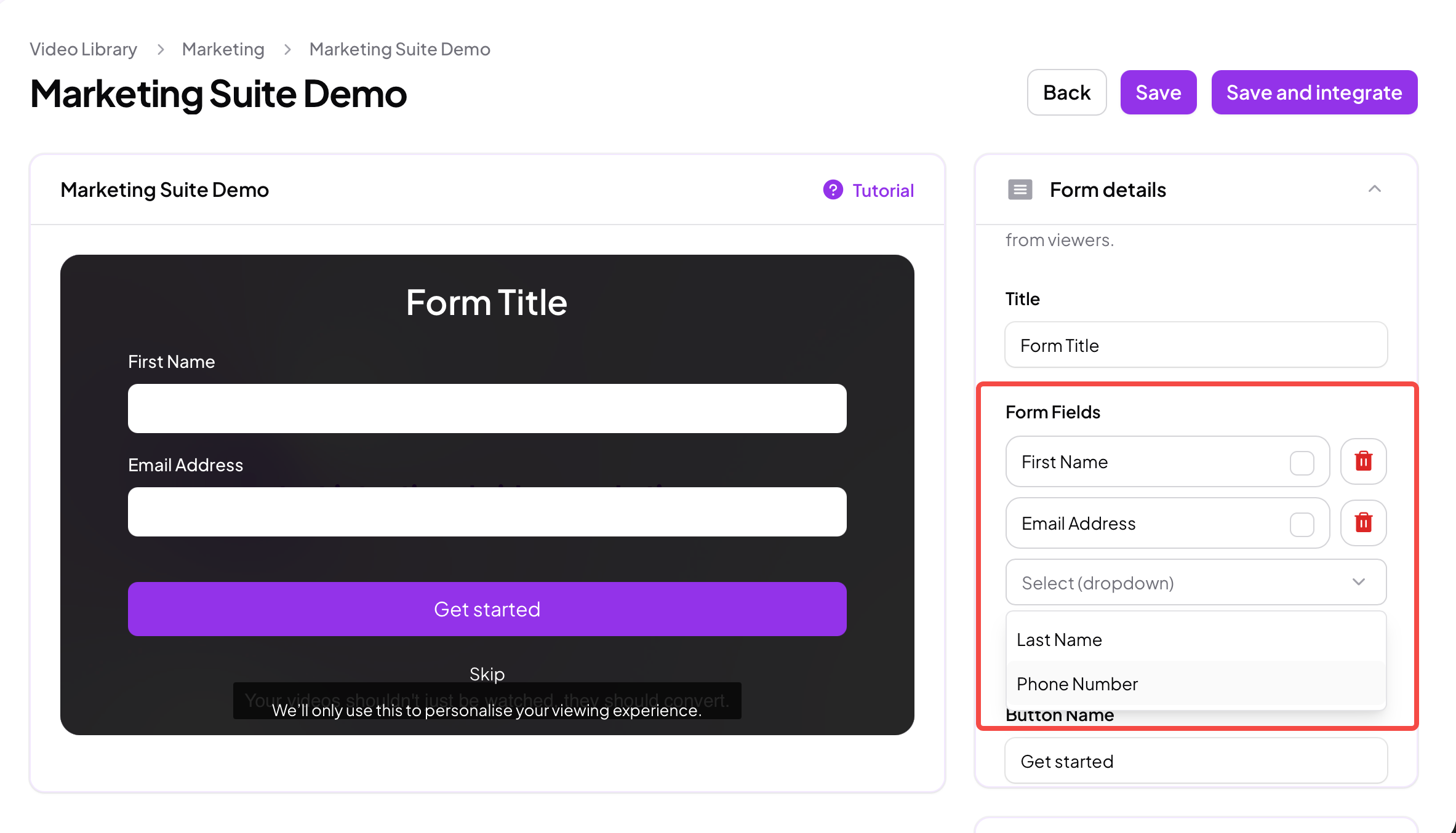
By default, Skippz provides common fields such as:
Viewer name
Email address
Phone number
You can also create custom fields to match your workflow.
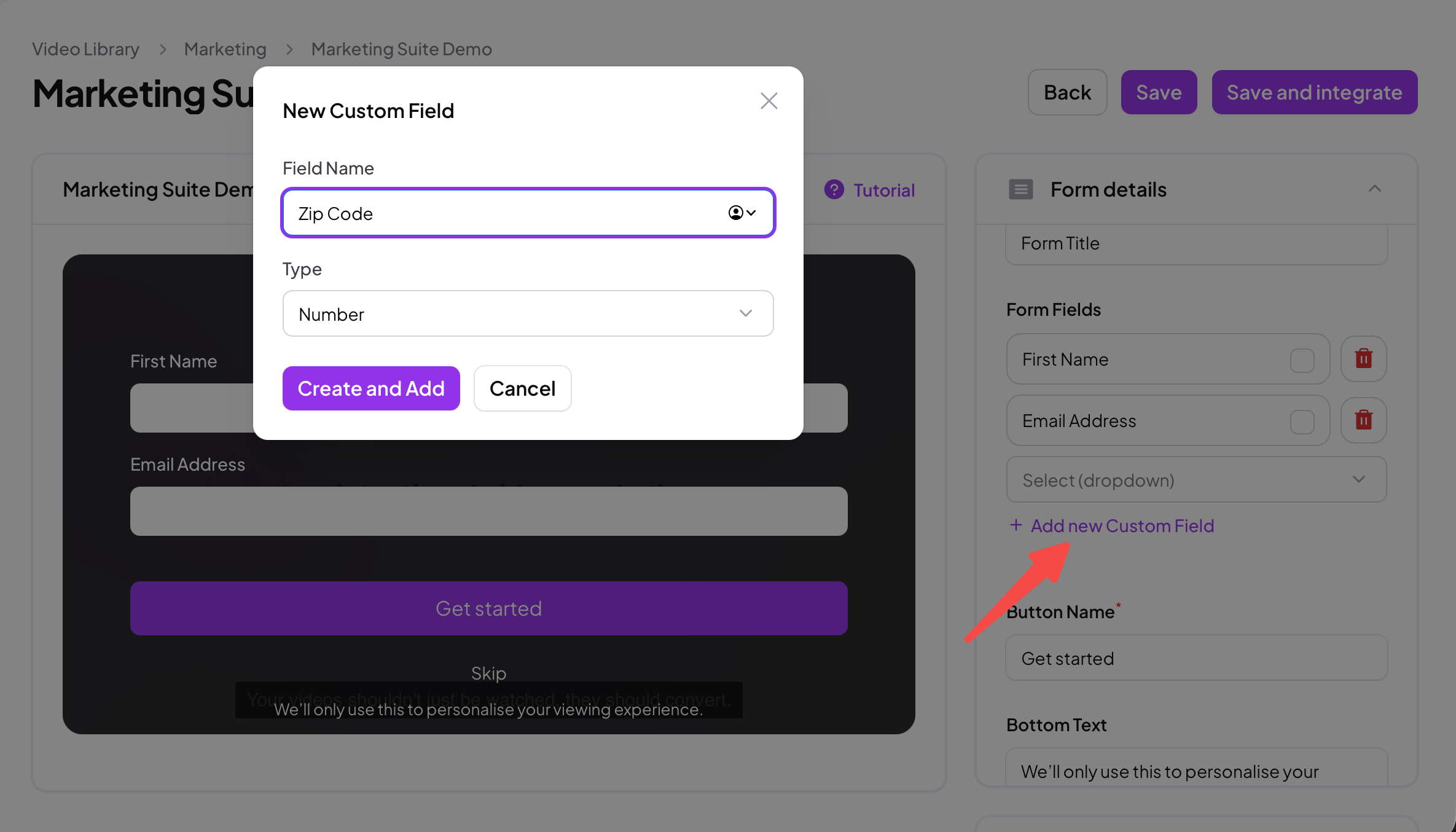
A maximum of four fields can be selected per form.
This limit is intentional and helps maintain higher completion rates.
Forms in Skippz are highly configurable. How they behave depends on two key settings.
This setting controls whether the video continues playing when the form appears.
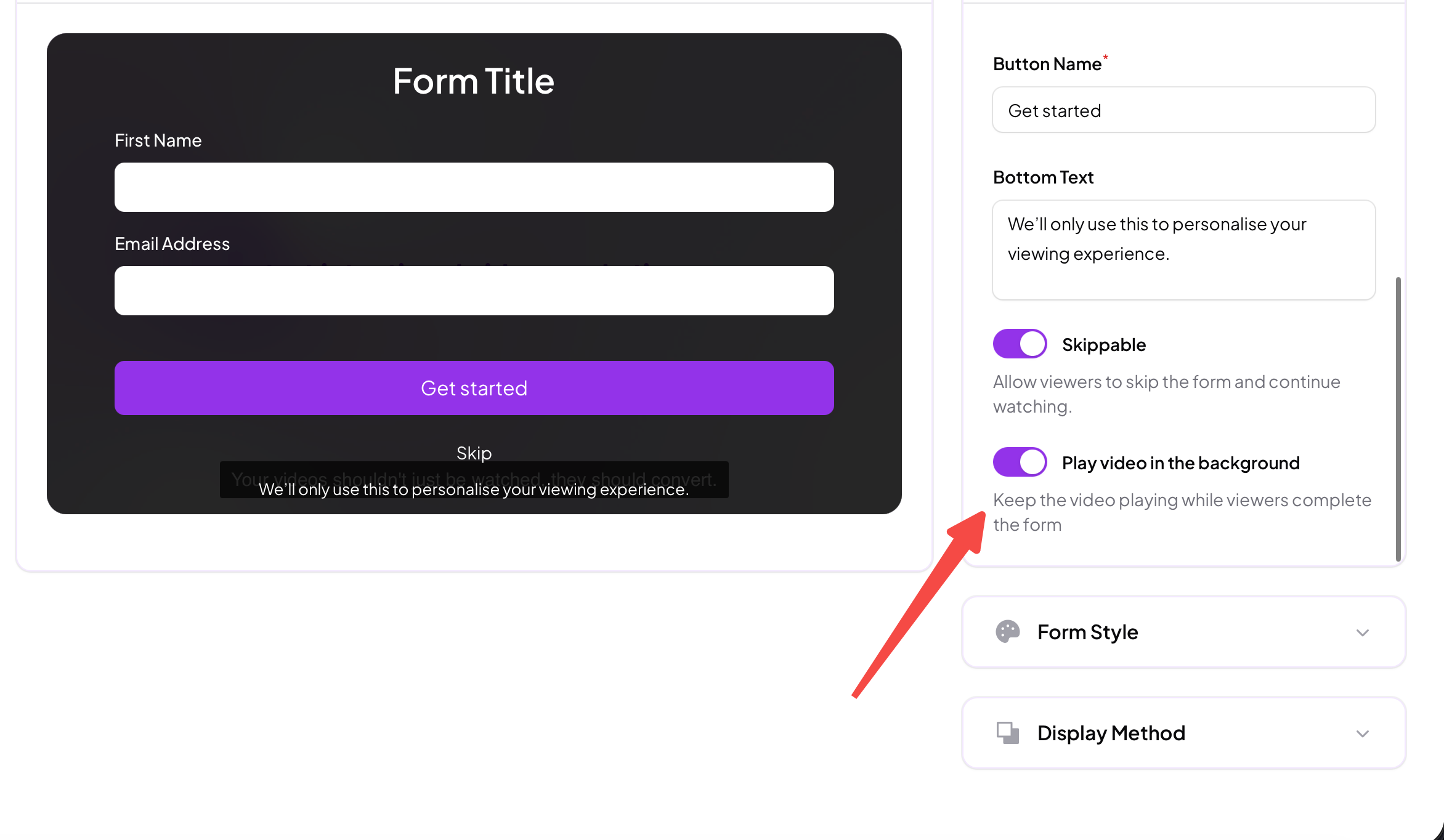
The video continues playing while the form is displayed
The form overlays the video without stopping playback
You can optionally set an Expiry Time
The Expiry Time determines when the form should disappear from view if the viewer does not submit or skip it. We will be covering this further in this article.
This expiry is set within the video timeline, not as a fixed number of seconds.
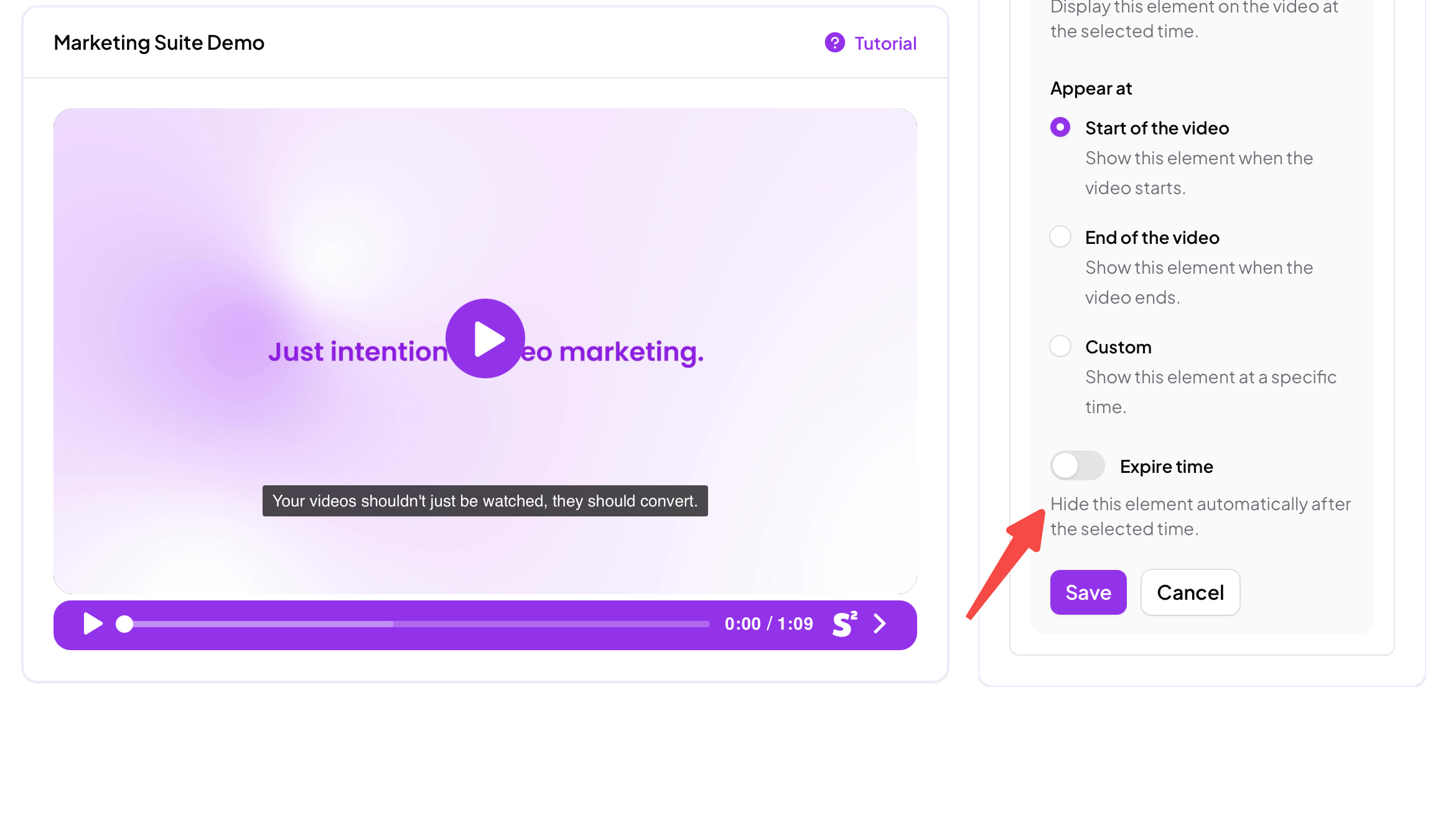
If an expiry time is not set, and there are other marketing elements scheduled after the form, the marketing timeline becomes dynamic.
This means:
Subsequent elements may be pushed back in time
The system adapts based on how the viewer interacts with the form
Elements may appear later than their original timestamps
If expiry or available times are set for other elements, and the viewer submits or skips the form after those times have passed, those elements will not be shown.
This adaptive behaviour is part of Skippz’s floating timeline logic.
You can learn more about this behaviour here:
👉 Floating Timeline Logic Explained (link)
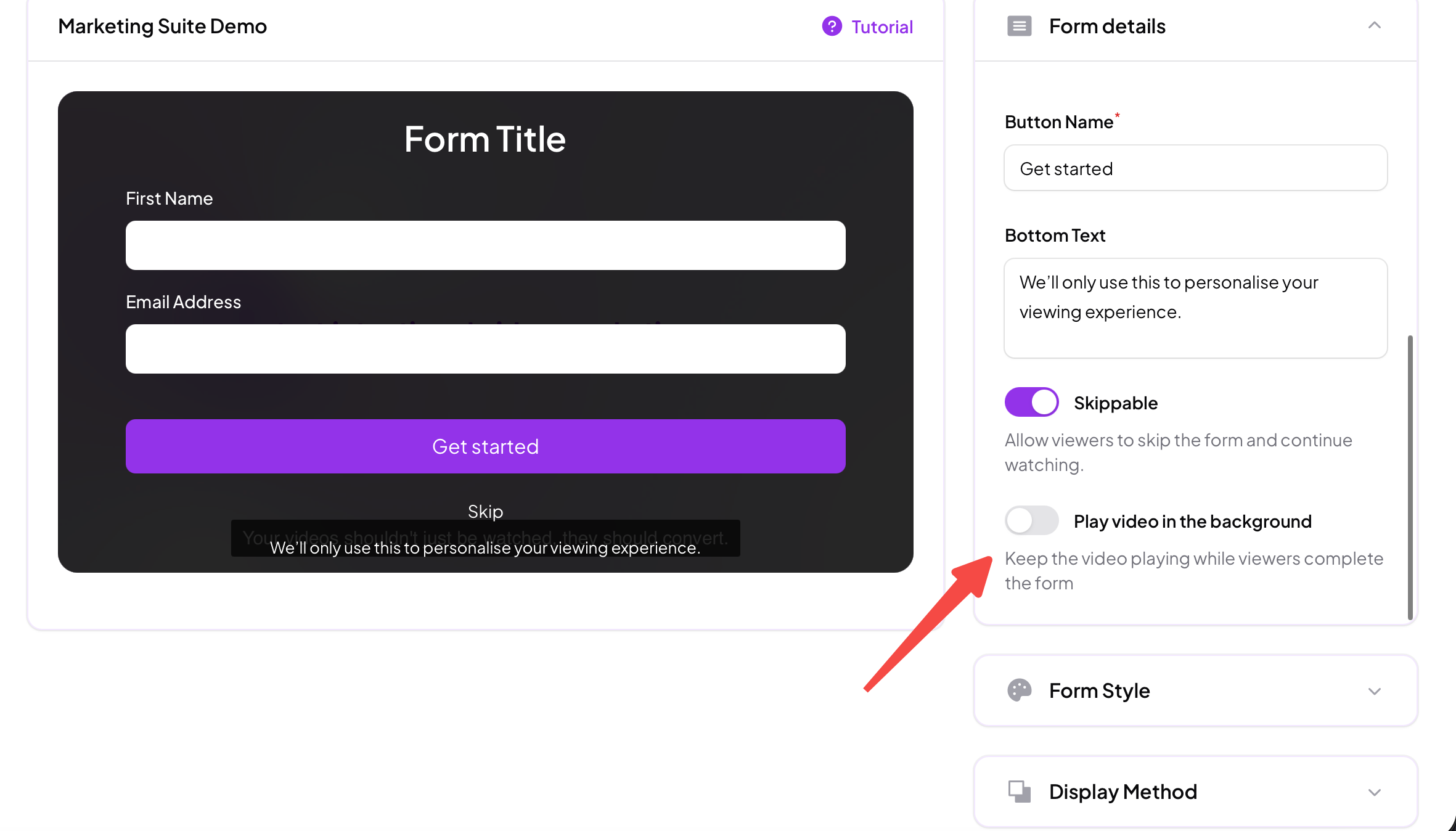
The video pauses when the form appears
Viewer attention is fully focused on the form
You will see an Available Duration option
The Available Duration defines how long the form stays visible if the viewer does not submit or skip it.
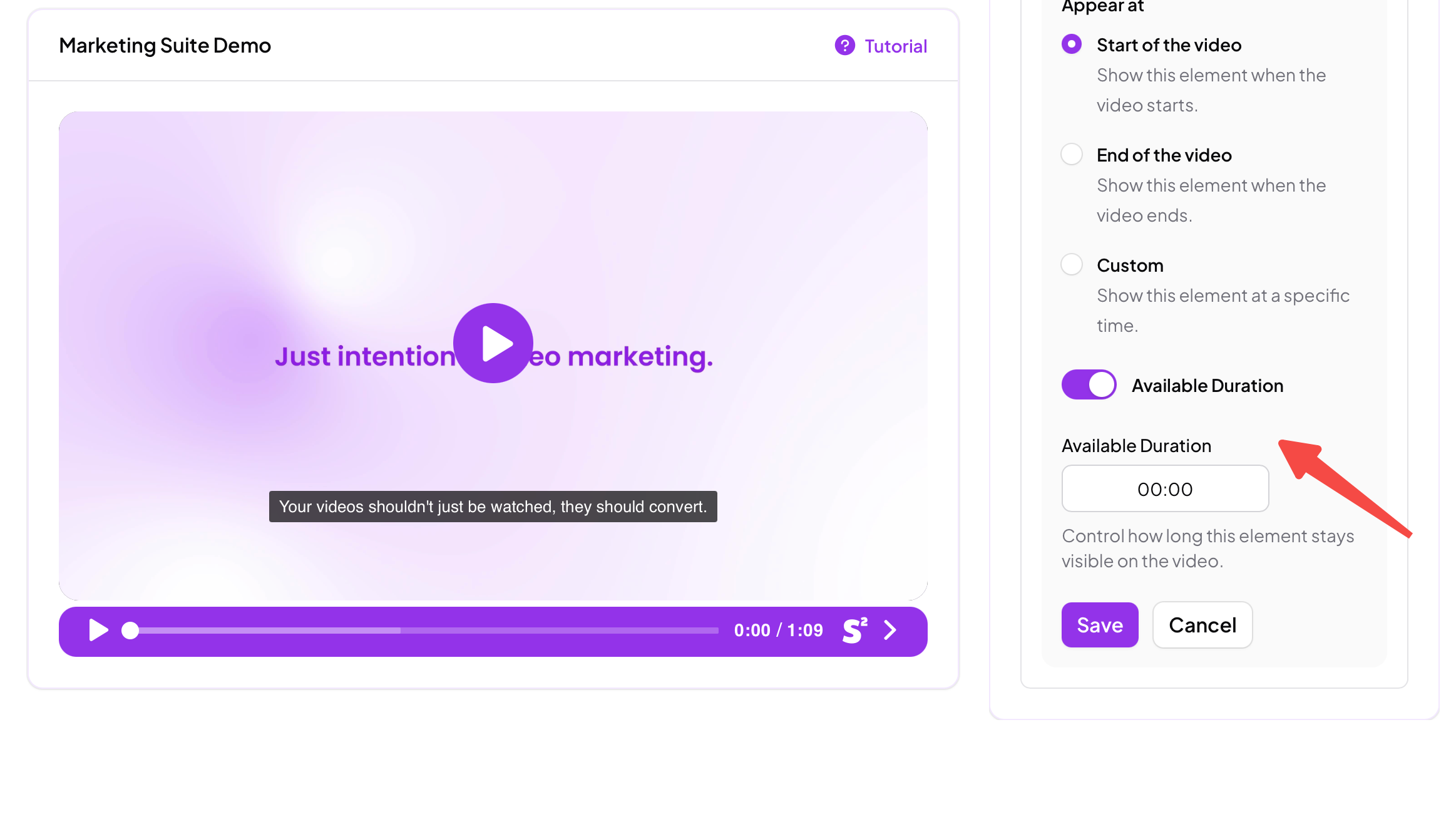
This gives you full control even when the video is paused.
By default, forms are displayed as overlays that take up the full video view.
This makes forms a blocking element, designed to capture attention.
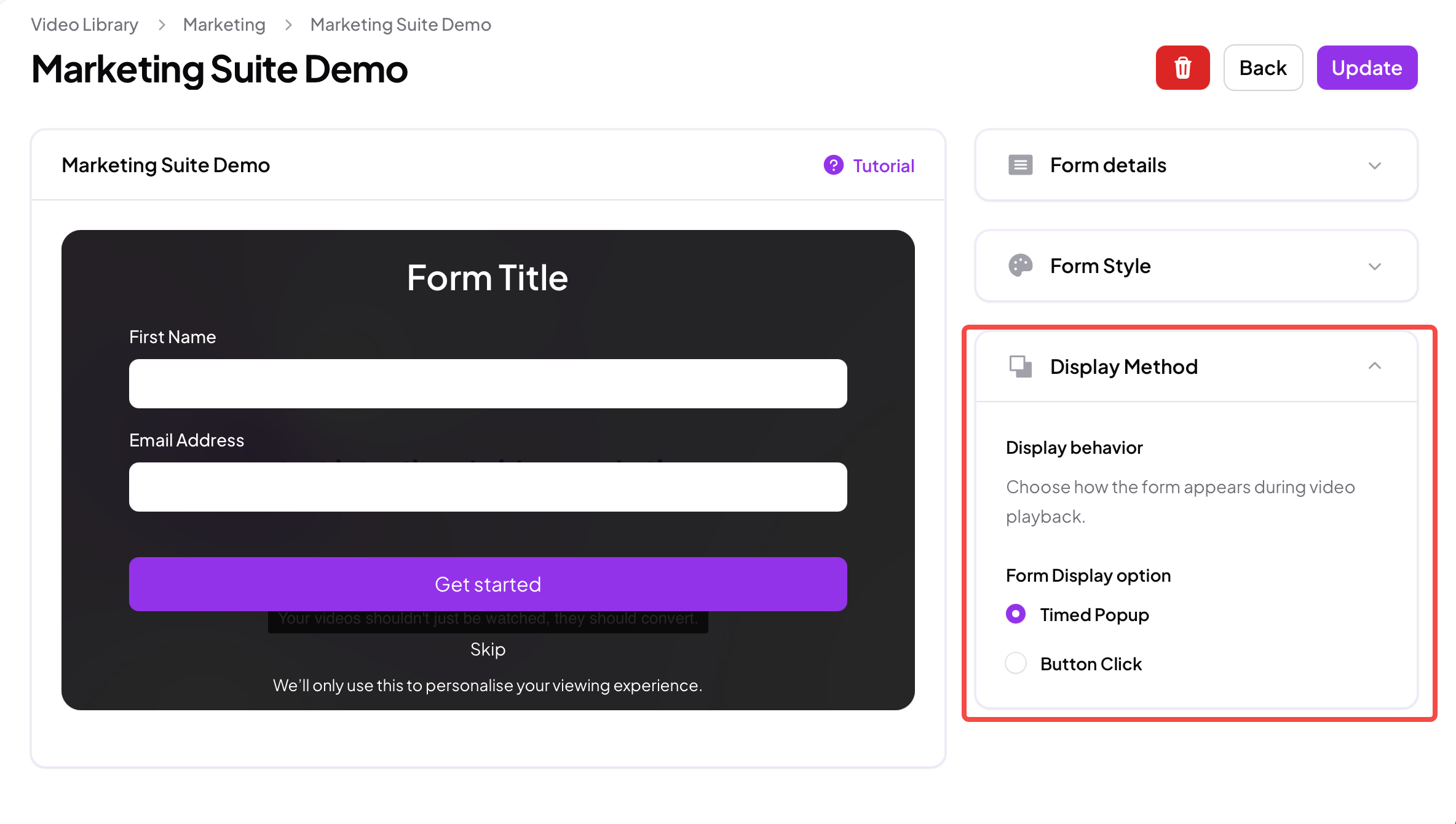
However, Skippz also allows a less disruptive option.
You can choose to display the form as a button instead of an immediate overlay.

When this option is selected:
The button appears during the video
The video continues playing normally
The button is considered a soft element
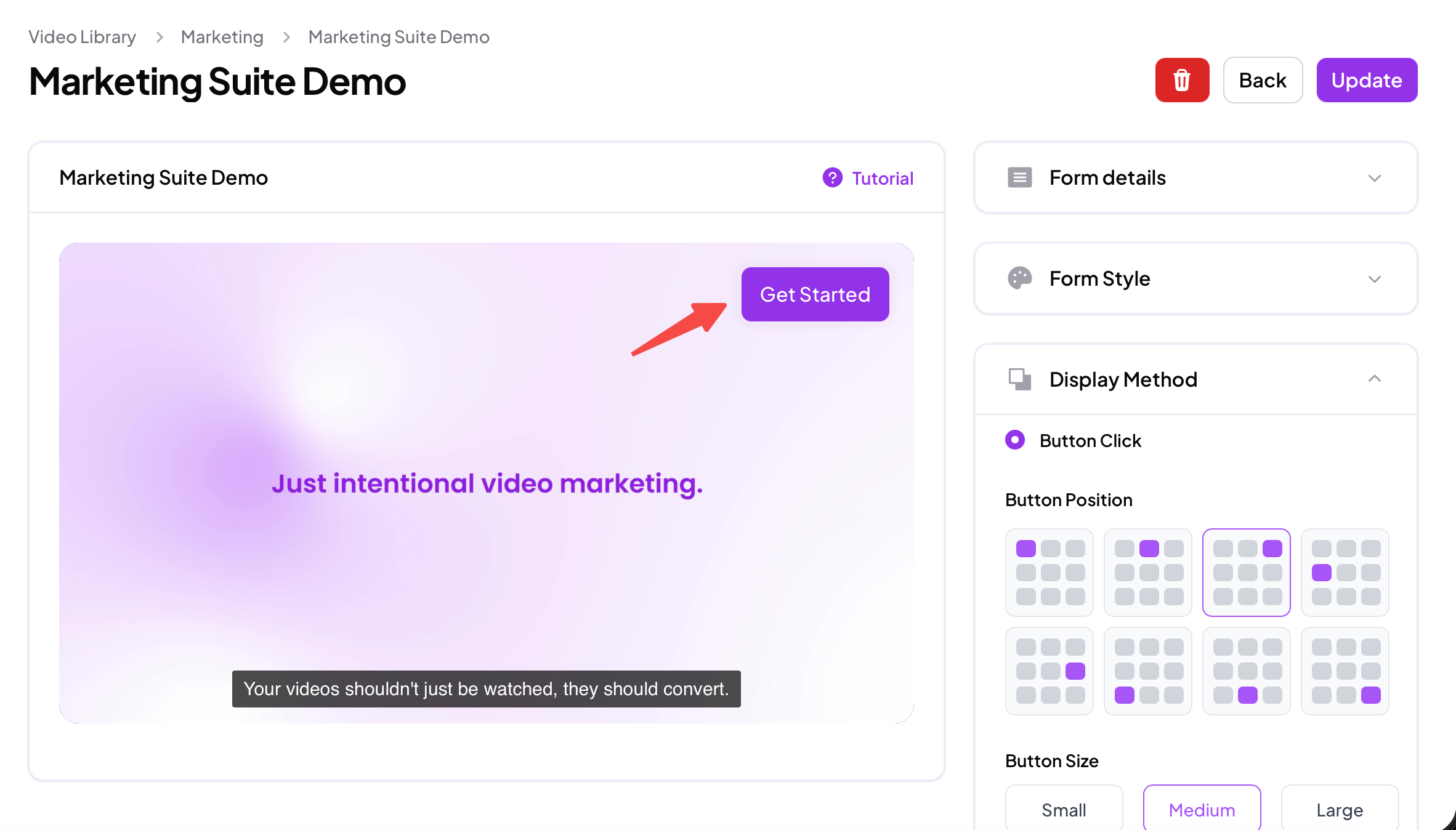
When the viewer clicks the button:
The full form opens
The form then behaves exactly according to its settings
This includes:
Whether the form is skippable
Whether the video plays in the background
Whether expiry time or available duration applies
The button itself coexists with the video, while the form inherits all configured behaviour only after interaction.
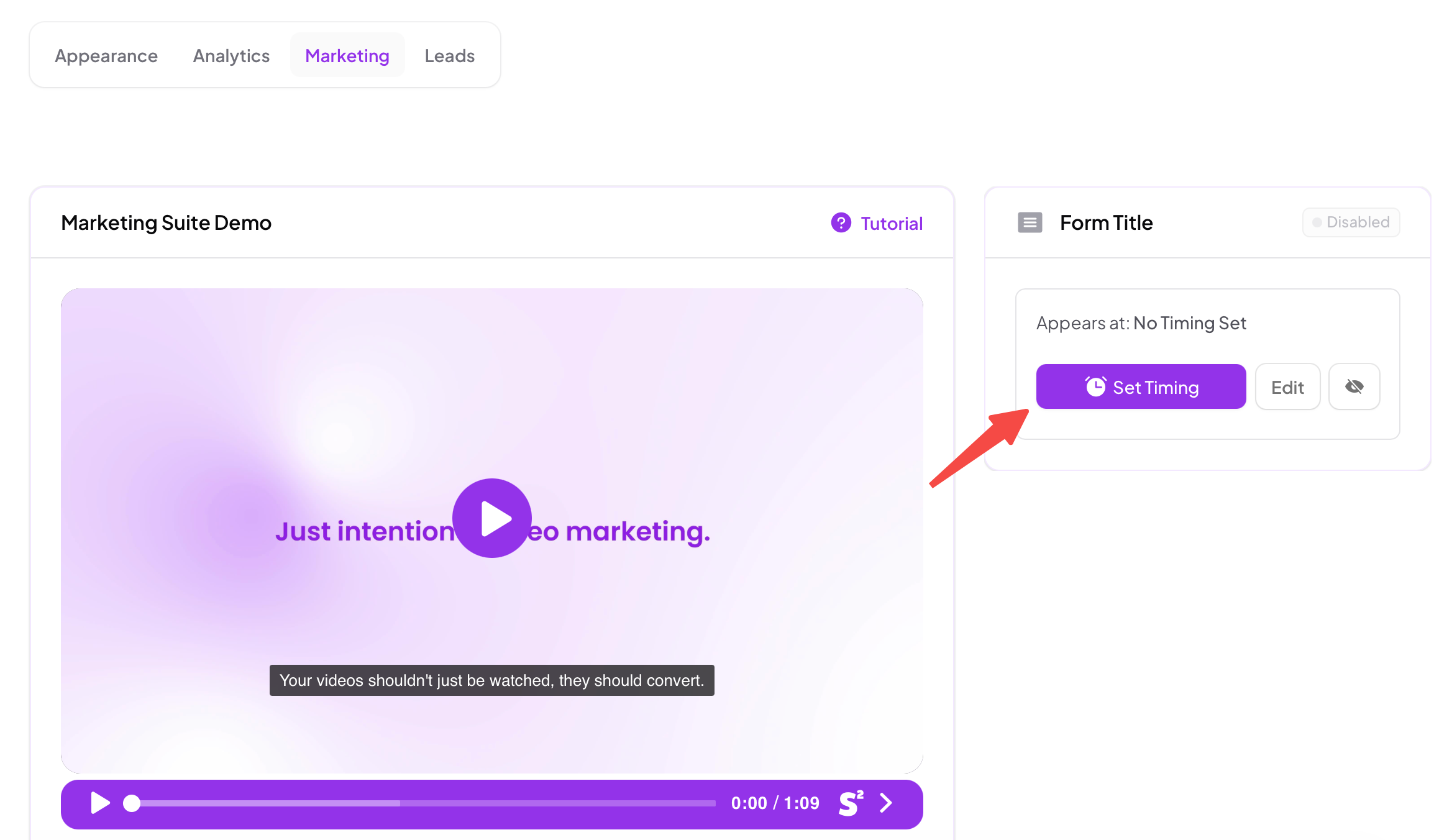
Forms can be triggered at:
The start of the video
The end of the video
A custom timestamp
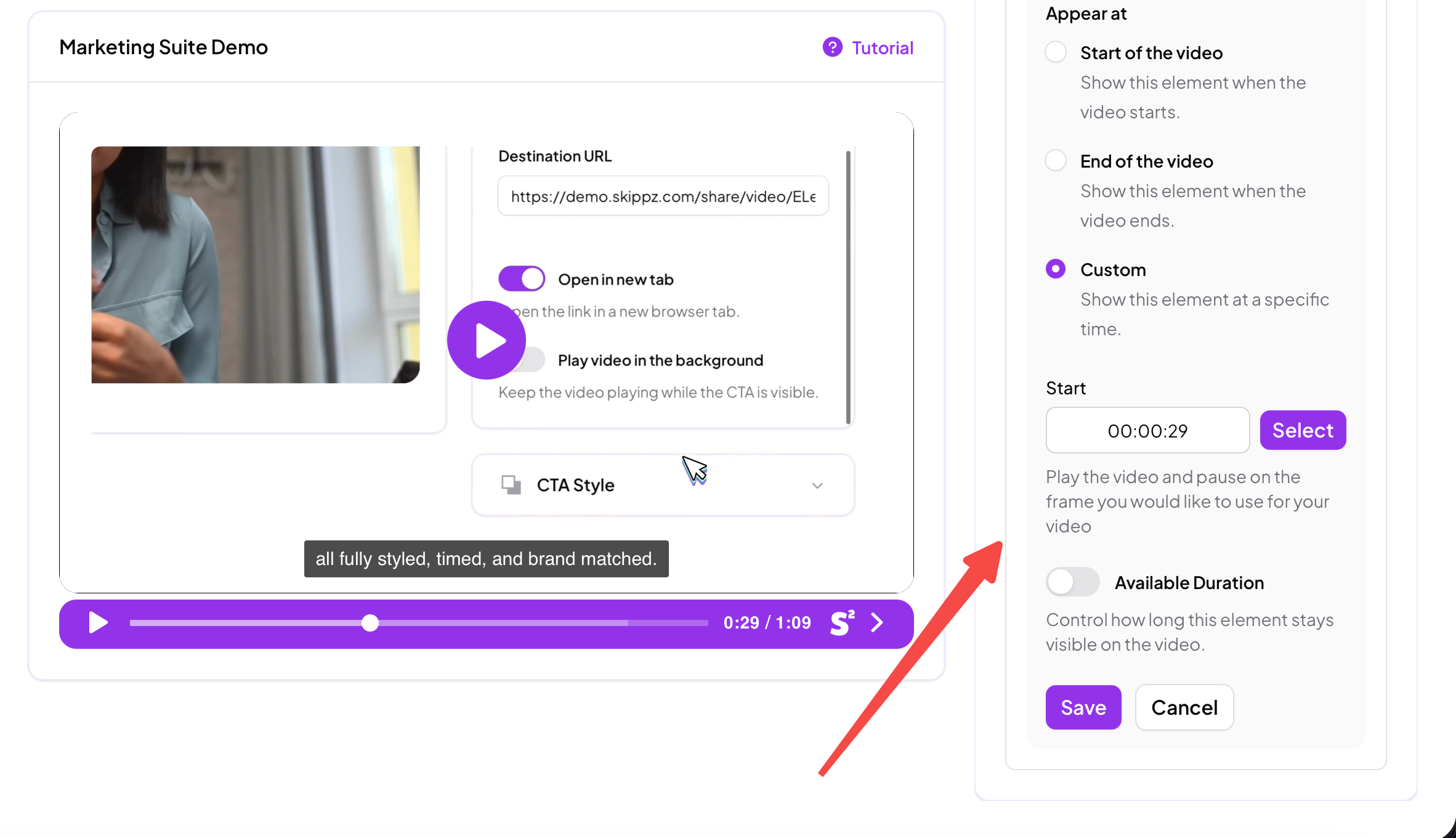
Timing works in combination with:
Play video in the background
Available duration
Expiry time
Viewer interaction
When multiple elements exist in a single video, Skippz intelligently manages their order and visibility using floating timeline logic.
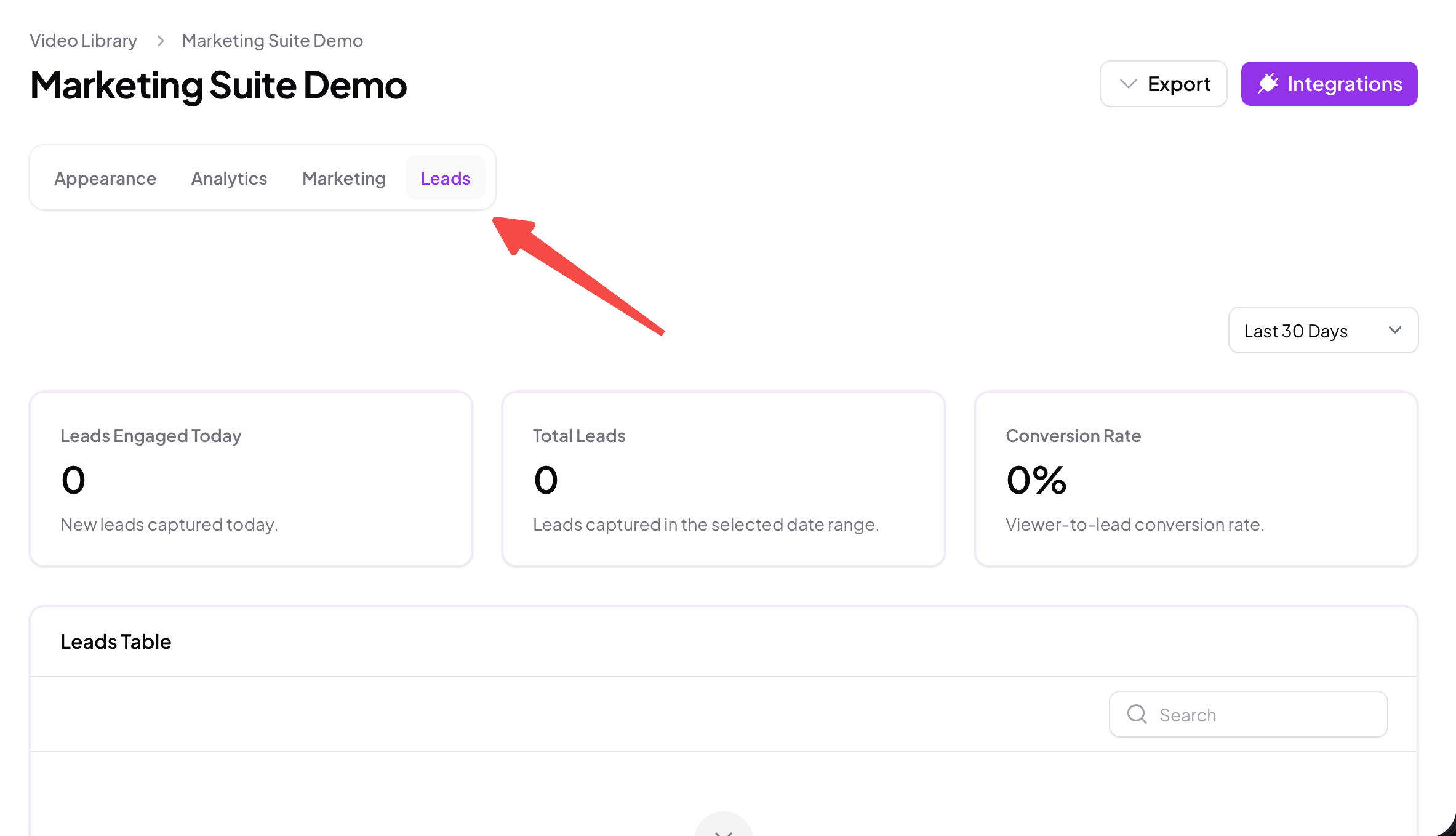
Once a viewer submits a form:
The lead appears in the Leads tab
Data is stored securely with the video it came from
Leads can be sent to external tools using integrations
Each video can have one form
Forms are blocking elements unless shown as buttons
Play video in the background controls whether playback stops
Expiry time and available duration define visibility rules
Floating timeline logic adapts element timing based on viewer behaviour
Forms in Skippz are designed to be powerful without being disruptive.
You stay in control of the strategy, while the system ensures the experience remains natural for your viewers.
In the next article, we’ll cover Call to Actions, including image, text, and button CTAs, and how they interact with forms inside the same video.